
Google AI Studio can turn a written script into an AI voiceover for videos, tutorials, podcasts, courses, and social media clips. You can use its browser-based speech tools without writing code: choose a text-to-speech model, enter your script, select a voice, generate the audio, and download the result. Free access is available within model and account limits, not as an unlimited guarantee.
Quick Answer
To create an AI voiceover in Google AI Studio, sign in, open the speech-generation tool, choose a Gemini text-to-speech model, and select one or two speakers. Paste a short script, pick a voice, generate the speech, listen to it, and download the audio. Free usage is subject to availability and limits.
Key Takeaways
- Google AI Studio offers a no-code starting point for Gemini text-to-speech.
- Gemini 3.8 Flash TTS and Flash-Lite TTS support single-speaker and two-speaker audio.
- There are 30 featured studio voices, plus an extended voice library and custom voice tools.
- Check pronunciation and edit the downloaded audio before publishing.
- Free-tier limits, voice availability, and publishing rules can change.
At a Glance: Make a Google AI Studio Voiceover
| Step | What to do |
|---|---|
| 1. Open | Sign in to Google AI Studio. |
| 2. Set up | Open a speech-generation tool and choose a TTS model. |
| 3. Write | Paste a script and set the speaker mode. |
| 4. Listen | Choose voices, generate, and review the output. |
| 5. Export | Download the audio and finish editing. |

How to Access Google AI Studio
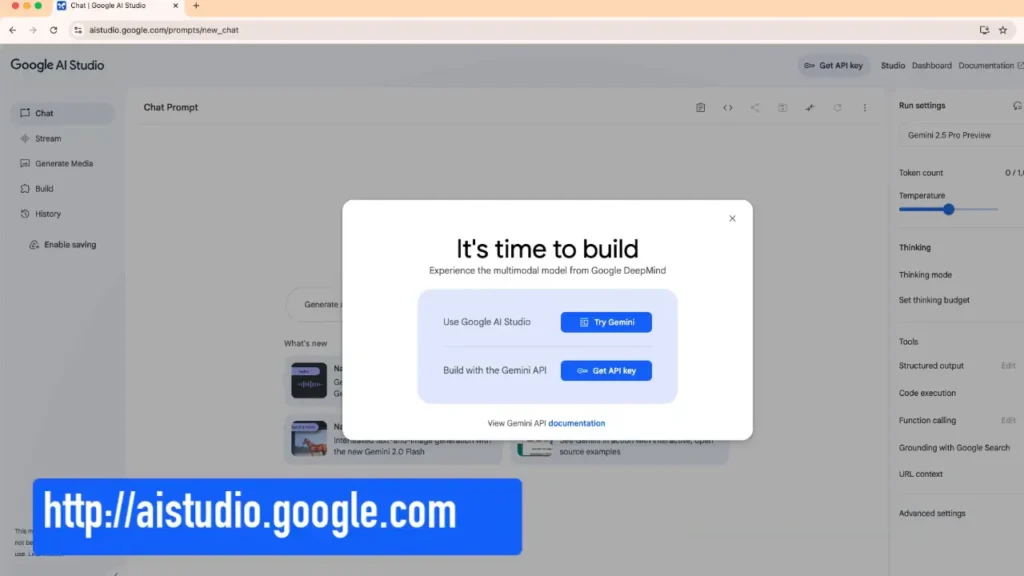
Open Google AI Studio and sign in with your Google account. Accept the relevant terms if you are asked. Google AI Studio is intended for eligible adult users creating with Google’s developer tools, and access depends on your region and account.
Older versions of the interface showed a Try Gemini button. If your screen looks different, use the current navigation rather than searching for that exact button. You do not need to write code to try the browser-based speech tools.

Navigate to Speech Generation Features
Find the speech or audio creation area. In some interface versions, it appears under Generate Media as Gemini speech generation. Menu labels and available models may differ from the screenshots in this guide.
Choose a model with text-to-speech support. Google’s current documentation lists Gemini 3.8 Flash TTS for expressive, carefully directed speech and Gemini 3.8 Flash-Lite TTS for faster, more economical production. You may see older models or different choices in your account.
These TTS models turn text into audio. They are separate from the real-time Gemini Live API, which is designed for interactive audio conversations. You can confirm model capabilities in Google’s official Gemini TTS guide.

Prepare Your Voiceover Script
Write your script before generating audio. Use natural sentences, consistent names, and clear punctuation. Read the text aloud once to find awkward wording or sections that need a pause.
For a tutorial or YouTube narration, select single-speaker mode where that choice is offered. For a short podcast exchange, select multi-speaker mode and assign two distinct voices.
For this tutorial, try a brief debate-style podcast transcript:
Direction: A friendly, lively discussion between two technology fans. Both speakers sound curious rather than angry.
Speaker 1: I prefer iPhone because my messages, photos, and other devices work together so smoothly.
Speaker 2: I like Android because I can customize my home screen and choose from more device options.
Speaker 1: So the better choice depends on what each person values most?
Speaker 2: Exactly. Convenience and flexibility matter in different ways.
Keep the speaker names consistent. In interfaces that provide separate instruction and transcript fields, put the direction in the instruction field and the spoken lines in the transcript field. This reduces the chance that the model reads your notes aloud.
For Gemini 3.8 API workflows, Google recommends structured speaker and style metadata rather than placing general stage directions directly into the spoken transcript. The browser interface may handle that separation for you.
Pro Tip: Test a few lines first. It is easier to fix a name, accent, or pacing issue in a short sample than in a full-length recording.

Select and Preview AI Voices
Choose a voice that suits the project. Google’s Gemini 3.8 TTS documentation lists 30 featured studio voices, including Kore (firm), Charon (informative), Puck (upbeat), and Sulafat (warm). An extended voice library offers additional choices when available.
Use the voice selector and any available Preview or audition option to hear samples. For a tutorial, look for clarity and a steady pace. For a podcast, choose two voices that listeners can tell apart.
When you are satisfied, select Run, Generate, or the equivalent control in your current interface. Listen to the result before generating more sections. If it sounds unnatural, shorten the sentence, choose another voice, or adjust your delivery instructions.
Download and Use Your Audio
After generation, play the complete clip. Check that every line is present, the correct voice speaks each turn, and names or technical terms sound right. Listen for clipping, unnatural pauses, or sudden changes in tone.
Use the download option near the generated audio player. Some versions place it under a three-dot menu. WAV is a standard output for Gemini 3.8 non-streaming TTS requests, although browser download controls and formats can vary.
Import the audio into DaVinci Resolve, Premiere Pro, CapCut, Audacity, or another editor. Cut unwanted silence, balance the volume, and line up the narration with your video. If editing feels slow, see this DaVinci Resolve playback optimization guide.
WAV files are useful for editing but can be larger than compressed MP3 files. Export to MP3 or another format from your editor if your publishing workflow needs it. Save your original script so you can regenerate a sentence later.

Control Voice Style and Tone
Voice instructions help shape the performance. Use short, specific descriptions such as calm and reassuring, enthusiastic but not rushed, or quiet and serious. Avoid asking for several conflicting emotions in one line.
For newer Gemini 3.8 TTS workflows, Google separates continuous delivery instructions from momentary vocal effects. In the API, speech_metadata.style controls the tone of a turn, while supported inline tags can mark a brief sound or pause. Examples include <short pause>, <long pause>, and <sigh>.
Those tags are part of Google’s TTS prompting guidance. They are not a promise of general SSML support. Do not paste arbitrary SSML markup and expect it to work. If your browser editor offers a dedicated style control, use it instead of placing technical tags in the script.
Note: A model may interpret style directions differently across generations. Check the sound rather than assuming every instruction was followed exactly.
Use Custom Voices and Voice Replication Carefully
Gemini 3.8 TTS supports more than a fixed list of prebuilt voices. Voice Design can create a reusable synthetic voice from a written description. Voice Replication can create a voice based on a real adult speaker’s reference audio and required consent recording, through supported Google AI Studio and API workflows.
These are distinct features. They may not appear in every speech editor or account, and they can have their own requirements and limits. Google’s Voice Design guide and Voice Replication guide explain the supported workflows.
Only replicate a voice when you have the required authorization and genuine consent. For current Gemini 3.8 workflows, a single two-speaker TTS request uses prebuilt voices. To use designed or replicated voices in a multi-character scene, generate the turns separately and combine them in an editor.
Common Limitations
- Two speakers per request: Single-request multi-speaker TTS supports up to two speakers with prebuilt voices. Make additional clips if you need more characters.
- Account limits: Free access is available for supported models, but rate limits and model access depend on your project and usage tier. It is not unlimited.
- Long scripts: Long recordings take more review. Split long projects into sections to make corrections and editing easier.
- Variable results: The chosen voice, pacing, or emotional delivery may need another generation to sound right.
- Feature differences: Voice design, voice replication, advanced formatting, and output options depend on the model and workflow.
- File formats: WAV is a standard non-streaming output for Gemini 3.8 TTS. API-based streaming and other configured formats can behave differently.
For current free and paid details, review Google’s Gemini pricing page and rate-limit guide before planning a large batch.
Warning: Do not use synthetic audio to impersonate someone without authorization or mislead viewers. Check the rules of the platform where you publish, including disclosure requirements for realistic altered or synthetic content.
Tips for Better Results
- Write for listening: Use shorter sentences and everyday words. Avoid large blocks of figures or abbreviations.
- Test difficult words: Check names, acronyms, numbers, and foreign-language phrases in a short sample.
- Match the voice to the task: A measured narrator works well for guides; contrasting voices make dialogue clearer.
- Keep direction separate: Where supported, use dedicated style fields rather than putting directions in the spoken text.
- Generate in sections: Name files clearly so you can replace individual lines without starting over.
- Edit after exporting: Review loudness, pauses, timing, and background audio in your editor.
- Protect sensitive content: Avoid pasting private information into free services without first reviewing the applicable data-use terms.
Frequently Asked Questions
Is Google AI Studio free for AI voiceovers?
Google provides a free access tier for supported Gemini models, including eligible text-to-speech models. Usage is limited, and model availability can change. Higher-volume or API-driven workflows may require paid usage, so check the current pricing and project limits.
Do I need to know how to code?
No. You can use the browser-based speech tools for basic voiceover work. Coding is useful if you want to automate large batches, access specific API settings, or connect audio generation to your own app.
How many speakers can I use?
Single-request multi-speaker generation supports two speakers using prebuilt voices. For three or more speakers, create separate clips and combine them in audio editing software.
Can I adjust the emotional expression?
Yes. The supported TTS workflow can use voice selection and style instructions to influence emotion, pacing, and tone. Exact controls depend on the model and whether you use AI Studio or the API.
Can Google AI Studio clone my voice?
Google documents voice replication for Gemini 3.8 TTS, including an interactive Google AI Studio workflow. It requires reference audio and a separate consent recording from the same adult speaker. This is not the same as selecting a prebuilt voice.
Can I create a voiceover in Bangla or another language?
Yes. Google lists Bangla and many other languages among those supported by Gemini 3.8 TTS models. The model detects the language from your text, but you should still test accent and pronunciation before publishing.
What if I need an MP3 file?
Download the available audio file, then convert or export it as MP3 through an editor such as Audacity or your video editing software. A downloadable WAV file is especially useful as a clean editing master.
Can I use Google AI Studio voiceovers for YouTube videos?
Generated audio can be used in video projects subject to Google’s terms and YouTube’s rules. YouTube requires disclosure for certain realistic AI-generated or altered material, especially content that makes a real person appear to say something they did not say. A generic synthetic narrator does not automatically mean every video requires the same label. See YouTube’s disclosure guidance.
More AI and Video Editing Guides
If you are comparing tools for a broader creative workflow, read this Grok vs. ChatGPT vs. Gemini comparison. To evaluate other AI-tool claims, see the five-point AI agent checklist. These related articles cover different subjects from Gemini text-to-speech.
Start Creating Your Audio Today
Start with a short test in Google AI Studio. Choose a supported TTS model, prepare a clean script, audition a voice, and generate a sample. Then correct any delivery problems before recording the rest of your project.
With thoughtful scripting and careful review, Gemini TTS can help you create narration, tutorial audio, and two-person dialogue with less manual recording. Keep an editable copy of your script and check the current model, pricing, and publishing policies whenever you scale up.
Last Updated on October 31, 2026 by Logan Carter



Comments