


You can use Microsoft Copilot on Windows to speak commands, share your screen for visual help, connect supported accounts, and handle routine tasks with less manual searching. This guide walks you through Copilot Voice, Copilot Vision, connectors, visual guidance, privacy settings, and practical tips so you can use these AI tools more confidently on your PC.
Quick Answer
Microsoft Copilot on Windows supports voice commands, screen-aware assistance, visual guidance, and account connectors for supported services. You can open Copilot from the app, Copilot key, or Windows key + C where available, then use the microphone, Vision, or connector settings to speed up everyday tasks.
Key Takeaways
- Use Copilot Voice when you want hands-free help, quick answers, or natural conversation with your PC.
- Use Copilot Vision when you want help with what is visible on your screen or inside a shared app window.
- Use connectors only when you are comfortable giving Copilot access to supported accounts such as email, calendar, or cloud storage.
- Check Windows and Copilot app updates if a feature does not appear on your device.
- Protect private data by sharing only the screen, window, or account access needed for the task.
At a Glance
| Time Required | 5 to 15 minutes to test the main features |
| Difficulty | Easy for basic voice and Vision use |
| Tools Needed | Windows PC, Copilot app, microphone for voice, and permission to share a screen or app for Vision |
| Cost | Basic availability depends on your Windows version, region, account, and Copilot app access |
1. Using Copilot Voice
Copilot Voice allows for natural, conversational interaction with your PC. You can speak to your computer like you would talk to a friend, which helps when typing feels slow or when you want a quick explanation while working.
- Open the Copilot app by pressing the Copilot key or Windows key + C, if that shortcut is available on your device.
- Select the microphone icon to activate voice mode.
- To enable a wake word where supported, go to Settings through your profile menu and turn on Listen for Hey Copilot.
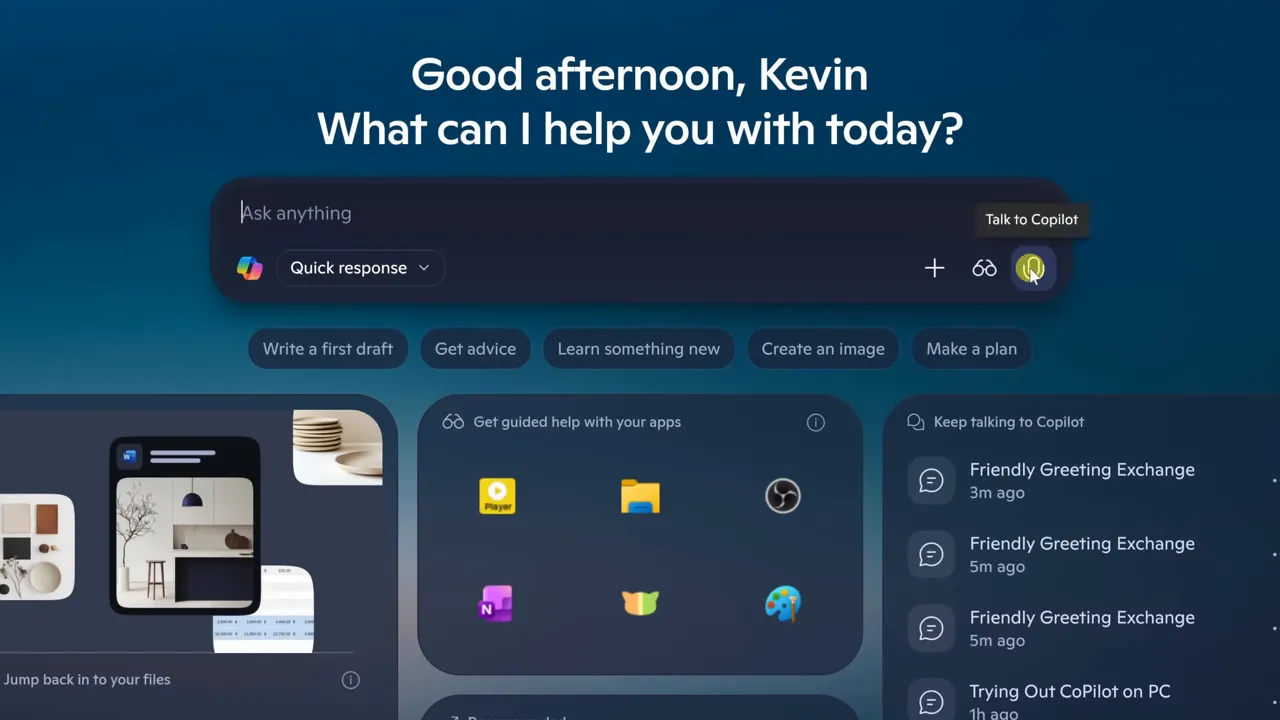
For example, if you ask for cooking advice, Copilot can provide practical details such as oven temperatures, baking times, substitutions, and step-by-step instructions. It works best when your request is specific, such as “How long should I bake salmon at 400 degrees?” instead of “Help me cook dinner.”
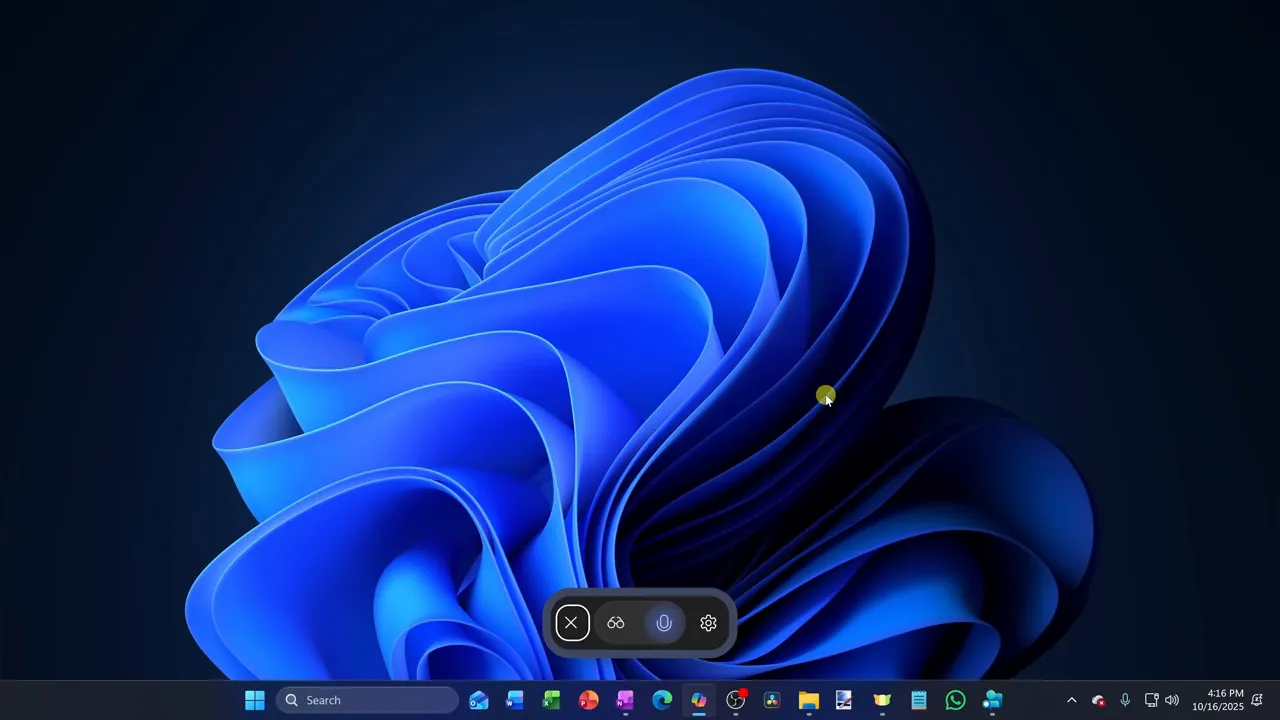
Pro Tip: Speak in complete but simple commands. For example, say “Summarize this topic in five bullet points” or “Give me three ways to fix this problem” to get cleaner answers.
2. Analyzing Screen Content with Copilot Vision
Copilot Vision interprets visual content from your monitor when you choose to share it. You can share your full screen or a specific window so the assistant can provide answers, suggestions, or explanations based on what it sees.
- Open the Copilot app.
- Click the glasses icon to start Vision mode.
- Select the entire screen or an individual application to share.
- Ask a clear question about what Copilot can see, such as “What does this error mean?” or “Where should I click next?”

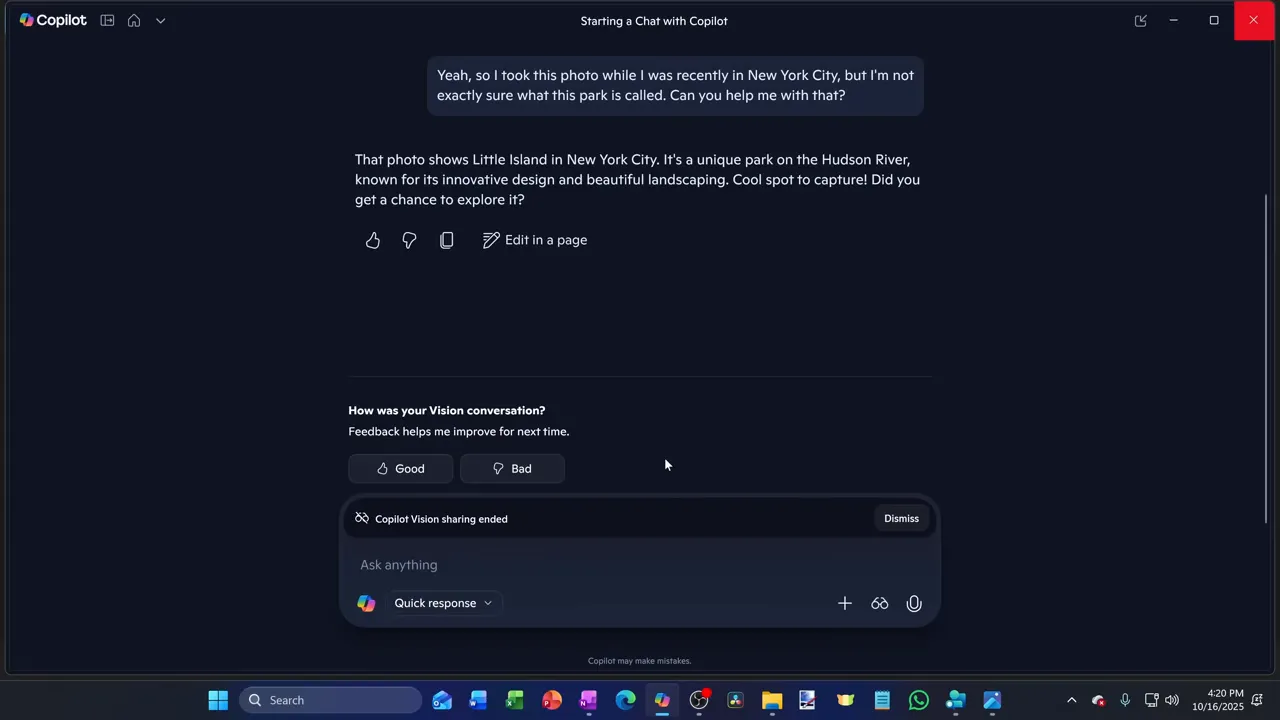
If you share a photograph, Copilot can identify visible landmarks and provide background information about the location. It can also review professional profiles, documents, slides, dashboards, or web pages and suggest improvements based on the content shown.
Warning: Before sharing your screen, close private tabs, hide personal messages, and remove sensitive documents from view. Share a single app window instead of your whole desktop when possible.
3. Visual Guidance Inside Applications
Beyond identifying content, Copilot Vision can guide you through tasks inside applications. It may highlight UI elements, explain menus, and help you navigate software when you are not sure where a setting or feature is located.
To use this feature, ask Copilot for help with a specific task, such as applying conditional formatting in Excel. The assistant can guide you through the needed menu clicks until you complete the process.

It visually points to the correct buttons and tabs while you work. This reduces the time spent searching through menus, especially in apps with many settings, nested options, or unfamiliar layouts.

Best Tasks for Copilot Vision
- Finding a setting inside an app menu.
- Understanding an error message or warning box.
- Reviewing a document, profile, or design layout.
- Getting step-by-step help with software tools.
- Comparing visible information on a page or dashboard.
4. Connecting Accounts and Services
Connectors allow Copilot to pull information from supported services such as OneDrive, Outlook, Gmail, Google Drive, and Google Calendar when available for your account. This lets the assistant search across linked accounts to answer questions about your schedule, messages, documents, or files.
- Open the Copilot app sidebar.
- Navigate to Settings by clicking your profile image.
- Select Connectors to link your preferred services.
- Review each permission request before approving access.

Once linked, you can ask questions about upcoming events, locate files, summarize account information, or generate documents based on calendar data. Always review privacy and permission settings before linking personal accounts so you understand what Copilot may access.

Note: Connector availability can vary by region, device, account type, and app version. If you do not see a connector, update Windows and the Copilot app, then check again.
5. Future Updates for Windows Copilot
Microsoft continues to expand Copilot capabilities across Windows and Microsoft services. Feature names, shortcuts, and availability can change as Copilot receives updates, so your experience may look slightly different from screenshots or older tutorials.
- Direct taskbar access for faster engagement.
- Support for typing questions in Vision mode for use in quiet environments.
- Copilot Actions to automate tasks like photo reorienting or data extraction.


Privacy and Data Best Practices
Using AI features requires careful attention to your data. Only share your screen after clearing private or sensitive information. Review permission settings for all connected services on a regular basis to keep control over your accounts.
- Share a single window instead of the full desktop whenever possible.
- Pause or stop screen sharing when the task is complete.
- Disconnect accounts you no longer want Copilot to access.
- Avoid sharing banking, health, legal, password, or private family information unless there is a clear need.
- Check whether you are using a personal, work, or school account because privacy controls may differ.
Getting Started Tips
- Use Windows key + C to launch Copilot quickly where the shortcut is supported.
- Check for Windows and Copilot app updates if features do not appear.
- Use text-based Vision queries in public or quiet settings.
- Join the Windows Insider Program if you want early access to new tools and understand that preview features may change.
- Start with low-risk tasks, such as summarizing visible text or explaining a menu, before connecting accounts.
Troubleshooting Common Copilot Problems
If Copilot Voice, Vision, or connectors do not appear, the issue is often related to availability, permissions, updates, or account settings. Try these checks before assuming the feature is missing from your PC.
- Microphone does not work: Check Windows microphone permissions and confirm the correct input device is selected.
- Vision icon is missing: Update the Copilot app and Windows, then restart the app.
- Connector option is missing: Confirm you are signed in and that the feature is available for your account type.
- Copilot gives vague answers: Ask a more specific question and mention the exact app, file, or task.
- Screen sharing feels risky: Share one application window instead of your full screen.
Frequently Asked Questions
How do I turn on Copilot Voice?
Press the Copilot key or use Windows key + C where available to open the app, then click the microphone icon. To enable the wake word feature where supported, go to Settings from the profile menu and turn on Listen for Hey Copilot.
How do I share a single application in Vision mode?
Open the Copilot app and select the glasses icon. Choose the option to share a specific application rather than your entire desktop. This keeps unrelated tabs, files, and private windows out of view.
What can Copilot Connectors access?
Connectors can provide access to supported services such as Google Drive, Gmail, OneDrive, Outlook, and Google Calendar, depending on availability for your account. You can manage linked services in the Settings area of the Copilot app.
Can Copilot help me edit my files?
Yes, supported Copilot Actions may help generate agendas, extract data, reorient photos, or complete similar tasks. Availability can depend on your Windows build, Copilot app version, region, and whether you have access to preview features.
Is Vision mode secure for private documents?
Vision mode processes what you choose to share. Avoid sharing screens that contain sensitive or private data unless it is necessary for the task. For better privacy, share one app window and stop sharing when finished.
Why do some Copilot features not appear on my PC?
Some features roll out gradually and may depend on your region, Windows version, Copilot app version, account type, or preview program access. Update Windows and the Copilot app first, then check the app settings again.
Conclusion
Microsoft Copilot on Windows gives you a faster and more natural way to interact with your computer. Start with simple voice commands, then test Vision on a single app window before connecting accounts or using advanced actions. With the right privacy habits, these tools can help you save time, understand on-screen content, and complete everyday PC tasks with less friction.
Sources
- Microsoft Windows Support — Windows feature guidance and troubleshooting support.
- Microsoft Copilot Support — Copilot help, usage guidance, and account-related support.
- Windows Insider Program — information about early access and preview Windows features.
Last Updated on June 27, 2026 by Logan Carter

