

Copilot in OneDrive helps you summarize, compare, and ask questions about cloud files without opening each one. Select up to five supported files, open Copilot, and ask for the key points, differences, or next steps. Eligible accounts can also create audio overviews of certain files. This guide explains how the tools work, what they cannot do, and how to get started.
Quick Answer
Copilot in OneDrive is an AI file assistant available to eligible Microsoft 365 users. On the OneDrive website or supported Windows PCs, you can summarize, compare, and ask questions about up to five selected files. Audio Overviews are available for certain Word files, PDFs, and Teams meeting recordings, with separate requirements.
Key Takeaways
- File Summaries: Summarize one to five supported files without opening them.
- Compare Files: Find high-level differences across up to five files; verify exact edits in the originals.
- Access Options: Use OneDrive on the web and supported Windows File Explorer actions.
- Audio Overviews: Listen to eligible English-language documents or Teams recordings, subject to restrictions.
- Key Limits: Standard file Q&A does not analyze photos or videos, and features depend on the license.

At a Glance
| Best For | People reviewing reports, project notes, and shared files in OneDrive |
|---|---|
| Main Features | Summaries, file Q&A, comparisons, FAQ-style responses, eligible audio overviews, and work/school AI agents |
| Access Points | OneDrive website and supported Windows PCs; audio overviews also available in OneDrive mobile for eligible work or school accounts |
| Requirement | An eligible Microsoft 365 subscription or Copilot license; permissions, feature rollout, and usage limits apply |
How to use Copilot in OneDrive
- Sign in: Open OneDrive on the web and use an account with eligible Copilot access.
- Select files: Choose one to five supported documents, spreadsheets, presentations, or PDFs.
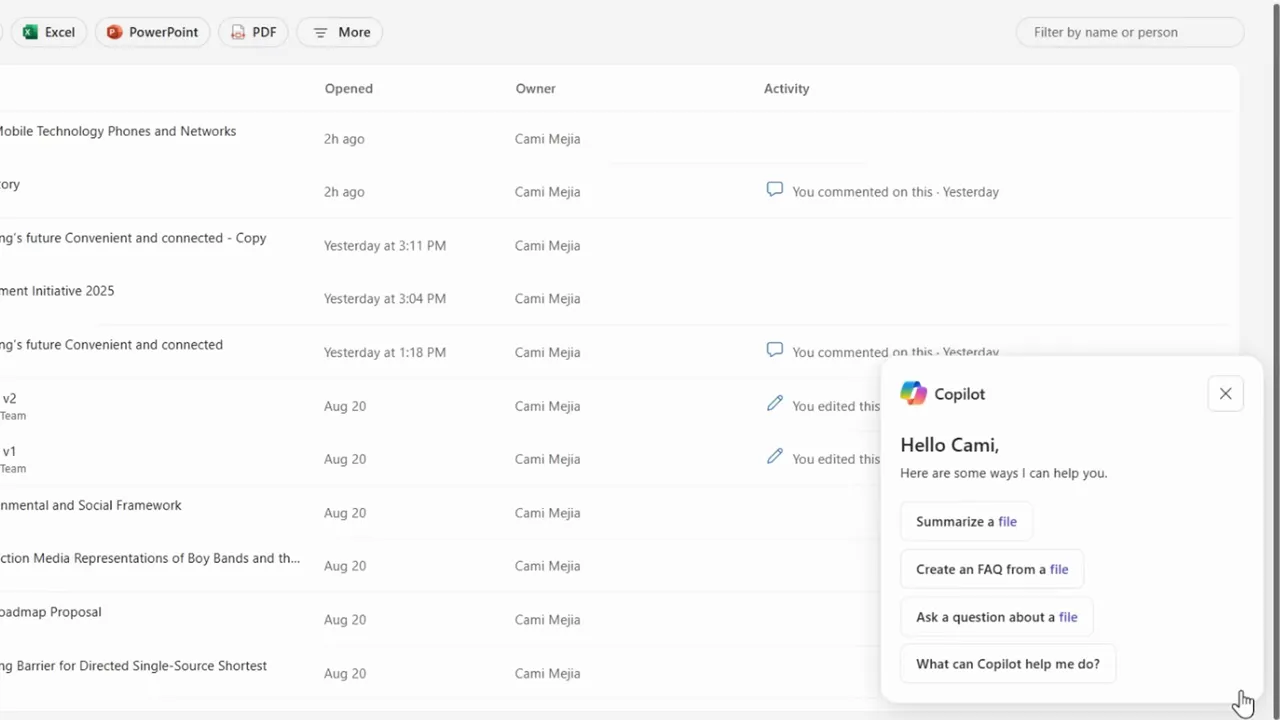
- Open Copilot: Use the Copilot button at the lower-right of the page, the file’s hover action, or an available Copilot menu option.
- Choose a task: Summarize, compare, or ask a focused question. Check the answer against your source files.
For personal use, Microsoft lists eligible Microsoft 365 Personal and Family plans, alongside other eligible consumer plans. In a Family subscription, the Copilot entitlement belongs to the subscription owner rather than everyone in the family group. Work and school accounts need an appropriate Copilot license. Some features roll out gradually and may not appear in every market or account.
Using the floating Copilot button
On the OneDrive website, select a supported file and look for the Copilot button near the lower-right corner. Depending on the selection and interface, you may also see Copilot in the command bar or a file menu. The panel offers actions such as summarizing, comparing, and asking questions.
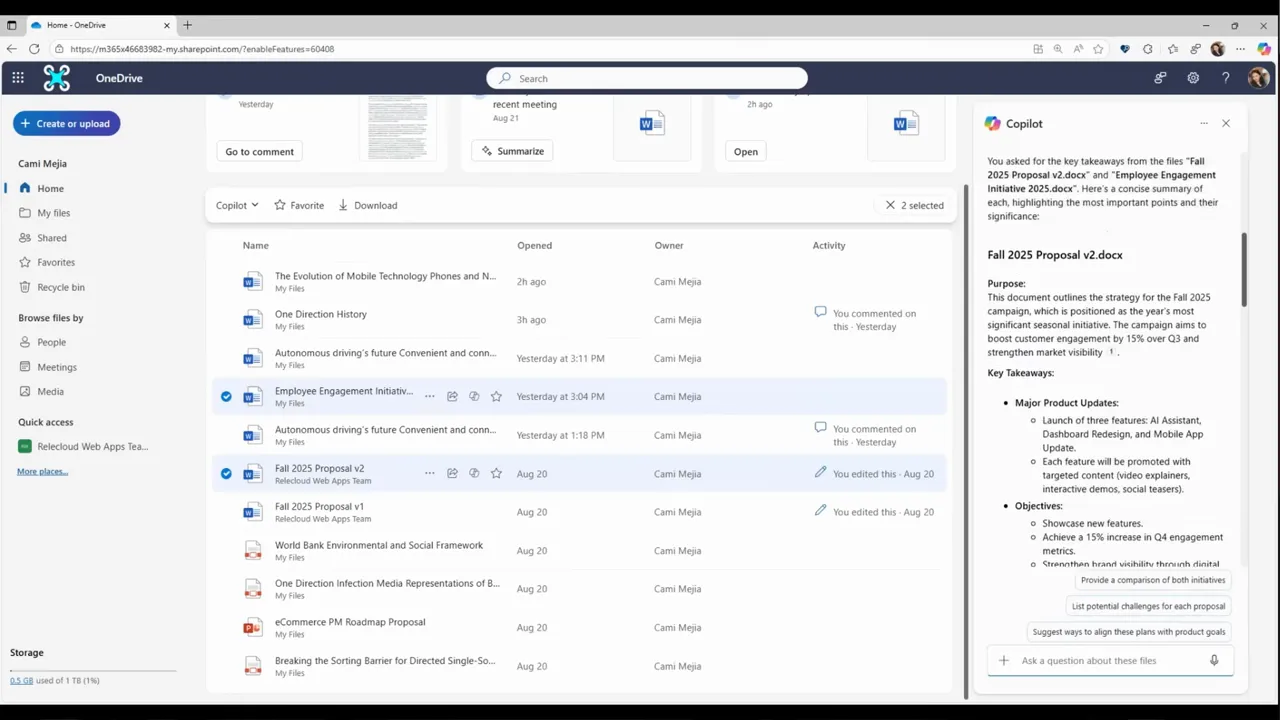
You can type your own question in the Copilot panel. Try a focused request, such as “What decisions were made in this report?” or “Which risks are assigned to the marketing team?” The more specific your question, the easier it is to assess the answer.
Summarize multiple files at once
Select one to five supported files in OneDrive, open Copilot, and choose the summary action. Microsoft documents this for Word files, PDFs, presentations, spreadsheets, and other supported text-based formats. You can then ask follow-up questions about the selected material.
For example, select related meeting notes and project reports, then ask for the deadlines and owners mentioned in each file. A summary can help you decide which document to open first, but it may overlook details in long or complex source material.
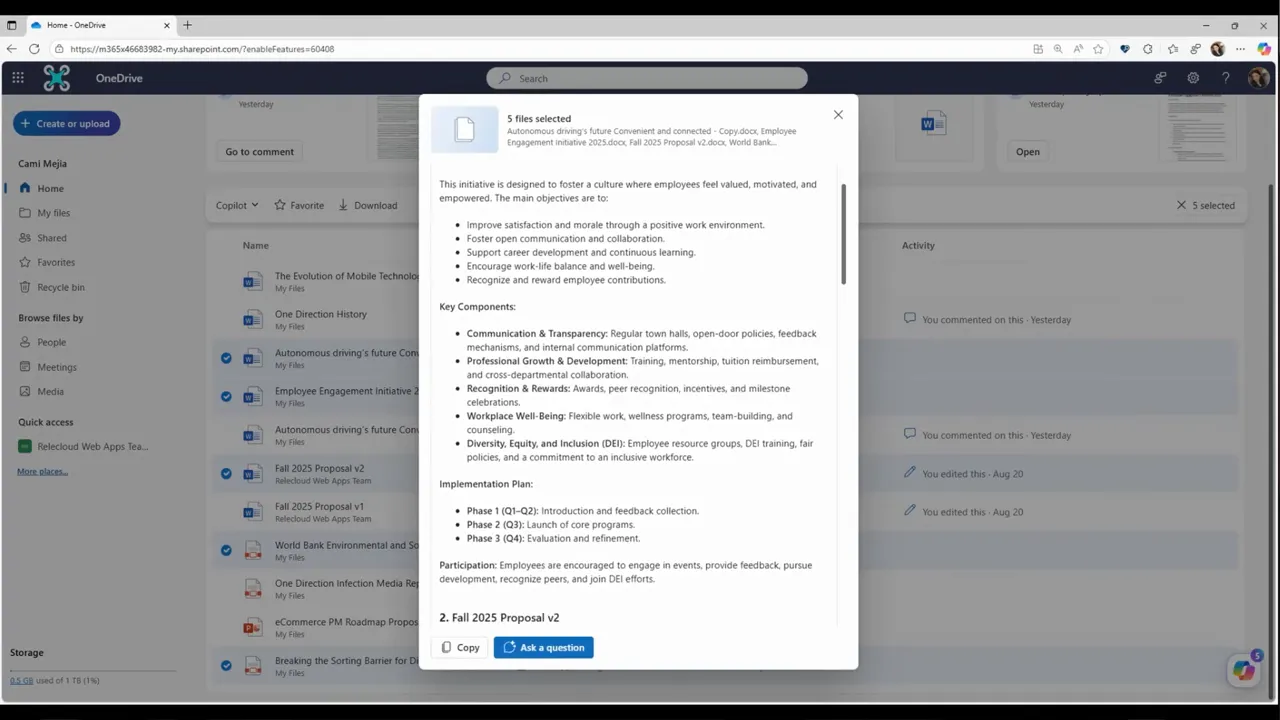
Use simple prompts such as:
- Summarize these files.
- What are the primary takeaways from this selection?
- List the action items mentioned across these files.
- Show the main differences between these documents.
Pro Tip: Select related files together. Copilot works best when the documents share a clear topic, project, meeting, or workflow.
Request file analysis
Ask Copilot a precise question about selected files rather than using a broad request such as “Analyze everything.” It can bring together themes, dates, and other text-based information from supported files. Standard OneDrive file actions are limited to five selected files, and the answer is not a substitute for checking the source.
Useful prompts include “Group these customer comments into themes,” “List each deadline and the document it appears in,” and “Which figures need a follow-up check?” For a better answer, name the project, topic, or time period you care about.
Note: Always review Copilot’s response before using it in a final document, report, or business decision. AI summaries can save time, but you should still confirm important details in the source file.
Compare documents side by side
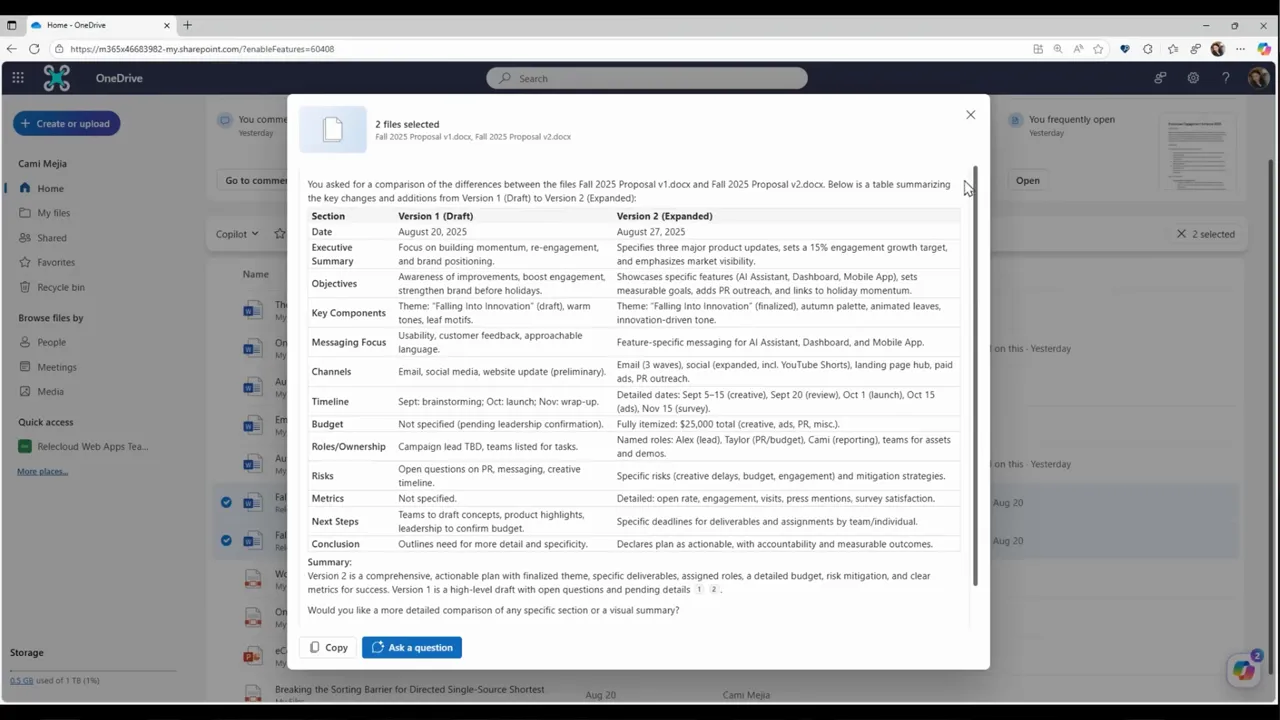
Select two to five supported files and choose Compare files from Copilot. You can use the lower-right Copilot button, the command bar, or the available file menu in OneDrive on the web. Copilot can show a summary or table of similarities and differences.
This helps when you are reviewing proposals, report editions, or related drafts. Copilot may identify differences in content and metadata, but it is not a guaranteed line-by-line change tracker. For legal clauses, exact wording, or final approvals, open the originals and use the relevant document comparison tools.
Access Copilot from Windows File Explorer
On a supported Windows PC, open File Explorer and right-click a OneDrive file. Choose OneDrive, then Summarize, Ask a question, or Compare files, if the command appears. For a multiple-file action, select no more than five supported files before right-clicking.
If the OneDrive menu does not show these actions, try the OneDrive website. The available commands can differ by account, license, Windows setup, and feature rollout. You may be asked to sign in before the Copilot panel opens.
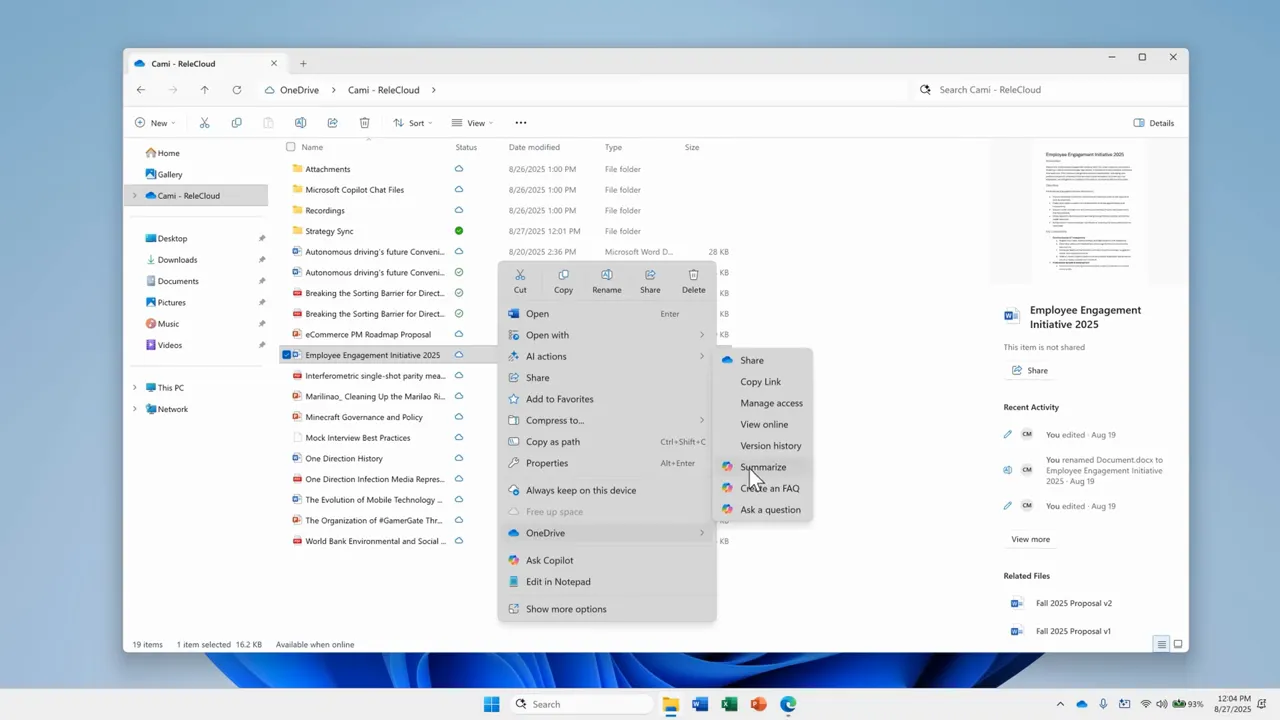
You can also ask Copilot to draft an FAQ from a supported report. Treat the answer as a starting draft: review each question and verify every answer in the report before sharing it.

Can Copilot analyze photos and meeting recordings?
There is an important difference between regular file Q&A and Audio Overviews. Microsoft says the standard OneDrive Copilot summarize, compare, and ask actions do not currently support image or video files. A photo of a whiteboard, for example, cannot be analyzed directly through these standard actions.
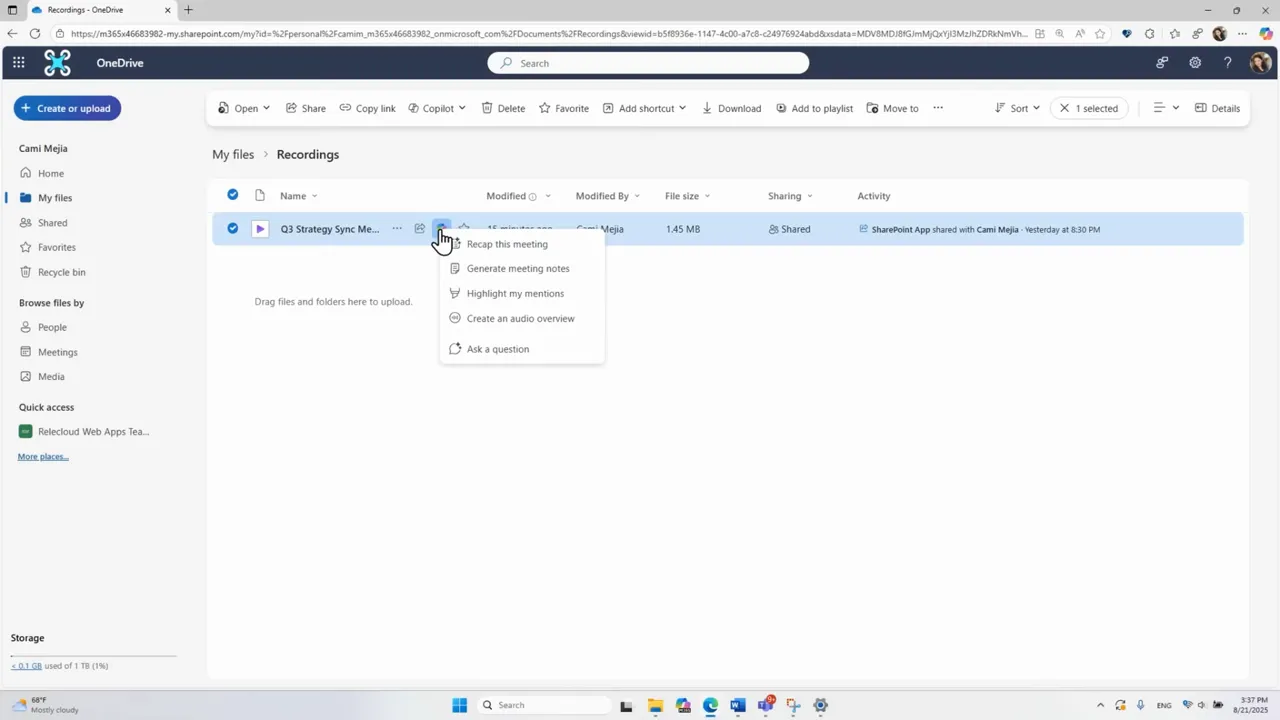
- Meeting recordings: Eligible Teams meeting recordings with transcripts can be used for Audio Overviews. That does not mean general video Q&A is supported in OneDrive.
- Whiteboard photos: The standard file assistant does not extract text or diagrams from image files. If you create an accurate, searchable text document using an approved tool, you may then be able to ask Copilot about that document.
If you need an exact meeting decision or a person’s statement, check the original recording and transcript. The image below illustrates a recording-related workflow; its interface and availability should be checked against your own account.
Listen to documents with Audio Overviews
For eligible work or school accounts, open the OneDrive mobile app, find a supported Word document, PDF, or Teams meeting recording, tap the three-dot menu, and choose Create an audio overview. This feature supports English-language source files only.
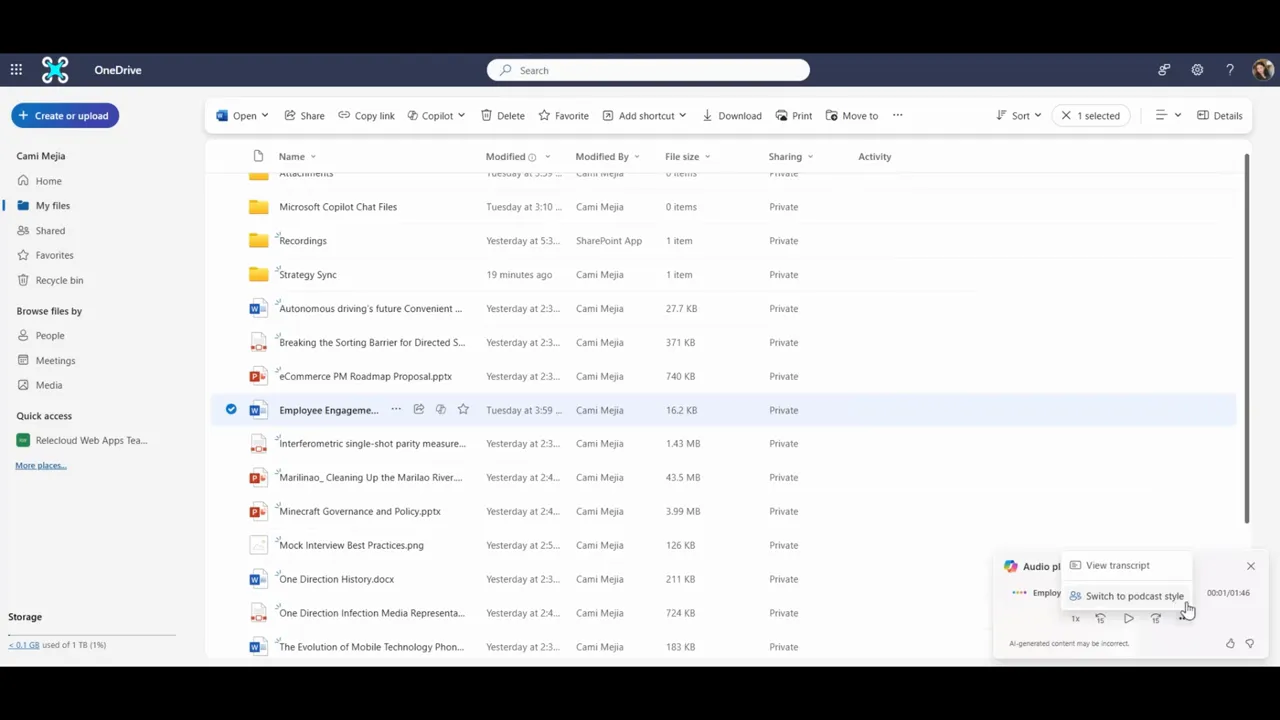
Audio Overviews offer a short Summary Style with one AI host and a Podcast Style with two AI hosts. The player supports pause, playback speed, a transcript, and switching styles. These are generated descriptions of your file, not verbatim readings of the full document.

On the web, select a supported file and choose Get an audio overview of this file from Copilot. Microsoft says the content must have at least 200 words. The feature can have daily limits, and saving an overview to OneDrive is available only when the source file is not encrypted.
Warning: Do not rely on an audio overview as the only source for legal, financial, medical, security, or compliance-sensitive information. Open the original file and verify the exact wording before acting.
Check privacy and file access before using Copilot
Copilot works within your existing file permissions. It can draw on selected files you are allowed to access, including supported shared content. Before using it with confidential contracts, client records, or employee files, follow your organization’s rules for permissions and AI use.
Microsoft says Copilot honors applicable Microsoft Purview information-protection rights. Personal and Family accounts may also use AI credits for actions such as summarizing or comparing files. In work or school environments, administrators and the organization’s licensing choices can affect which commands appear.
Note: Copilot output can be incomplete or mistaken. Check important amounts, dates, names, and sensitive wording in the source files. Avoid sharing generated summaries more widely than the underlying documents allow.
Supported file types and key limitations
For standard OneDrive Copilot file tasks, Microsoft lists text-based formats such as DOC, DOCX, PPT, PPTX, XLSX, PDF, TXT, and RTF. Additional supported formats include HTML and some OpenDocument files. Check support for your exact file and action before relying on a result.
- File selection: Up to five files for standard multi-file summaries, comparisons, or questions.
- File size: Microsoft’s OneDrive Copilot FAQ lists a limit of files under 150 MB for these actions.
- Images and video: Not supported for standard summarizing, comparing, or file Q&A.
- Whole-folder questions: Standard folder Q&A is not supported. Separate work/school agents may use selected folders as sources.
- Audio: English-only source content, selected file types, a minimum of 200 words, and possible daily limits.
Newer Copilot capabilities: OneDrive agents and file tasks
Microsoft also documents newer Copilot tools that go beyond the basic five-file actions. For eligible work or school accounts, you can create a OneDrive agent from selected files or folders, save it as an .agent file, and ask questions about its sources later.
Microsoft’s agent instructions describe a limit of up to 20 source files and require a qualifying work or school Copilot license. Newer business features may also help organize files, generate reports, or automate repeatable tasks. These options are not guaranteed in personal subscriptions or every business tenant.
Practical tips for better results
- Choose related files and stay within the five-file limit for basic Copilot actions.
- Ask for a table with separate columns for decision, owner, due date, and source file.
- Use the OneDrive submenu in File Explorer only when your account shows the command.
- Use Audio Overviews for eligible English-language Word files, PDFs, or Teams recordings.
- Do not expect standard OneDrive file questions to read whiteboard photos or videos.
- Ask a follow-up question if a summary omits an important point.
- Check dates, figures, quotes, and contractual wording directly in the original file.
What to do if Copilot does not appear in OneDrive
If Copilot is missing, check the account you used to sign in before changing Windows settings. A personal subscription, a family plan, and a work or school license do not necessarily provide the same actions.
- Check eligibility: Confirm that the signed-in account includes Copilot in OneDrive. On Microsoft 365 Family, the benefit is for the subscription owner.
- Try OneDrive on the web: Select a supported file and look for the lower-right Copilot button or a file-level Copilot menu.
- Check file limits: Use one to five supported text-based files under the documented size limit for basic file actions.
- Use the correct audio file: Audio Overviews support English-language Word documents, PDFs, and eligible Teams recordings with appropriate content.
- Check rollout and updates: Feature availability differs by market, app version, and user account.
- Contact your administrator: For work or school, confirm the Copilot license, permissions, and organizational settings.
Summary
Copilot in OneDrive is most useful when you have several related documents and need to find a summary, answer, or comparison quickly. The basic web and Windows actions work with selected supported files rather than with every item in a folder.
The main boundaries matter: standard file Q&A does not read image or video files, and Audio Overviews have separate requirements. Start with one supported document, ask a specific question, and verify any details you plan to use.
Frequently Asked Questions
Do I need a Microsoft 365 subscription to use Copilot in OneDrive?
You need an eligible Microsoft 365 subscription or a work or school Copilot license. Microsoft lists Personal and Family options for consumer use; in Family, the Copilot benefit is limited to the subscription holder. Features vary by plan and rollout.
What is the file limit for summarization?
Standard multi-file summarization, comparison, and file Q&A support up to five selected files. Microsoft also lists a file-size limit of under 150 MB for these actions.
Can Copilot process non-text files?
Not through the standard OneDrive summarize, compare, and file Q&A actions: images and videos are not supported there. Audio Overviews are a separate feature that can use eligible Teams recordings with transcripts, as well as Word files and PDFs.
Where do I access Copilot on my PC?
Use OneDrive on the web or, if available, right-click a supported OneDrive file in Windows File Explorer and open the OneDrive submenu for Summarize, Ask a question, or Compare files.
Can I listen to documents instead of reading them?
Yes, if your account has Audio Overviews. Microsoft supports English-language Word documents, PDFs, and eligible Teams recordings; the source needs at least 200 words. Use the OneDrive web interface or the mobile app for eligible work or school accounts.
Why is Copilot not showing in my OneDrive?
Check the signed-in account, licensing, file format, size, and feature rollout. Try OneDrive on the web, and ask your administrator about permissions if you use a work or school account.
Can Copilot answer questions about an entire OneDrive folder?
Basic folder Q&A is not supported. Eligible work or school users can instead create a OneDrive agent from selected files or folders, subject to separate source and license limits.
Sources
- Microsoft Support: Summarize your files with Copilot — Official web and File Explorer instructions, including the five-file limit.
- Microsoft Support: Ask questions about your files — OneDrive web and File Explorer Q&A, and unsupported image or video files.
- Microsoft Support: Compare your files with Copilot in OneDrive — Selection, comparison, and current menu paths.
- Microsoft Support: Frequently asked questions about Copilot in OneDrive — Licensing, formats, permissions, file-size limits, and credit use.
- Microsoft Support: Generate Audio Overviews with Copilot in OneDrive — Supported files, language and word limits, styles, and saving rules.
- Microsoft Support: Create and use an agent in OneDrive — Work or school agents and the separate source limit.
- Microsoft Support: Get started with Copilot in OneDrive — Overview of newer business-file actions and rollout constraints.
To try Copilot, open a supported file in OneDrive, choose Summarize, and ask one follow-up question about a detail that matters to you. Compare the result with the original before you share or act on it.
Last Updated on October 31, 2026 by Logan Carter




2 comments