


Do repetitive tasks take up your day? Sorting emails, recording meeting notes, and manually entering data do not have to be your main responsibilities. You can build an AI email assistant with Lindy that monitors your Gmail, answers customers using a knowledge base, alerts you in Slack, and logs tickets in HubSpot without writing code.
Quick Answer
You can build an AI assistant in Lindy by describing your workflow in plain English. Lindy generates the automation steps, then lets you connect Gmail, Slack, HubSpot, and a knowledge base so the agent can handle common customer emails and route anything it cannot answer.
Think of it as a digital coworker who never gets tired of the busy work.
Key Takeaways
- Lindy lets you create an AI email assistant from a plain-English workflow description.
- A Gmail trigger can start the automation when a new message arrives.
- A knowledge base helps the agent answer common customer questions with more accurate context.
- Conditions can separate answered emails from emails that need a human follow-up.
- Slack alerts, HubSpot tickets, drafts, testing, and task monitoring help you keep control before and after deployment.
At a Glance
| Time Required | 30 to 60 minutes for a simple email assistant, depending on account connections and testing. |
| Difficulty | Beginner-friendly. No coding is required, but you should understand your email workflow. |
| Tools Needed | Lindy account, Gmail account, FAQ or knowledge base content, and optional Slack or HubSpot accounts. |
| Cost | Free to start if your usage fits Lindy’s trial or free credits. Paid usage depends on your plan and task volume. |
Get started with Lindy
Visit Lindy’s homepage to sign up. Use the Try for free button to access the platform. Once you sign in, you can describe the automation you want in plain language.

Before you begin, decide which inbox or support address you want Lindy to monitor. If you run a small business, start with one clear workflow, such as replying to store-hour questions or routing order-status messages. A narrow first use case makes testing easier and reduces the chance of sending the wrong reply.
Note: Start with a low-risk workflow and turn on draft review if customer replies need approval. You can allow automatic sending after the assistant proves reliable.
Describe your first AI agent
Lindy shows a prompt asking how it can help. Describe the agent in plain English. For example, you might request the following:
- Monitor my Gmail inbox for new incoming messages.
- Respond to customers automatically if the knowledge base contains the answer.
- Notify me on Slack and tell the customer I will follow up if the agent lacks the answer.
This natural-language approach captures your workflow quickly. You can refine these steps later through the Agent Builder.

A strong prompt should include the trigger, the information source, the action, and the fallback step. Instead of saying “answer emails,” give Lindy a complete process: watch Gmail, check the knowledge base, reply only when the answer is clear, alert you in Slack when it is not, and create a ticket in HubSpot if follow-up is needed.
Pro Tip: Write the agent prompt like a standard operating procedure. Clear rules about tone, escalation, and limits help the assistant make better choices.
Build the flow in the Flow Editor
Click Build Agent to generate your flow in the Flow Editor. The left side features the Agent Builder, which organizes the automation into connected steps. Confirm the suggested setup to finalize your assistant.
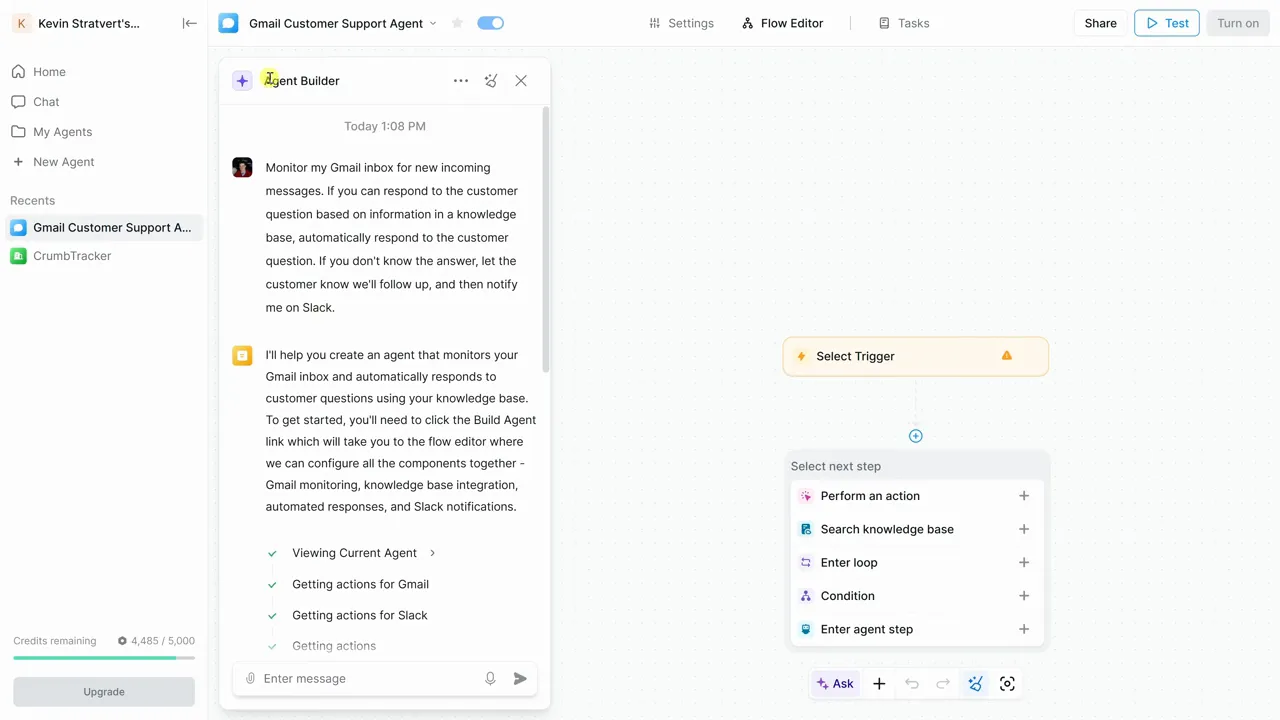
The Flow Editor gives you a visual map of the automation. Review each step before you deploy. Make sure the trigger, knowledge base, condition, reply action, Slack alert, and HubSpot ticket step match the workflow you described.
Set up the Gmail trigger
The trigger starts the process. Authorize Lindy to access your Gmail and choose filters so the agent only reacts to specific messages. You can target messages by sender, status, or keywords in the body. Keeping it simple at the start lets the agent watch all incoming emails.

For better control, create filters that match your support process. You might limit the trigger to emails sent to a support address, messages with a customer-service label, or emails containing words such as “hours,” “refund,” “shipping,” or “order.” This keeps the assistant focused and avoids unnecessary task runs.
Warning: Do not give an email assistant broad sending permissions until you have tested several real-world scenarios. Use drafts first if the inbox handles refunds, complaints, billing, private data, or legal requests.
Add a knowledge base
Add a knowledge base to help the agent answer common questions. You can upload files, paste text, or include URLs. Use a FAQ document containing store hours, product details, or contact information. The agent references this content when it composes replies.
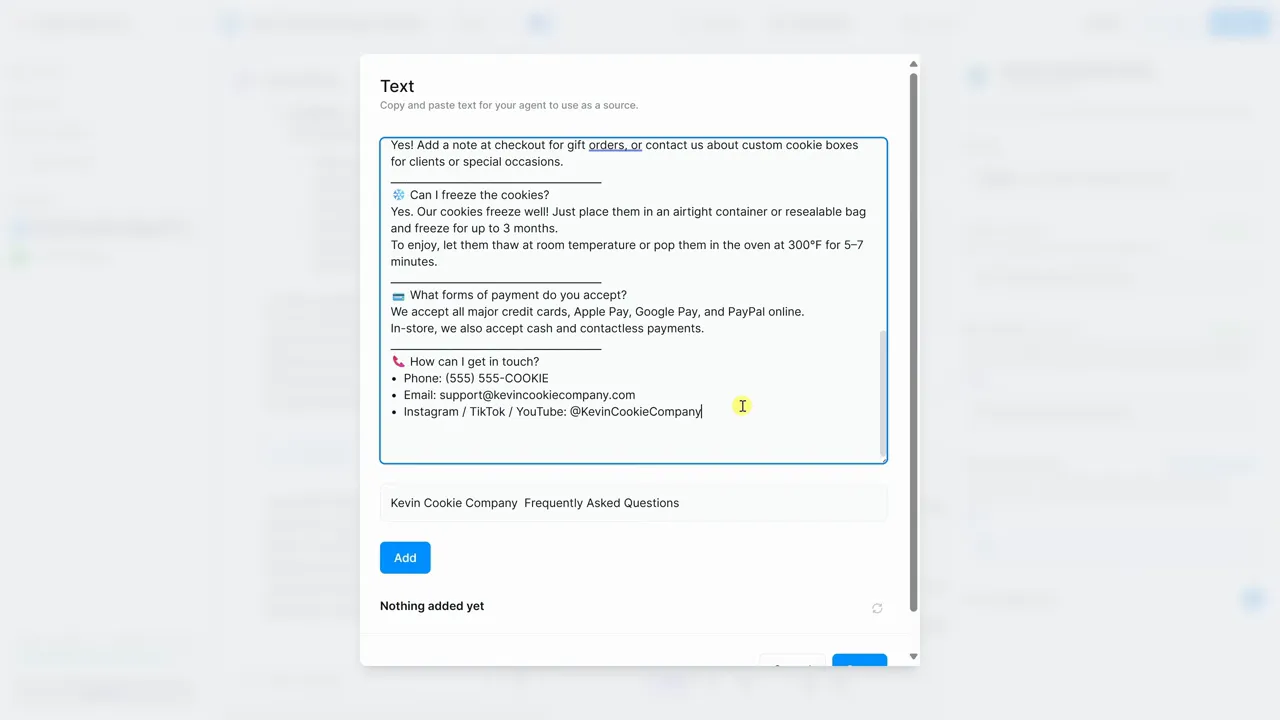
Your knowledge base should be clear, current, and specific. Include answers for common customer questions, but also include rules for what the assistant should not answer. For example, the agent can answer store-hour questions, but it should escalate account-specific billing issues or unusual refund requests.
Useful knowledge base sections include:
- Business hours and holiday hours.
- Shipping times, delivery regions, and tracking instructions.
- Return, exchange, and refund policies.
- Product details, service details, and pricing rules.
- Contact details for human support.
- Escalation rules for sensitive or unclear requests.
Configure conditions and auto-replies
The flow uses a condition to check if the agent found an answer in your knowledge base. If the condition is true, the agent replies using AI to generate the text. If no answer exists, the agent sends a polite follow-up and notifies you in Slack.
You can customize the AI instructions. Use a prompt like this:
Based on the customer inquiry and the knowledge base, provide a helpful and comprehensive response.
Enable the Save as Draft toggle if you prefer to review messages before they go out.
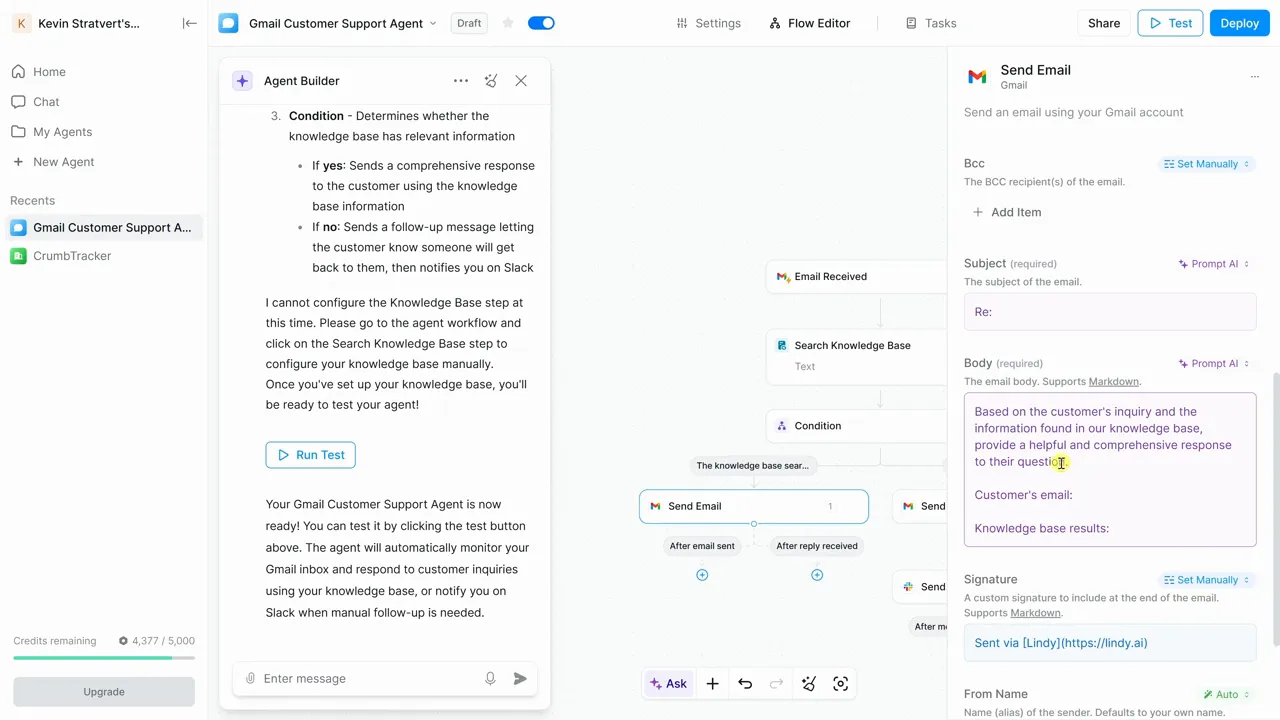
For safer customer support replies, include tone and boundary rules in the AI instruction. Tell the agent to be polite, brief, and specific. Also tell it to avoid guessing when the knowledge base does not contain an answer. A good rule is: if the answer is not clearly supported by the knowledge base, escalate instead of replying with assumptions.
A more detailed instruction could look like this:
Use only the customer inquiry and the connected knowledge base to answer. Keep the tone friendly and professional. Do not invent policies, prices, timelines, or account details. If the answer is missing or unclear, send the fallback response and notify the team in Slack.
Test the agent with sample emails
Testing ensures the agent functions as expected. Use the Test button in the Flow Editor with different scenarios:
- Send a question that matches your FAQ to confirm the agent replies accurately.
- Send an unusual question to verify the agent triggers the follow-up and Slack alert.
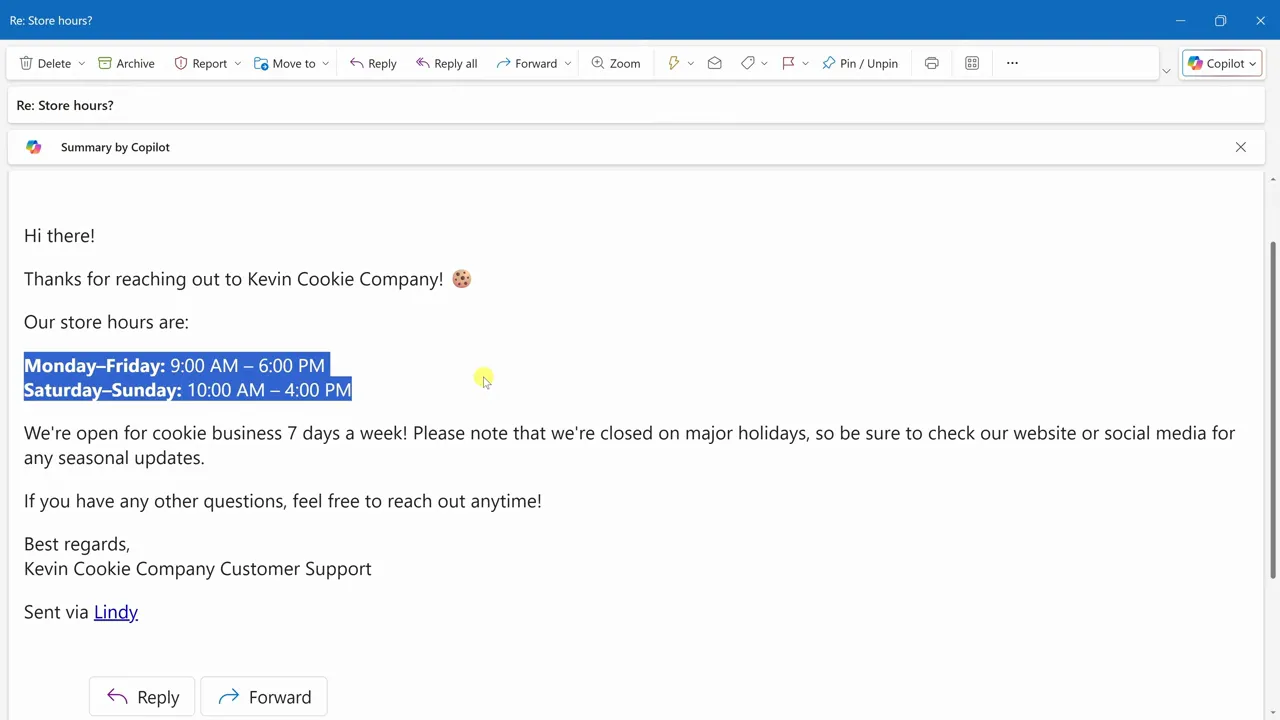
Test more than one easy example. Use at least three types of messages: a common question with a clear answer, a question that partly matches the knowledge base, and a question the agent should not answer. Review the generated subject line, reply body, Slack notification, and ticket details.
Here are sample test emails you can use:
- Simple match: “What time do you close on Friday?”
- Policy match: “Can I return an item after opening it?”
- Missing answer: “Can you give me a custom discount for a bulk order?”
- Sensitive request: “Can you change the email address on my account?”
Note: Testing is not just about whether the agent can reply. It also confirms when the agent should stay quiet, create a draft, or send the issue to a human.
Refine flows and connect apps
You do not need to rebuild flows to make changes. Use the Agent Builder prompt to describe updates, and Lindy modifies the flow for you. For instance, you can ask Lindy to add a HubSpot ticket to the no-answer branch. Lindy adds a Create Ticket step once you connect your account.

Remove steps by clicking the step and selecting delete from the menu.
As your workflow grows, connect only the apps that support a clear business action. Slack is useful for alerts, HubSpot is useful for ticket tracking, and Gmail handles the customer response. Adding too many apps too early can make the flow harder to test and debug.
You can refine the agent by asking Lindy to:
- Add a label to emails the assistant answered.
- Create a HubSpot ticket only when no answer is found.
- Send urgent customer complaints to a specific Slack channel.
- Save replies as drafts for refunds, billing questions, or account changes.
- Use a shorter or warmer tone in customer messages.
Deploy and monitor tasks
Name your agent and click Deploy to make it go live. The agent runs in the background to handle incoming emails. View the Tasks tab to see an activity feed that records every run. This helps you track performance and see how much manual work the agent saves.

After deployment, check the first several task runs closely. Look for missed triggers, unclear answers, repeated replies, or messages that should have been escalated. If the agent creates drafts, review those drafts before sending until you trust the workflow.
Autopilot allows your agent to use a computer. With this feature, the agent can visit websites, log into accounts, and perform actions like a human. Add Autopilot during the initial setup or insert it later in the flow editor to enable complex tasks.

Use Autopilot only when the task truly requires browser or computer actions. Basic email replies, alerts, labels, and ticket creation usually do not need computer control. More complex workflows, such as checking a web portal or updating an external system, may be better suited for Autopilot.
Explore templates and scale
Lindy provides templates to help you find new ways to automate work. You can schedule meetings, update CRM fields, or send notifications. Start with one simple workflow, monitor the results, and then scale to more complex tasks.

Once your first email assistant works well, use templates to build related agents. You might create one agent for customer questions, another for sales follow-ups, and another for meeting scheduling. Keep each agent focused on one workflow so updates and troubleshooting stay simple.
Summary
- Sign up and claim free credits to experiment.
- Describe your needs in plain English and let Lindy generate the flow.
- Add a knowledge base to ensure accurate answers.
- Set conditions for auto-replies and alerts.
- Use draft review when replies need human approval.
- Test common, unclear, and sensitive email scenarios before deployment.
- Refine the flow by adding labels, Slack alerts, HubSpot tickets, or stronger escalation rules.
- Monitor the Tasks tab after launch to review inputs, outputs, and errors.
- Use Autopilot for advanced computer-based tasks.
Frequently Asked Questions
Do I need to know how to code to build an agent with Lindy?
No. You describe the workflow in plain language, and the Agent Builder generates the flow. You still need to review the steps, connect the correct accounts, and test the assistant before it goes live.
How does Lindy access my Gmail and Slack?
You authorize Lindy to access your accounts during setup. You maintain control over permissions, filters, triggers, and connected apps. Start with the minimum access your workflow needs.
Can the agent handle emails it cannot answer?
Yes. You can configure a no-answer branch to send a polite follow-up email, notify you in Slack, and create a support ticket in HubSpot so a human can review the issue.
Should I let the assistant send replies automatically?
Use automatic replies only for low-risk questions with clear answers in your knowledge base. For billing, refunds, account changes, complaints, or legal requests, use Save as Draft or send the message to a human.
What is Autopilot and what can it do?
Autopilot enables the agent to use a virtual computer to visit websites, log into accounts, and perform more complex tasks. Use it when a workflow requires browser actions that simple app integrations cannot handle.
How do I monitor and debug my agent?
Use the Tasks tab to review the history of runs, inputs, and outputs for every task. Check whether the trigger fired, which branch ran, what reply was created, and whether any connected app step failed.
Sources
- Lindy — official platform used to create AI agents and automations.
- Lindy AI Agents — background on creating and managing Lindy agents.
- Gmail — email service used as the inbox trigger in this workflow.
- Slack — team communication app used for alerts and notifications.
- HubSpot Tickets API — reference for ticket creation in HubSpot workflows.
Last Updated on June 27, 2026 by Logan Carter

