


Microsoft Edge AI features can help you automate browser tasks, compare open tabs, organize research, search faster, and summarize on-screen content. The biggest value is simple: Edge can now act less like a passive browser and more like a working assistant while you shop, research, plan, and read online.
Quick Answer
Microsoft Edge now includes AI tools that can automate web tasks, compare multiple open tabs, organize research, improve search, and summarize visible page content. These tools are useful for shopping research, trip planning, long article summaries, and repetitive browser work.
Key Takeaways
- Copilot Actions can help complete repetitive browser tasks, but you should review every step before confirming purchases or changes.
- Multi-tab context is useful when comparing products, prices, specs, or research pages without copying notes manually.
- Journeys can group related browsing sessions so research feels more organized.
- Quick Assist and Copilot Vision can summarize or discuss visible content, but sensitive data should stay off-screen.
- The best way to use Edge AI is to start with low-risk tasks, then build more complex workflows after you trust the results.
At a Glance
| Best For | Research, shopping comparisons, trip planning, page summaries, and repetitive web tasks |
| Difficulty | Easy to moderate, depending on the task |
| Tools Needed | Microsoft Edge, Copilot access, signed-in browser profile for some personalized features |
| Privacy Check | Review Edge and Copilot settings before using screen-aware or personalized features |
Copilot Actions for Browser Automation
Copilot in Microsoft Edge can help with browser-based tasks that normally require several manual steps. Copilot Actions is designed for this kind of workflow. Instead of copying information from a page, opening another site, and filling everything in by hand, you can ask Copilot to help complete the sequence.
I tested this with a recipe on a cooking website. Instead of manually adding every item to Instacart, I clicked the Copilot icon and typed: “Order all the ingredients for this recipe on Instacart.” Copilot scanned the recipe, added the items to my cart, and prompted me to confirm before the final checkout.

This feature significantly reduces repetitive data entry. It is most useful when the task has clear source information, such as a recipe, shopping list, travel plan, or email cleanup request. For example, you may use similar actions to organize an inbox, compare booking options, or collect travel ideas into a plan.
Warning: Do not let browser automation make final decisions without review. Always check cart items, quantities, delivery details, dates, prices, addresses, and payment steps before you confirm anything.
Copilot Actions may still vary by region, account type, device, and browser build. The safest approach is to use it for draft work first. Let Copilot collect, sort, or prepare information, then review the result before you approve the final action.
Multi-Tab Context and Comparisons
Edge can analyze information across multiple open tabs at the same time. This is one of the most practical AI features because many real browsing tasks do not happen on one page. Product research, trip planning, software comparisons, and troubleshooting usually involve several tabs.
I opened three different stand mixer product pages and asked Copilot to compare them based on baking performance. It scanned each page for motor power, bowl capacity, and price, then recommended the best budget and performance options.

I also used follow-up prompts to ask about noise levels and long-term reliability. Copilot synthesized the information from the pages I had open to provide a nuanced answer. You can also target specific tabs by typing the @ symbol in the chat box to ensure Copilot only references the pages you select.
Pro Tip: For better comparisons, open only the pages you want Copilot to use. Too many unrelated tabs can make the answer less focused.
This feature is especially helpful for buyer research. Instead of reading ten product pages and building your own spreadsheet, ask Edge to create a short comparison table. Then ask follow-up questions about the details that matter most to you, such as warranty, price, performance, compatibility, or return policy.
Organizing Research with Journeys
Journeys automatically groups related browsing activity into cards on a new tab. This creates a more organized view of your research sessions. It can help when you browse across many websites and later forget which page had the most useful detail.
When I planned a trip to Whitefish, Montana, Edge collected my flight research, hotel options, and outdoor activity links into a single organized itinerary. Instead of hunting through browser history, I could return to the research as a grouped session.

You can manage these collections in your Edge settings, where you have the option to clear data or disable the feature. Once a Journey exists, you can edit the content to finalize your plans or keep asking Copilot questions in the side pane to refine your trip details.
Journeys works best for topics that involve many related searches. Good examples include vacation planning, school research, home projects, product comparisons, job hunting, and learning a new software tool.
Note: Research organization features depend on browsing activity. If you use private browsing, clear history often, or disable personalization, some Journey-style features may be limited.
Smarter Search and AI Modes
The new search bar on the Edge home page understands more than simple keywords. It can determine whether your request needs a standard web search, a direct chat answer, or a navigation result. Simple queries may trigger regular search results, while complex questions can open a more conversational answer.
For example, a query like “weather in Whitefish” may work best as a quick search. A query like “what is the best time of year to visit Whitefish for hiking and lower hotel prices” needs more context, so chat mode is more useful.
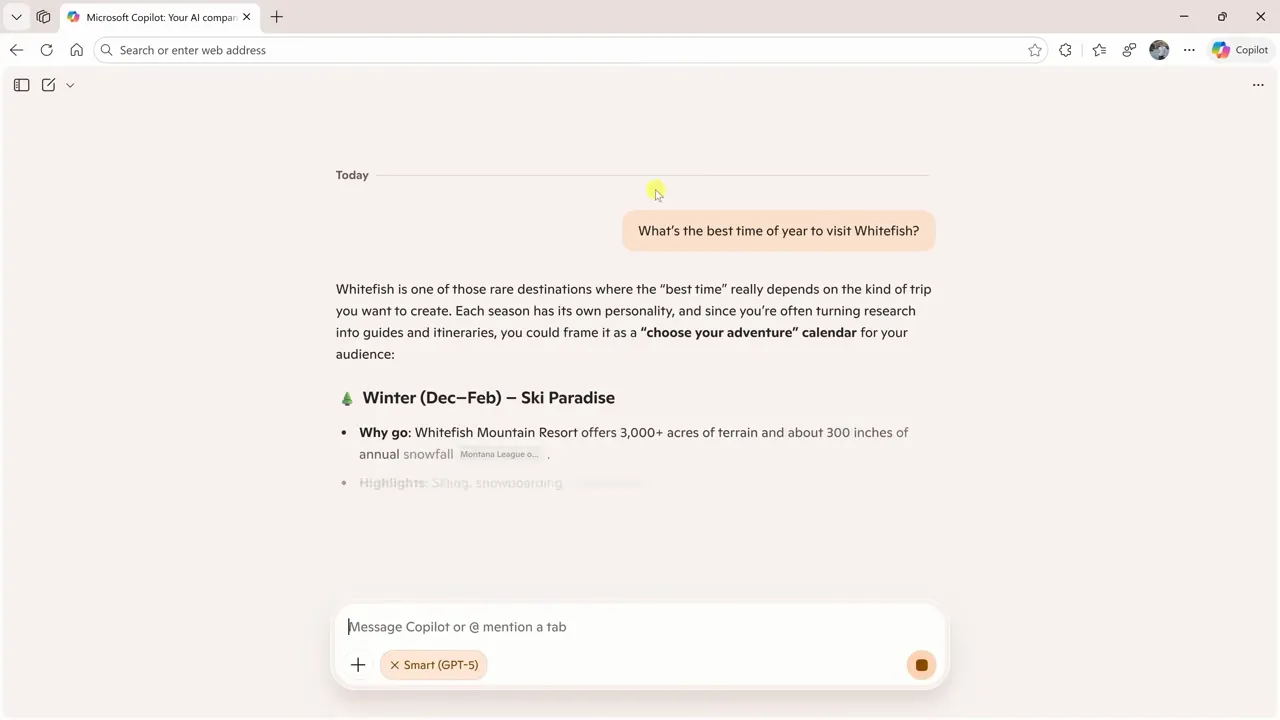
You can also select specific modes to adjust how Copilot processes your requests:
- Quick response: Best for basic facts, definitions, and fast answers.
- Think deeper: Better for complex reasoning, multi-step analysis, planning, and comparisons.
- Smart mode: Lets the browser choose the approach that fits your request.
Use quick responses when speed matters. Use deeper reasoning when you need trade-offs, pros and cons, troubleshooting, or a plan. Smart mode is best when you are not sure which style fits the task.
Quick Assist and Copilot Vision
Quick Assist lets you access Copilot directly within your current tab. You can open it via the Copilot icon or the Alt + C shortcut. On any page, you can ask Copilot to scan text, summarize key points, or explain a difficult section.
This is useful when you land on a long article, support document, product page, or video transcript. Instead of reading everything from top to bottom, you can ask for a summary first, then decide which sections deserve your attention.

Copilot Vision extends this by letting you discuss on-screen content verbally. Click the microphone icon in the Quick Assist pane and ask questions about what you see. For example, I asked Copilot to analyze the sentiment of user comments on a page, and it correctly identified the feedback as mixed but generally impressed.

Always check your security and privacy settings before using automated analysis features. Avoid displaying sensitive personal data when you use tools that interact with your on-screen content. This includes banking pages, private documents, medical portals, passwords, client files, and confidential work dashboards.
Warning: Screen-aware AI tools can only analyze what is visible, but visible private information may still be processed by the service. Close or hide sensitive tabs before starting a screen-based assistant session.
Practical Workflow Examples
These features work best when you combine them to streamline common web tasks. Try these workflows to save time:
- Use Copilot Actions to move recipe ingredients directly into your online grocery cart.
- Compare products across multiple tabs to find the best value without manual note-taking.
- Gather travel research into Journeys to build an editable, organized itinerary.
- Use the smart search bar to switch between quick facts and deep-dive analysis.
- Summarize long articles or comment sections instantly using Quick Assist.
You can also build more advanced workflows once you understand how each feature behaves. For example, start with smart search to research a topic, open the best pages in separate tabs, use multi-tab context to compare them, and then save the research through Journeys. If the pages are long, use Quick Assist to summarize each one before making a decision.
The strongest Edge AI workflow is not one single feature. It is the combination of search, tab comparison, research organization, and careful human review.
Best Practices for Using Microsoft Edge AI Safely
AI browser features are helpful, but they work best when you stay in control. Treat Copilot as an assistant, not a final authority. This matters most when the task involves money, personal accounts, travel dates, health information, legal information, or business data.
- Review before acting: Check all generated summaries, carts, bookings, and recommendations.
- Use selected tabs: Limit Copilot to the specific tabs you want analyzed when accuracy matters.
- Protect sensitive data: Close private pages before using screen-aware tools.
- Check original sources: Use Copilot summaries as a starting point, then verify important details on the original page.
- Keep Edge updated: AI features can change across builds, regions, and account types.
For privacy controls, review Microsoft Edge settings and Microsoft account settings. You can also check Microsoft’s official information about privacy practices and Microsoft Edge support when you need feature-specific guidance.
Frequently Asked Questions
How do I order ingredients using Copilot Actions?
Open the recipe page, click the Copilot icon, and ask it to order the ingredients through your preferred service. Copilot can extract the items, add them to your cart, and ask you to confirm before you pay. Review every item before checkout.
Can Copilot compare only certain tabs?
Yes. Type the @ symbol in the Copilot chat to select the specific tabs you want to compare. Copilot will base its answer on the content found in those selected pages, which helps reduce unrelated information.
What are Journeys in Microsoft Edge?
Journeys are research-style collections that group related browsing activity. They help you return to a topic without digging through every item in your history or manually bookmarking each page.
How do I adjust Copilot’s reasoning?
The new search experience may let you choose between faster answers and deeper reasoning modes. Use quick responses for simple facts and deeper reasoning for comparisons, planning, troubleshooting, or decisions with trade-offs.
Is Copilot Vision safe for private info?
You should avoid showing sensitive information while using screen-aware features. Keep bank details, passwords, private documents, client data, and medical information off-screen before asking Copilot to analyze visible content.
What is the best Microsoft Edge AI feature for productivity?
Multi-tab comparison is often the most useful everyday feature because it helps with shopping, research, planning, and decision-making. Quick Assist is also valuable when you need fast summaries of long pages.
Sources
- Microsoft Edge Copilot — official overview of Copilot features in Microsoft Edge.
- Microsoft Edge Support — official support hub for Edge features, settings, and browser help.
- Microsoft Privacy Statement — privacy practices for Microsoft products and services.
Final Thoughts
AI tools in Microsoft Edge can turn your browser into a more proactive assistant for research and repetitive digital work. These features help you shop, travel, compare products, summarize long pages, and analyze information with less manual effort.
Start with one low-risk feature, such as summarizing a page or comparing a few open tabs. Then move into more advanced workflows like Journeys, Copilot Actions, and screen-aware assistance. The best results come when you let Edge handle the busywork while you keep control of the final decision.
Last Updated on June 27, 2026 by Logan Carter

