
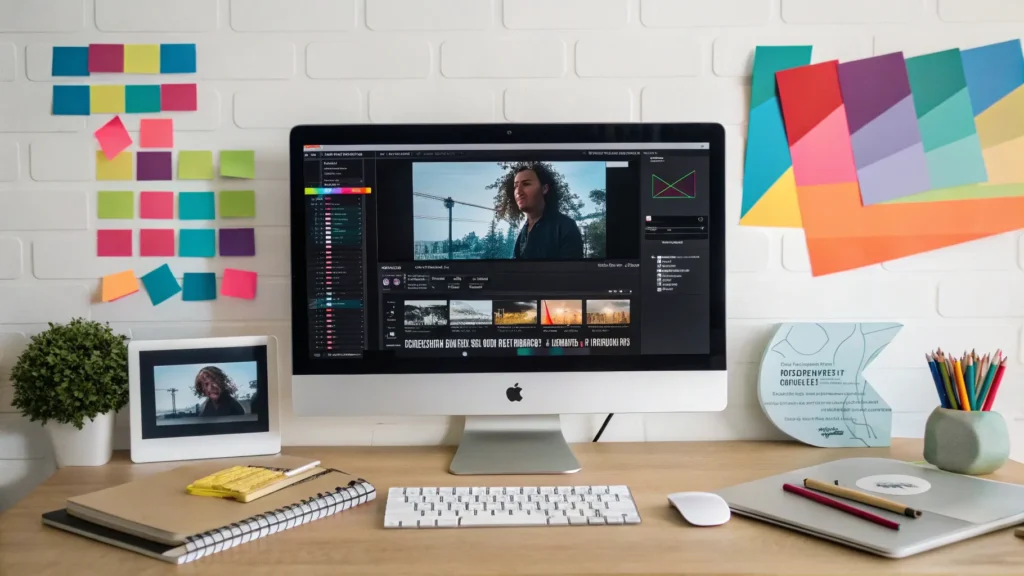

Google AI Studio is a browser-based workspace where you can test Gemini prompts, work with text and media, and explore AI-powered content creation. You can use it to plan YouTube videos, draft scripts, analyze footage, create image concepts, and try supported image, video, or speech models. It is a creative workspace, not a replacement for a full video editor or design app.
Quick Answer
Google AI Studio lets you experiment with Google’s Gemini models in your browser. Start by choosing a suitable model, entering a specific prompt, and reviewing the output. Depending on your access and selected model, you can analyze media, generate or edit images, create speech, and explore video generation. Finish detailed edits in dedicated creative software.
Key Takeaways
- Use Google AI Studio to test prompts, draft content, analyze media, and prototype creative workflows.
- Image generation, text-to-speech, and video generation use different supported models or interfaces; access and billing can vary.
- Gemini 2.0 Flash was shut down on June 1, 2026. Choose a currently available model instead.
- Specific prompts, source material, and human review improve the usefulness and reliability of AI output.
If you create blogs, tutorials, product explainers, or social media posts, the main benefit is faster experimentation. You can test several approaches before committing time to filming, recording, or layout work.
This guide explains how to use Google AI Studio for scripts, images, videos, audio, and repeatable content workflows. It also explains where its capabilities end and where a specialist editor still helps.
Google AI Studio: Core Features for Modern Creators
Google AI Studio is an experimental workspace for Google’s generative AI models. Its Playground supports conversational prompts and model settings, while other available experiences may include media generation or app prototyping. The exact options depend on the selected model, account, region, and current service availability.
For everyday creation, you can start with text prompts and add images or other supported inputs. Use the output as a draft, creative brief, or starting asset rather than treating it as finished work.
- Writing and planning: Draft hooks, outlines, scripts, descriptions, and content calendars.
- Multimodal analysis: Ask supported models questions about images, video, audio, or documents.
- Image creation and editing: Explore supported Nano Banana image models for generation and prompt-based changes.
- Speech generation: Test supported text-to-speech models and voice directions.
- Video generation: Explore supported video tools or API workflows while checking model access and limits.

How to Get Started with Google AI Studio
- Open the official website: Visit Google AI Studio and sign in with an eligible Google account.
- Choose a workspace and model: Start in the Playground for a text or multimodal prompt. Select an available model suited to your task.
- Write your goal: Specify the audience, content format, topic, tone, output length, and any restrictions.
- Add source material when needed: Attach supported images or other files, if that model and interface permit them. Remove sensitive information first.
- Run and review: Read the response, check important claims, and ask for focused improvements.
- Finish elsewhere: Copy your approved script to a document or take the finished media asset into your normal editing workflow.
Note: The labels and controls in AI Studio can change. Google’s AI Studio quickstart describes the Playground, prompts, Run settings, and model options. Check your account before relying on a specific menu or feature.
How to Create and Edit Videos with AI
Google AI Studio is useful for planning videos and exploring supported generative video models. It can produce scripts and scene directions, while Gemini video tools also support generation and conversational video editing through documented API workflows. Those features should not be confused with timeline editing in CapCut or Premiere Pro.
Plan a Video Before Generating Clips
- Find a clear angle: Ask for three hooks based on the audience’s problem and the platform.
- Draft a script: Request spoken narration, on-screen text, and an ending call to action.
- Create a shot list: Break the script into short scenes with camera direction and visual details.
- Plan captions: Draft accurate subtitles and supporting social descriptions.
- Review pacing: Check whether the spoken word count fits the target video length.
Generate or Refine Video Where Supported
Google documents Gemini Omni Flash for text-to-video, image-to-video, and conversational video-editing workflows through the Gemini API. The previous Veo 3.1 Preview API models were shut down on October 22, 2026. Use the video features currently available in your AI Studio account or the documented API rather than following an older Veo tutorial without checking its model name.
For a short product explainer, write a separate visual prompt for each scene. Review motion, continuity, lettering, and factual details before combining clips in a video editor. Video generation is not the same as cutting existing footage, adding precise transitions, or finishing an audio mix.
Pro Tip: Try this prompt: “Create a 45-second beginner tutorial about cleaning a camera lens. Give me a hook, voiceover, six shots, on-screen text, and a short closing line. Avoid unsupported claims.”

Advanced Image Editing and Style Transformation
Google’s Nano Banana family supports image generation and prompt-based editing. With a supported image model, you can describe a new composition or upload a permitted reference image and request changes. Model and feature availability vary, and results may require several attempts.
- Expression and mood: Ask for a happier or calmer expression while keeping the scene believable.
- Pose and composition: Describe the camera angle, framing, subject placement, and intended crop.
- Style and clothing: Request a color palette, outfit variation, or illustration style.
- Brand direction: Reuse approved visual descriptions and reference materials for a more consistent look.
- Thumbnail concepts: Ask for a strong focal point, readable space for text, and a layout suited to the platform.
For example, you could ask: “Edit this authorized product photo for a 16:9 tutorial thumbnail. Keep the product shape and branding unchanged. Add a bright, uncluttered background and leave space for a short headline on the left.” Check whether the model preserved the product accurately.
Warning: Review generated visuals for distorted faces or hands, incorrect labels, changed logos, false product details, and misleading edits. Only upload images you have permission to use, and obtain consent when editing a real person’s likeness.

Converting Video Content into Written Scripts
You can repurpose an existing video into a blog post, lesson outline, or short social script. Gemini supports video understanding, including questions about video events and timestamps. Depending on the available interface, you can provide a supported video input or work from an existing transcript.
- Supply the source: Upload a video if the workspace and model allow it, or paste a transcript you have permission to use.
- Ask for a faithful outline: Request the main points, examples, and important timestamps without adding unsupported details.
- Create a new format: Turn the outline into a blog structure, newsletter, or concise social script.
- Check the source: Compare names, quotations, timestamps, and technical claims with the original recording.
- Edit for the platform: Make the writing more readable, add original context, and avoid copying another creator’s work without permission.
One useful prompt is: “Using only this transcript, draft a 600-word tutorial with a short introduction, numbered steps, and a summary. Flag unclear points rather than inventing missing instructions.” Direct video analysis may miss fast visual details, so verify any scene-specific description.

Efficiency Through User-Friendly Design
The Playground makes prompt experiments accessible without installing a large desktop application. You can keep a prompt focused, alter instructions, and compare different outputs. For a complex deliverable, use separate stages for research, drafting, and revision.
- Prompt testing: Compare several headlines, hooks, or script structures.
- Model settings: Explore the controls provided for your selected model, where available.
- Multimodal input: Include permitted reference media if the model supports that format.
- Structured output: Request a table, checklist, or clearly labeled content plan.
- Reusable briefs: Keep a successful prompt format for later campaigns.
At a Glance
| Best For | Bloggers, video creators, marketers, educators, and teams experimenting with AI-assisted production |
| Difficulty | Beginner-friendly for prompts; media generation and API workflows require more care |
| Common Uses | Scripts, outlines, media analysis, image editing, speech, and supported video generation |
| Cost | A free tier covers certain models within limits; paid API keys and selected features can incur charges |
Understanding Gemini Models and AI Capabilities
AI Studio offers access to different Google AI models, and each is built for particular tasks. For example, Google’s current documentation lists Gemini 3.8 Flash for general AI tasks, Nano Banana image models for image creation and editing, and Gemini 3.8 Flash TTS for speech. Google also documents Gemini Omni Flash for video generation through the API.
Gemini 2.0 Flash is no longer a current choice. Google shut it down on June 1, 2026. The model menu and available modes will keep changing, so check the current model list before following an older tutorial.
Choose based on the required output rather than assuming every model can produce every format. A standard text model may analyze a photo, but that does not make it an image-generation model. Likewise, generating a video is different from understanding an uploaded one.

Optimizing Results with Better Prompts
Useful prompts work like short creative briefs. They explain the audience, goal, source material, style, and deliverable. A vague request may produce a generic result even when you use a capable model.
- State the task: Say whether you need a script, outline, thumbnail concept, narration, or image edit.
- Describe the audience: Include the viewer’s experience level and what they want to learn.
- Provide source facts: Supply approved product details, research, or an existing transcript.
- Set a format: Request a length, heading structure, aspect ratio, or scene count.
- Set limits: Tell the model not to invent quotes, specifications, or results.
- Iterate: Ask for one targeted improvement at a time, then review the final output.
Example Prompt for a Creator
Create a 60-second YouTube Shorts script for first-time travelers about organizing a carry-on bag. Use simple US English. Give me a three-second hook, five practical tips, matching on-screen text, and a closing line. Avoid airline-specific baggage limits unless I provide a source.
If the first draft is too long, ask the model to cut repeated advice and shorten the narration without losing the key steps. Check all recommendations before recording.

Integrating AI with Traditional Software
Google AI Studio can shorten the planning stage, but a dedicated editor is still valuable for precise adjustments. Use software such as Adobe Photoshop, Premiere Pro, CapCut, Final Cut Pro, or Canva when you need controlled layouts, scene timing, layered edits, and export settings.
- Smart editing workflow: Generate a concept, script, or shot list before opening the editor.
- Image refinement: Adjust text placement, colors, masking, and final dimensions in a design app.
- Video production: Assemble scenes, check subtitles, balance sound, and export the final file.
- Brand consistency: Compare assets with your style guide and approved logos.
- Quality control: Check permissions, accuracy, accessibility, and the finished experience.
Note: Drafts and media uploaded to AI services may contain private or licensed material. Review Google’s current data-use terms and your organization’s policy before submitting client files, personal images, or unpublished work.

Workflow Benefits for Scaling Content
A repeatable workflow helps you save time without publishing unreviewed material. Instead of asking for an entire campaign in one step, divide the work into planning, drafting, verification, and production.
- Less repetitive writing: Draft outlines, captions, and variations from an approved brief.
- Faster comparisons: Test different hooks and styles before selecting one.
- Cleaner collaboration: Give editors and designers structured instructions.
- Consistent output: Save useful prompt templates for recurring content types.
- More repurposing: Adapt one verified source into a video script, article outline, and social captions.
A Practical Creator Workflow
- Choose one audience question and gather reliable source material.
- Draft the script or outline in AI Studio.
- Verify facts and revise the draft in your own voice.
- Create supporting media using appropriate available tools.
- Finish layout, timing, audio, and accessibility checks in your editor.
- Publish, review audience feedback, and improve the next brief.
For example, a single product tutorial can lead to a long-form video, a short checklist, a blog post, and a social caption. Keep the core facts consistent, but rewrite each format for its own audience.

Common Questions
What is Google AI Studio?
Google AI Studio is a browser-based workspace for trying Google AI models and prompts. You can use it for writing, analysis, creative experiments, and supported media workflows.
Can I generate videos from images?
Yes, Google’s documented Gemini Omni Flash API workflow supports image-to-video generation. Whether a matching option is available inside your AI Studio account depends on current access and model support.
Does it support text-to-speech?
Yes. Google documents Gemini text-to-speech models, including Gemini 3.8 Flash TTS, and says you can test TTS models in AI Studio. Available voices, limits, and billing depend on the model and account.
Can I change poses in photos?
With a supported image-editing model, you can request a new pose or composition using a prompt and authorized reference image. Check the result for changes to facial features, clothing, or other details you wanted to preserve.
Is there a cost to use these tools?
Google provides a free tier for certain models within usage limits. Using a paid API key or paid features can lead to charges. Check the current billing page and account settings before starting a large project.
Can I integrate my work with Adobe Photoshop?
You can use AI Studio for creative planning and supported media generation, then open or rebuild the result in Photoshop. This is a manual workflow, not a claim of a built-in one-click Photoshop integration.
How do I get better results in Google AI Studio?
Write specific prompts with your audience, goal, source facts, format, and constraints. Use a suitable model, compare drafts, and verify every important detail before publishing.
Final Thoughts: Elevating Your Creative Workflow
Google AI Studio can support writing, media analysis, image editing, speech, and selected video workflows. Its value comes from making ideas easier to test, not from removing the need for creative decisions or careful editing.
Start with a script or thumbnail task you already understand. Compare the AI-assisted result with your normal process, save the prompt that worked, and build from there. Keep model access, usage limits, source accuracy, and publishing rights in view.
Sources
- Google AI Studio — official platform access.
- Google AI for Developers Gemini API documentation — current capabilities and model overview.
- Google Workspace with Gemini support information — related Workspace guidance; not the primary AI Studio feature reference.
- Google AI Studio quickstart — prompts, Playground, and settings.
- Gemini model deprecations — model shutdowns and replacements.
- Nano Banana image generation guide — image creation and editing.
- Gemini video generation guide — supported video workflows and model status.
- Gemini video understanding guide — analysis of existing video.
- Gemini text-to-speech guide — audio creation.
- Gemini API billing guide — free-tier limits and paid use.

2 comments