
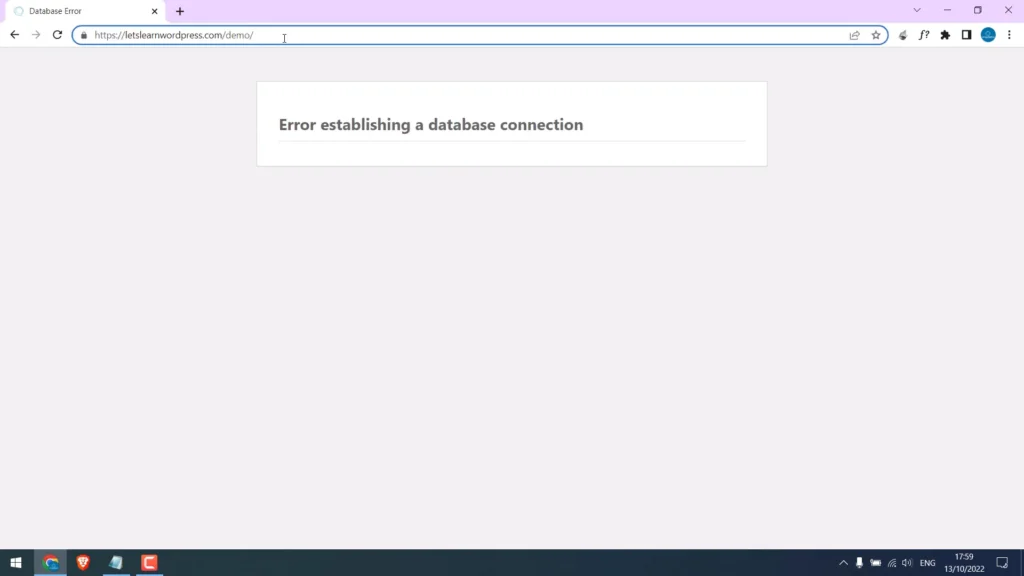
The WordPress “Error establishing a database connection” message means your site cannot connect to the MySQL or MariaDB database it needs to load content. To fix it, check whether your host’s database server is working, then compare the database name, username, password, and host in wp-config.php with your hosting settings. Change only what is wrong, and test the site after each fix.
Quick Answer
To fix “Error establishing a database connection” in WordPress, confirm your database server is online, back up wp-config.php, and verify DB_NAME, DB_USER, DB_PASSWORD, and DB_HOST. If the credentials are wrong, correct them. If they match, check database permissions and server logs before considering a database repair.
Key Takeaways
- Wrong credentials, an unreachable database server, or missing database permissions are common causes.
- Check your host’s service status before making changes to WordPress files.
- Compare all four connection settings in
wp-config.php; do not assumeDB_HOSTislocalhost. - Reset the database user’s password only when needed, and update WordPress immediately afterward.
- Back up your site before database repairs or restores. Remove the temporary repair setting as soon as you finish.
At a Glance
| Time Required | A simple credential check may take a few minutes; server faults and restores take longer. |
| Difficulty | Beginner to intermediate; ask your host for help if you are unsure about editing PHP configuration. |
| Tools Needed | Hosting dashboard, File Manager or SFTP, database management access, and a current backup. |
| Cost | Basic checks usually need no additional software; provider support or a paid restore may cost extra. |
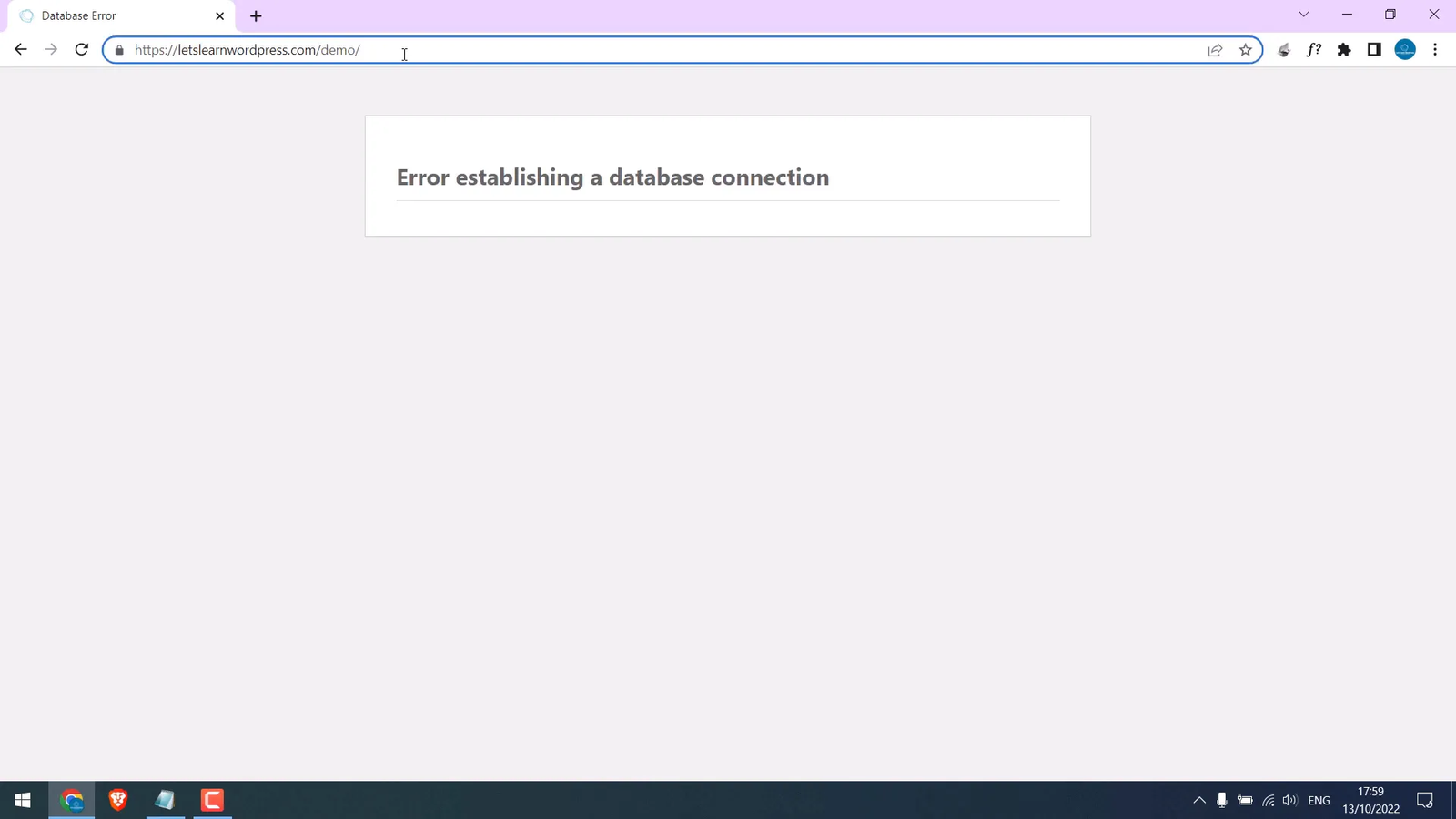
Why Does WordPress Show a Database Connection Error?
WordPress stores posts, pages, comments, users, and many settings in a database. When it cannot establish a connection to that database, it cannot retrieve the information needed to build a normal page.
The most useful first step is to identify what changed shortly before the error appeared. Common causes include:
- Wrong
DB_NAME,DB_USER,DB_PASSWORD, orDB_HOSTvalues. - A database password changed in the hosting account but not in
wp-config.php. - Database server downtime, a database quota problem, or connection limits.
- A database user that no longer has the required access to the WordPress database.
- Database connection details that were not updated during a site migration or restore.
- In some cases, damaged database tables or a wider server problem. These can also produce other WordPress errors.
Warning: Do not guess new database names, create a replacement database, or reset passwords at random. First save a secure copy of wp-config.php and, where possible, back up the database. Never share database passwords in screenshots or public support posts.
Step 1: Check With Your Hosting Provider
Before editing files, check your host’s status page or open a support ticket. A database outage or exhausted resource limit cannot usually be fixed by changing WordPress settings.
Ask the support team:
- Is the MySQL or MariaDB service running, and can this hosting account reach it?
- Has my database reached a storage, connection, or account resource limit?
- Do the logs show an authentication failure, connection refusal, or timeout?
- Did a migration or server change affect my database hostname?
- Is the database user still assigned to the correct database?
If the host reports an outage, avoid changing a working configuration. Once service returns, test your site again.
Step 2: Access Your Hosting Control Panel
If the database server is healthy, sign in to your hosting dashboard. Open File Manager or connect with SFTP. Depending on the provider, you may see cPanel, Plesk, or a custom management interface.
In newer cPanel versions, database administration may be labeled Manage My Databases. Older versions may show MySQL Databases. The exact menus depend on the host and the features available to your account.
File Manager is convenient for a small configuration check. Use a secure connection, and do not edit live files without keeping a copy you can restore.
Step 3: Audit Your wp-config.php File
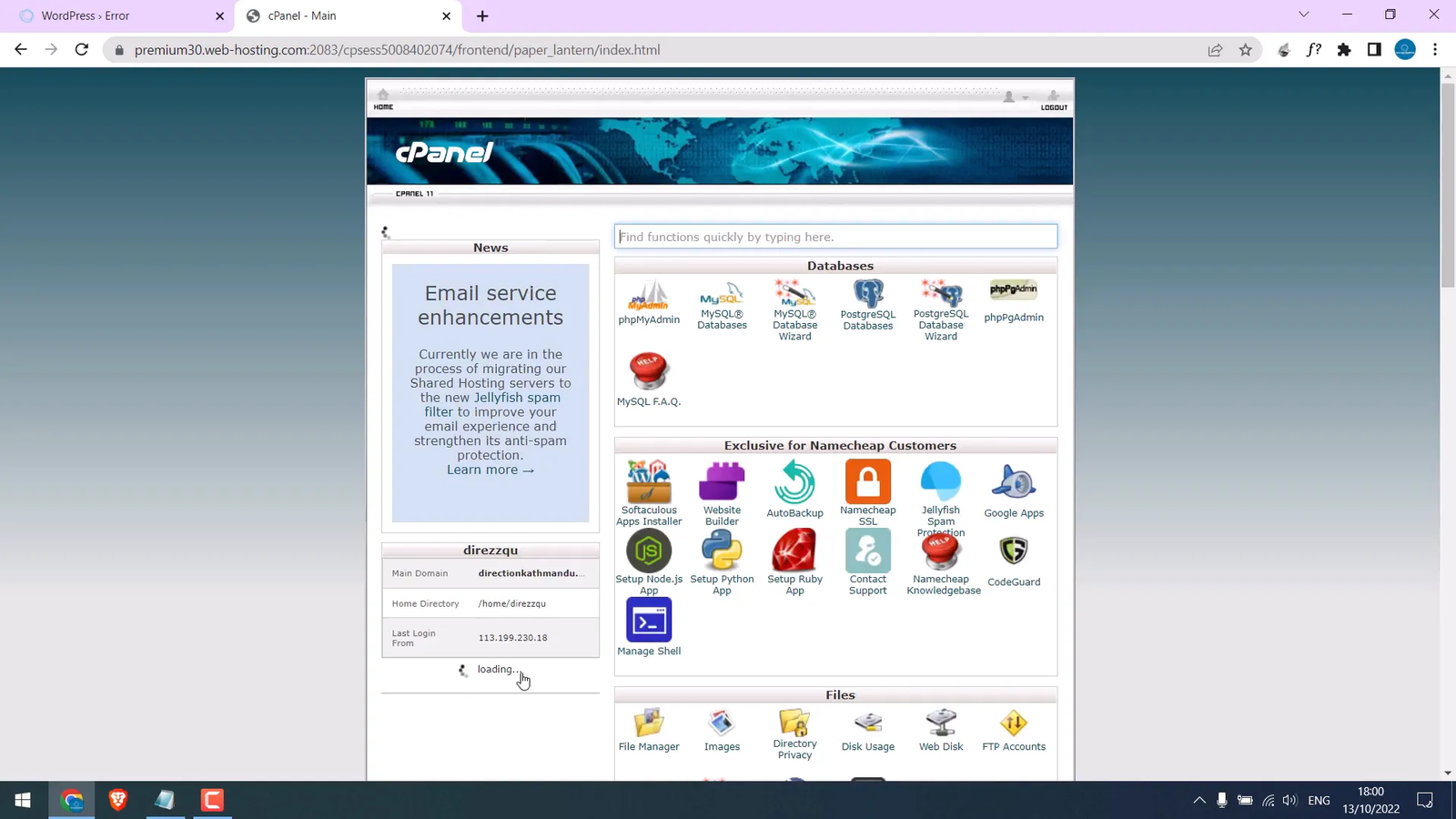
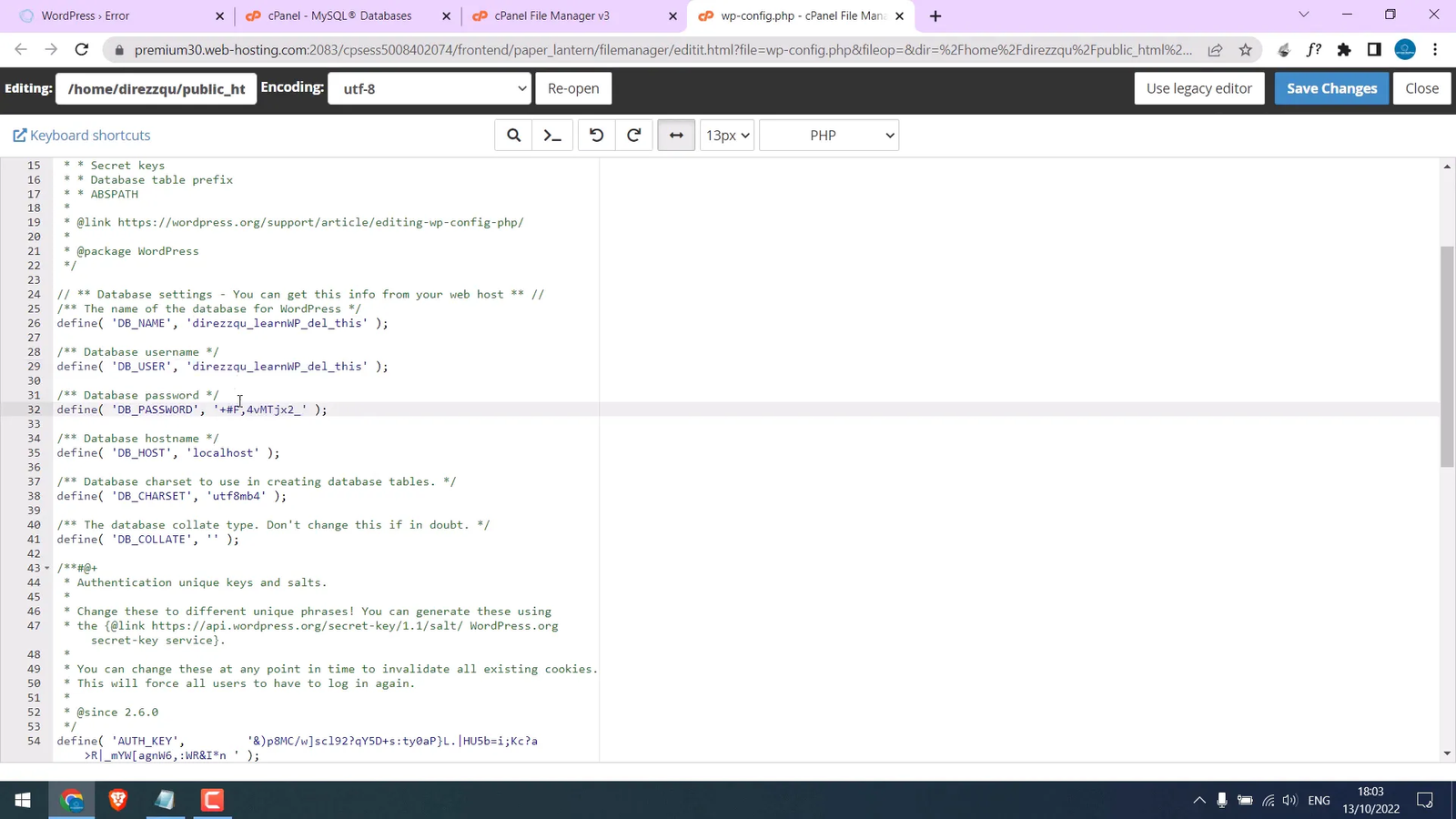
The wp-config.php file holds the settings WordPress uses to connect to its database. Compare those settings with the database details in your hosting account rather than changing them blindly.
- Open File Manager or your SFTP client.
- Find the WordPress installation folder, often
public_htmlor the folder for your domain. Some installations keepwp-config.phpone directory above the WordPress root. - Download a secure backup copy of
wp-config.phpbefore editing it. - Find the existing
DB_NAME,DB_USER,DB_PASSWORD, andDB_HOSTdefinitions. - Compare the database name and assigned user with your hosting dashboard. Confirm the database host with your provider if needed.
- Correct only a value that you have confirmed is wrong, save the file, and test the site.
A typical configuration contains these lines:
define( 'DB_NAME', 'database_name_here' );
define( 'DB_USER', 'username_here' );
define( 'DB_PASSWORD', 'password_here' );
define( 'DB_HOST', 'localhost' );
DB_NAME identifies the database. DB_USER and DB_PASSWORD identify the database login. DB_HOST tells WordPress which database server to reach. localhost is common but is not correct for every host.
Note: Passwords are case-sensitive and can contain punctuation. Preserve the exact password and valid PHP quoting. Keep the original configuration backup private because it contains sensitive information.
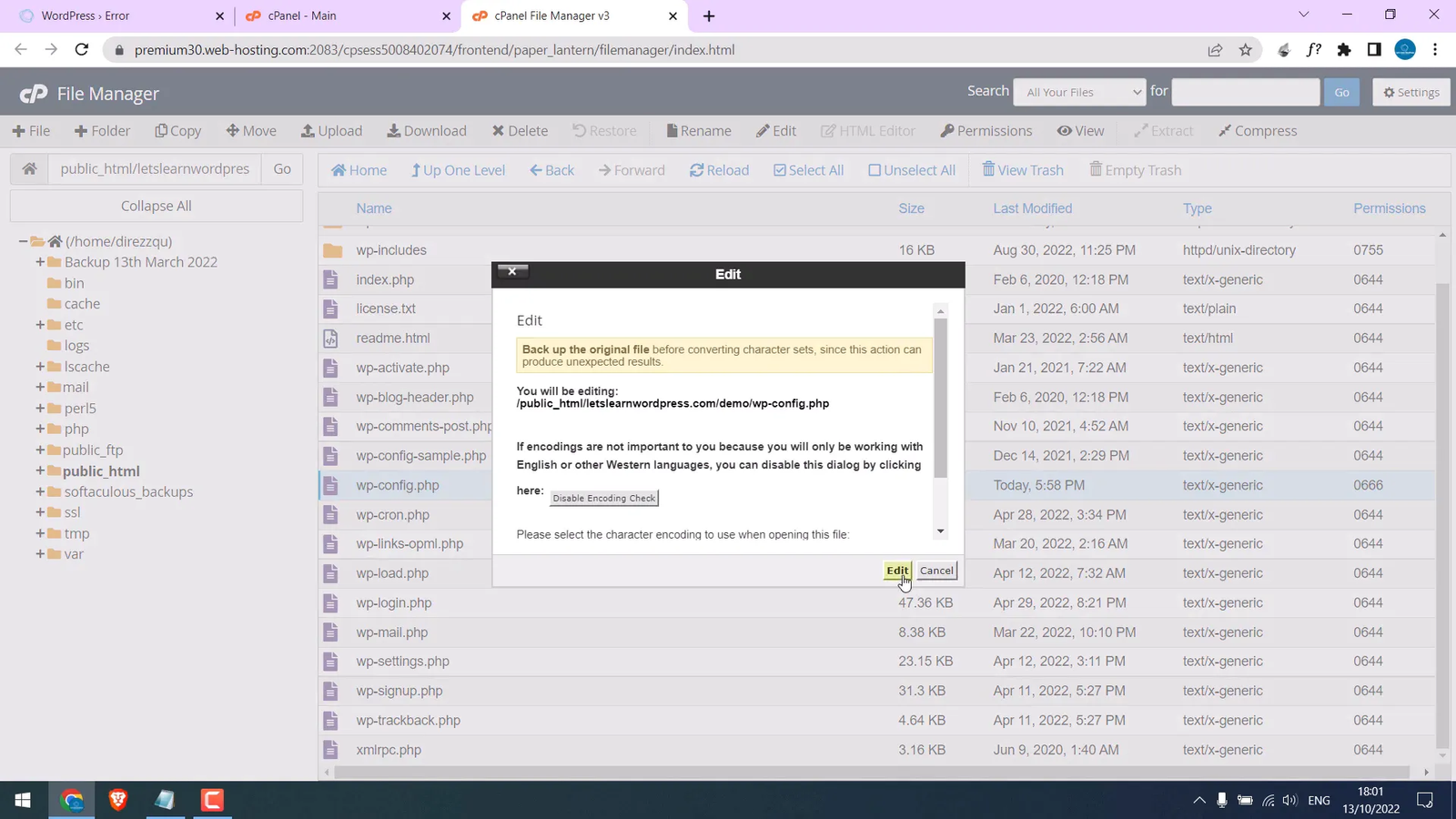
Step 4: Reset Your Database Password Only If Needed
If you have confirmed that the password in wp-config.php does not match the database user’s password, reset the password in your hosting panel. A reset is not necessary when the existing credentials are correct.
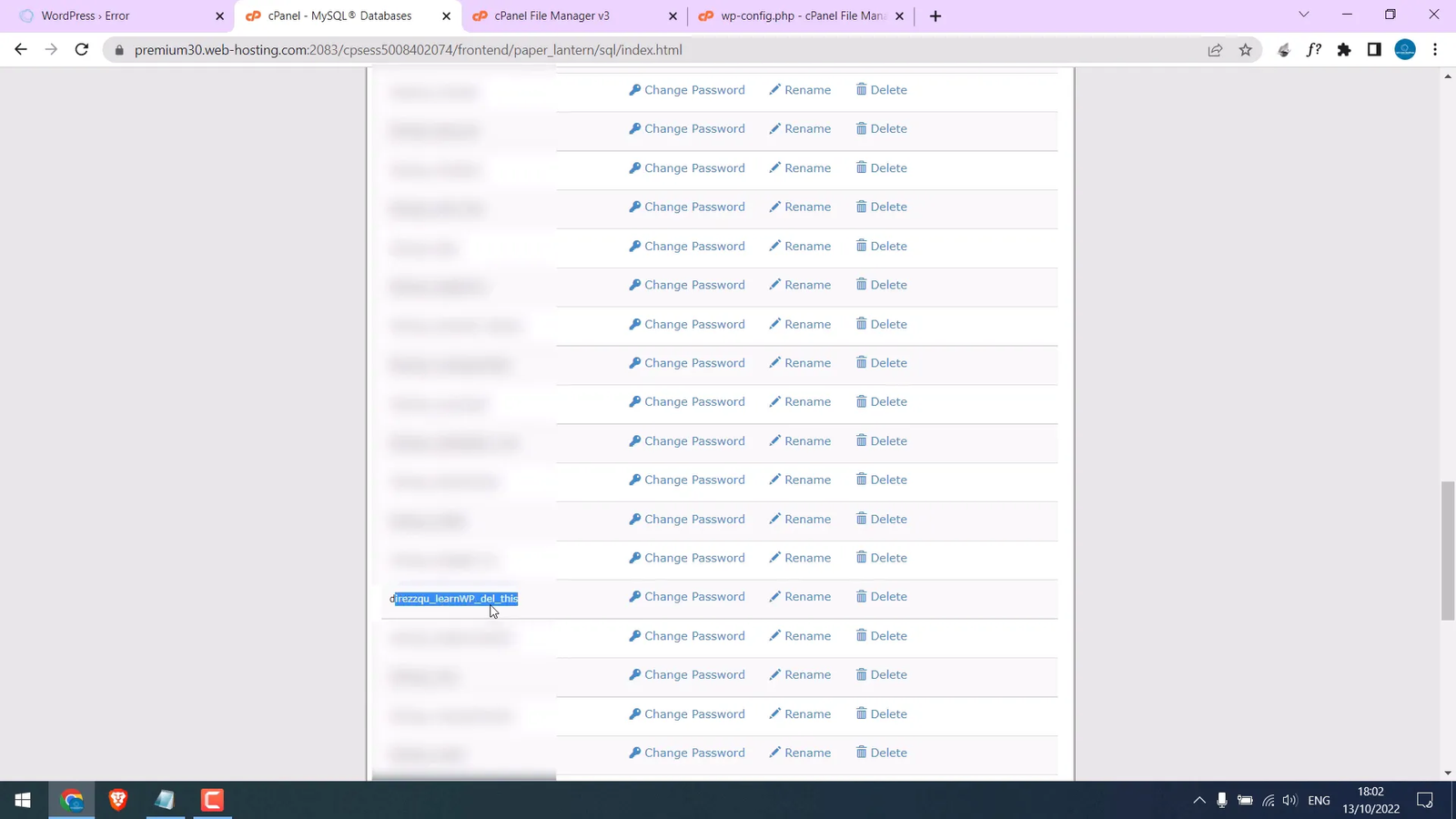
- Open Manage My Databases, MySQL Databases, or your host’s equivalent area.
- Find the database user listed in
DB_USER. Check that it belongs to the database listed inDB_NAME. - Use Change Password for that user and generate a strong new password.
- Update the
DB_PASSWORDvalue inwp-config.phpto the same password. - Save the file, then refresh the website and the admin page.
Changing a shared database user’s password can also disconnect other applications that use that account. If you are not sure whether the user is shared, ask your host before resetting it.
Pro Tip: Use your hosting panel’s password generator and store the password in a secure password manager. Avoid placing credentials in unprotected notes or support messages.
Step 5: Test Your WordPress Website
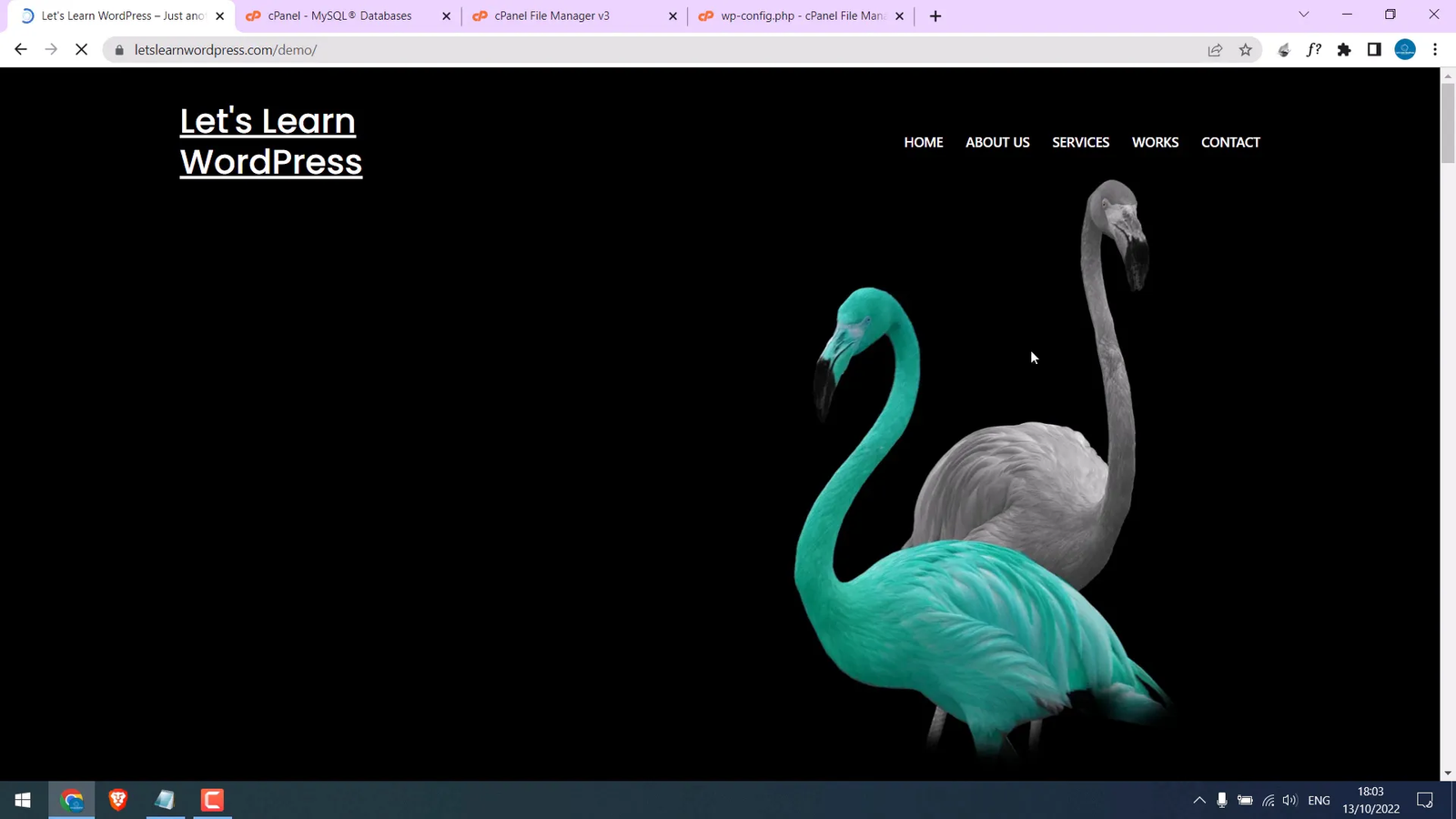
Open the homepage and a few inner pages, then visit /wp-admin/. If the front end and admin area load, the database connection is working for those requests.
If the error continues, record the exact message and stop repeating password changes. If only the admin area shows a message about database tables needing repair, investigate database integrity instead of assuming the password is wrong.
After the site is responding normally, clear any relevant browser or site cache if you still see an old error screen. Cache clearing does not fix a database server that is still unreachable.
Additional Troubleshooting Steps
When the basic checks do not solve the problem, use the symptoms to choose your next step. Avoid making several changes at once, or you may not know which action helped.
| What you find | What to check next |
|---|---|
| Wrong username, password, or database name | Correct the matching value in wp-config.php; do not create a new database. |
| Database user lacks access | Ask the host to verify the user-to-database assignment and required privileges. |
| Server connection refused or timed out | Ask the host to check service status, host/port, firewall rules, and resource limits. |
| Tables reported as damaged | Back up the database and consider the WordPress repair tool or host-assisted repair. |
| Error began after a migration | Check the imported database, credentials, hostname, and user permissions on the new host. |
| Different PHP or plugin error appears | Investigate that separate error through logs or targeted plugin troubleshooting. |
If you recently changed a plugin and now see a PHP error or a blank page rather than a database connection error, you may temporarily rename wp-content/plugins using SFTP to test for a plugin conflict. Restore the folder name afterward and check plugins individually. This is not a first-line solution for an actual database authentication or server outage.
For advanced diagnosis, ask your host to review the database error logs. If you enable WordPress debug logging, keep error messages hidden from visitors and turn off extra logging when the investigation ends.
How to Check DB_HOST Correctly
DB_HOST identifies the database server. On some shared hosting accounts, it is localhost. Other providers use a separate hostname, IP address, port, or socket. A database server move can make a previously correct value stop working.
Find the hostname in your hosting database details or ask support for the exact value. Only change DB_HOST when that value has been confirmed.
define( 'DB_HOST', 'localhost' );The example above is not a universal setting. Avoid switching between hostnames at random.
How to Repair a WordPress Database Safely
The built-in WordPress database repair page is intended for damaged tables. It will not correct a wrong password or restart a database server. Use it only when the symptoms or your host suggest a database integrity problem.
- Make a current backup of both site files and the database. If the site cannot connect, request a database backup from your host.
- Open
wp-config.phpand adddefine( 'WP_ALLOW_REPAIR', true );before the final “stop editing” comment. - Open
/wp-admin/maint/repair.phpon your WordPress site. - Choose Repair Database and review the result. Ask your host for help if it reports failures.
- Immediately remove the
WP_ALLOW_REPAIRline and save the file. - Test the website and dashboard again.
Warning: When WP_ALLOW_REPAIR is enabled, the repair page does not require a WordPress login. Remove the setting as soon as the repair finishes, even if the repair did not solve the problem.
Why Migration Triggers Database Errors
After a site migration, the new host may use a different database name, username, password, or database server address. A backup restore may also leave database users or permissions unconfigured.
Confirm that the database was imported into the destination account and that the DB_NAME and DB_USER values match the new environment. You can inspect imported tables through your hosting database tool, but seeing tables there does not prove that WordPress has valid login credentials.
If WordPress connects but content is missing or the installer appears, check whether the imported tables match the $table_prefix setting. That is a different problem from a failed server connection. Do not change the prefix without confirming the database structure.
What to Do If You Still Cannot Fix It
If the error remains, send your provider a support request with your domain, the time the issue started, the error text, and any recent migration or configuration changes. Explain which checks you have already completed, but do not include your database password.
Ask the host to examine:
- MySQL or MariaDB service availability and error logs.
- Database account quota, resource usage, and connection limits.
- Database user authentication and permissions.
- Firewall or network restrictions between the website and database server.
- Database integrity and the availability of a consistent backup.
- Recent server changes or signs that the site has been compromised.
When restoring a backup, use a matching set of files and database data. A restore can overwrite newer posts, orders, comments, or settings. Confirm what will be replaced before proceeding.
Frequently Asked Questions
Can I fix this error without WordPress admin access?
Yes. You can inspect wp-config.php through File Manager or SFTP and check the database account through your host’s panel. You do not need to log in to WordPress to do those checks.
Does resetting the WordPress login password fix the database error?
No. Your WordPress account password and your MySQL or MariaDB database user’s password are different credentials. Only reset the database user’s password when its current value is incorrect or unknown.
Should I always change DB_HOST to localhost?
No. Use the hostname supplied by your hosting provider. Some sites connect to a remote database server and will fail if you replace the correct hostname with localhost.
Will repairing the database fix every connection error?
No. Repairing tables may help if they are damaged, but it will not fix incorrect credentials, insufficient database permissions, or an offline MySQL service.
Can this error happen even when I made no changes?
Yes. A provider outage, resource limit, or server-side configuration change can disrupt a site without any recent WordPress edits.
Summary Checklist
- Confirm that your host’s database service is available.
- Back up
wp-config.phpsecurely before editing. - Verify
DB_NAME,DB_USER,DB_PASSWORD, andDB_HOST. - Check that the correct database user has the required database privileges.
- Reset the database user’s password only when necessary.
- Test the homepage, inner pages, and
/wp-admin/after each change. - Repair damaged tables only after a backup, and then remove
WP_ALLOW_REPAIR. - Ask your host to investigate logs or arrange a safe restore if the problem continues.
Most WordPress database connection errors become easier to diagnose when you work from the server status to the configuration settings, then to permissions and database health. Make one confirmed change at a time so you can identify the cause without putting the site at further risk.
Related Site Management Guides
For different website-management projects, see our guides to installing n8n locally with Docker and rebuilding expired domains. These topics do not replace WordPress database troubleshooting.
Sources
- WordPress Developer Resources: Editing wp-config.php — confirms the configuration file and built-in database repair setting.
- WordPress Documentation: Debugging in WordPress — covers safe debug logging; this address redirects to the Developer Handbook.
- WordPress Developer Resources: Backups — explains why site files and database exports are both needed.
- WordPress Developer Resources: Common WordPress errors — covers database connection failures and host-side causes.
- cPanel Documentation: Manage My Databases — confirms newer menu names, database-user passwords, and user permissions.
Last Updated on October 31, 2026 by Logan Carter


1 comment