


OneDrive is Microsoft’s cloud storage service for saving, syncing, sharing, and protecting files across devices. It works on Windows, macOS, iPhone, Android, and the web, so you can keep documents, photos, and scanned files available whether you are at your desk or away from your computer.
Quick Answer
OneDrive helps you manage files by storing them online, syncing them across devices, and letting you share folders or documents with others. It also offers version history, Files on Demand, Personal Vault, photo organization, and mobile scanning tools for easier file access and backup.
Key Takeaways
- OneDrive stores files in the cloud so you can access them from computers, phones, tablets, and web browsers.
- Files on Demand helps save local disk space by keeping files online until you need them.
- Sharing, version history, and collaboration tools reduce the need to send attachments back and forth.
- Personal Vault adds an extra verification step for sensitive files.
- The mobile app can scan documents, mark files for offline access, and organize photos.
At a Glance
| Best For | File backup, syncing, sharing, collaboration, photo storage, and mobile document scanning |
| Difficulty | Beginner-friendly |
| Tools Needed | Microsoft account, OneDrive app or web browser, and an internet connection for syncing |
| Cost | Free plan available; paid plans add more storage and extra features |
What is OneDrive and how does it help you manage files
Quick Answer
OneDrive is a cloud storage service that saves your files online, allowing you to access them from any device. It acts as a secure backup, enables real-time collaboration on documents, and helps you sync your data across Windows, Mac, and mobile platforms.
OneDrive is Microsoft’s cloud storage service that provides a secure, reliable way to store and access your files online. It syncs your content across your devices and lets you share items with other people. When you save files to OneDrive, they stay accessible from your desktop, laptop, phone, tablet, or browser.
This flexibility helps prevent the stress of losing access to an important file when you leave your computer behind. OneDrive also works as a backup layer for everyday documents and photos. If your laptop breaks or gets stolen, files already synced to OneDrive remain available in the cloud. You can also collaborate with others on the same file instead of sending multiple attachments back and forth.
Note: OneDrive is helpful for backup and access, but it should not be your only copy of critical files. For important business, legal, or family records, keep an additional backup on another drive or trusted backup service.
Install OneDrive and set up your Microsoft account
Most Windows 10 and Windows 11 installations already include OneDrive. Look for it in your Start menu under O. If you use an older operating system or removed the app, visit onedrive.com to download the installer for Windows or Mac. The website typically detects your platform automatically.
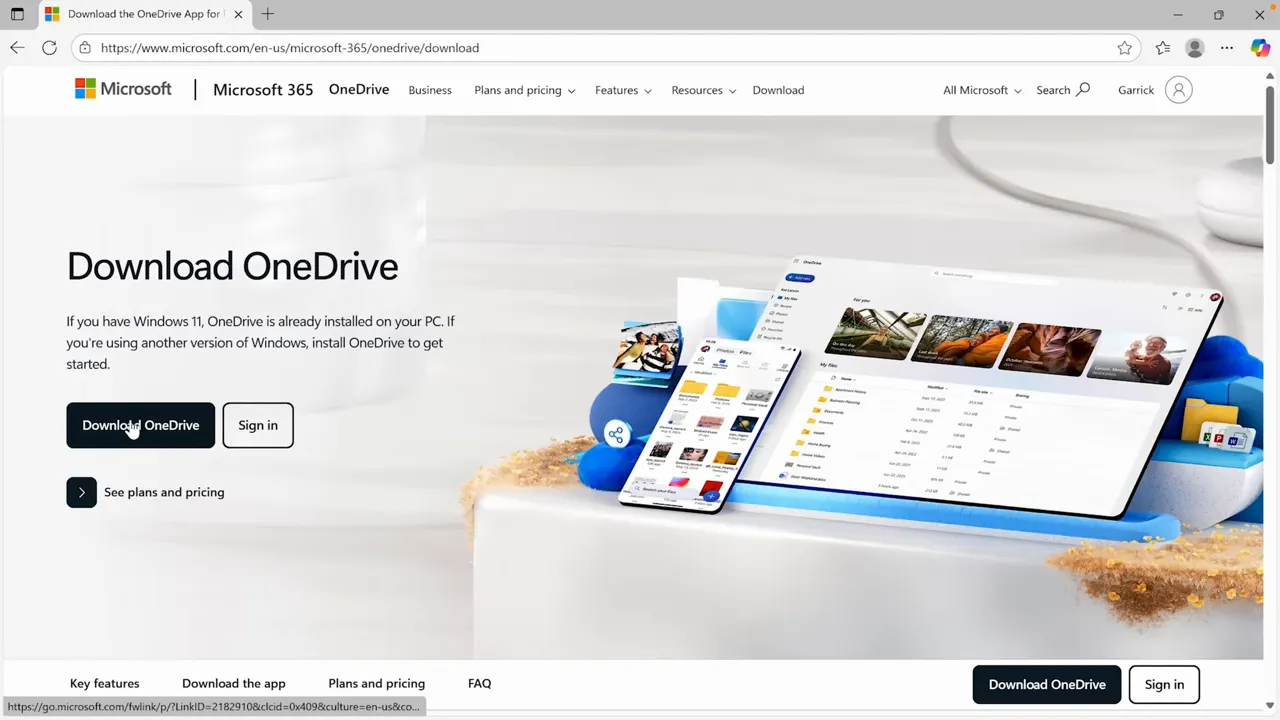
You can also find OneDrive in the Mac App Store, iOS App Store, or Google Play Store. Install the mobile app if you want to keep files and photos within reach while you are away from your computer.
OneDrive is free for anyone with a Microsoft account. Many people already have one through Outlook.com, Xbox, Windows, or a Microsoft 365 subscription. A free account includes 5 gigabytes of storage, while paid plans offer more storage, such as 100 gigabytes or 1 terabyte per user depending on the plan.
Navigate the OneDrive web interface
The OneDrive web interface gives you the same core tools anywhere you have a web browser. Log in at onedrive.com to view your main navigation areas. These include Home for recent files, My Files for your folders, Shared items, the Recycle Bin, and Photos.

The top search bar helps you search file names and document contents. Use the Create or Upload button to add new files or folders from your computer. The interface also supports drag and drop, which makes uploading and organizing files easier.
Use OneDrive on Windows and macOS
On Windows 10 and Windows 11, OneDrive integrates directly into the system. You will find the OneDrive icon in the taskbar. Click it to view recent files, open your OneDrive folder in File Explorer, pause syncing, or change your settings. Any changes you make locally sync to the cloud and your other devices when OneDrive is running.

On Mac, OneDrive sits in the menu bar and behaves in a similar way. Open the OneDrive folder in Finder to manage files or update preferences. The same syncing behavior applies: rename, move, or edit a file on your Mac, and the change appears on your other connected devices after syncing completes.

Identify file status icons
File icons in your OneDrive folder show the sync status. Understanding these symbols helps you manage disk space, offline access, and shared files.

- Cloud icon: The file exists only online and uses little or no local disk space until you open it. Double-click it to download and use it.
- Green check mark: The file is available locally and synced to the cloud.
- Solid green circle with white check mark: The file is set to always stay on this device for offline use.
- Person icon: You shared this file or folder with other people.
- Rotating arrows: OneDrive is syncing changes to this file.
- Red X: OneDrive found a sync problem that needs attention, such as a connection issue, file name issue, or storage limit problem.
Pro Tip: If you see a sync error icon, click the OneDrive cloud icon in the taskbar or menu bar. OneDrive usually shows the exact file causing the problem and gives a suggested fix.
Share files and collaborate
Sharing is one of OneDrive’s most useful features. Instead of sending large attachments, you can share a link to your file or folder. Select the file, click Share, or right-click and choose Share. In the dialog, enter the names or email addresses of your recipients.

Use link settings to control access. Choose an anyone link when broad access is appropriate, or restrict access to specific people when the file is private. You can also choose whether recipients may edit the file or only view it. Paid subscriptions may provide extra sharing controls, such as password protection and link expiration dates.
Warning: Be careful with anyone links. Anyone who receives the link may be able to open the file, depending on your settings. Use specific-person sharing for private documents, client files, financial records, or school information.
Restore files using version history
OneDrive tracks changes to many files through version history. Right-click a file and select Version history to see previous versions and identify when changes happened. You can open an older version or restore it if you prefer that version over the current one.

This feature provides a safety net for collaborative editing, accidental overwrites, and unwanted changes. It is especially useful for Word, Excel, and PowerPoint files because teams often update those documents many times. Always consult a qualified professional before making business, legal, or financial decisions based only on version recovery if you lack separate backups.
Recover deleted files from the Recycle Bin
If you delete a file from OneDrive, check the Recycle Bin in the web interface before assuming it is gone. Open OneDrive in your browser, choose Recycle Bin, select the deleted file, and choose Restore. The file usually returns to its original folder.
This is helpful when you remove a file by mistake or when a shared folder member deletes something you still need. However, the Recycle Bin does not replace a full backup strategy. Deleted files may not stay there forever, especially when storage limits or retention rules apply.
Manage disk space with Files on Demand
Files on Demand gives you control over what stays on your local drive versus what stays in the cloud. Right-click a file to choose from these options:

- Always keep on this device: This downloads a local copy so you can work without an internet connection.
- Free up space: This removes the local copy to save disk space but leaves the file in the cloud.
- Open or download: This downloads an online-only file when you need to view or edit it.
Files on Demand is useful if your computer has limited storage. You can keep active work files offline while leaving old videos, photos, or archives online until needed.
Organize files and folders
OneDrive works like a standard file system. Create folders from the Create or Upload menu, drag and drop to move items, or use the Move To command. Multi-select lets you organize many files at once.

You can also create new Microsoft 365 documents directly within a folder. Choose New, then pick Word, Excel, or PowerPoint. The file opens in your browser and saves automatically.
For better organization, use clear folder names by project, year, client, class, or file type. Avoid vague names like “New Folder” or “Stuff” because they make search and cleanup harder later.
Search and photo tagging
The search box at the top of the interface does more than find filenames. It can scan document text and photo contents. OneDrive may use automatic tags to help identify images. Search for terms like ocean or sunglasses to find relevant photos even if the filenames do not match.

You can toggle photo tagging and face recognition in Settings. If you prefer to disable automatic face recognition, turn the feature off in your options menu.
Protect sensitive data with Personal Vault
Personal Vault is a protected area inside OneDrive that adds extra security for sensitive documents. When you access the vault, you must verify your identity through a second step, such as a code sent to your phone, an authenticator app prompt, or another supported verification method.

Use this space for passports, birth certificates, insurance files, or sensitive financial records. Free accounts allow a limited number of files in the vault, while paid Microsoft 365 subscriptions may remove that limit. Always consult a legal or financial professional before storing highly sensitive legal documents in cloud services.
Note: Personal Vault improves access protection, but it does not make every cloud-storage risk disappear. Use a strong Microsoft account password and turn on two-step verification for better account security.
Manage photos and albums
The Photos area organizes your images chronologically. Use the For you section to see curated highlights. Switch to the Albums tab to create custom collections for sharing with friends or family.

The Explore tab can group your photos by people, places, or things automatically. You can also manually add tags to images for more precise searching later.
Customize sync and backup settings
Access your settings by clicking the OneDrive icon in your taskbar. Review these key areas to optimize performance, storage, and backup coverage:

- Backup: Choose which folders, such as Documents, Desktop, or Pictures, sync to the cloud.
- Files on Demand: Decide if files should download locally by default or stay online until opened.
- Choose folders: Select which folders sync to the current machine to save local space.
- Account: Check which Microsoft account is connected and how much storage you have left.
- Sync and backup status: Confirm that OneDrive is running and not paused.
Use the OneDrive mobile app
The mobile app for iOS and Android mirrors the web interface but adds features like offline file access and document scanning. The Offline category in the app lets you mark files for access without mobile data or Wi-Fi.

The mobile app is useful for travelers, students, remote workers, and anyone who needs documents on the go. You can upload photos, preview files, share links, and move items into folders from your phone.
Scan and markup documents
The mobile app includes a scanner that turns your phone into a portable capture tool. Tap the plus button and choose Scan to capture documents, whiteboards, receipts, or business cards. The app detects borders and offers filters to improve clarity.

Scanned items save as PDF files directly to your chosen OneDrive folder. You can use annotation tools to add signatures, text, or notes to these PDFs. This is helpful for signing contracts, saving receipts, or digitizing paper records while away from a scanner.

Troubleshoot common OneDrive problems
Most OneDrive issues come from paused syncing, storage limits, sign-in problems, file name restrictions, or poor internet connections. Start with the OneDrive cloud icon in your taskbar or menu bar because it usually shows the current sync status.
- Files are not syncing: Check that OneDrive is running, you are signed in, and syncing is not paused.
- Storage is full: Delete unneeded files, empty the Recycle Bin, or upgrade your storage plan.
- A file will not upload: Rename the file if it uses unsupported characters or has a very long path.
- Shared links do not work: Review the link permissions and confirm the recipient has access.
- Computer storage is low: Right-click large files or folders and choose Free up space.
Best practices for effective use
Apply these tips to keep your files organized, accessible, and safer:
- Keep frequently used files set to local storage for offline work.
- Use online-only mode for large media libraries to free up disk space.
- Protect critical documents in the Personal Vault.
- Use version history to track edits and recover past work.
- Digitize paper records using the mobile scanner.
- Maintain a consistent folder structure to make searching easier.
- Review shared links regularly and remove access when people no longer need a file.
- Use strong account security, including two-step verification, for your Microsoft account.
Common questions about OneDrive
How much free storage does OneDrive provide?
A free OneDrive account includes 5 gigabytes of storage. Paid plans offer more storage, and Microsoft 365 plans often include larger storage allowances.
Can I access OneDrive files offline?
Yes. Mark files as available offline in the mobile app or choose Always keep on this device on desktop. This keeps a local copy available without an internet connection.
Is Personal Vault secure?
Personal Vault adds an extra identity verification step before opening protected files. It improves security for sensitive files, but you should still use a strong password, account verification, and separate backups for critical documents.
Can I share OneDrive files with people who do not have a Microsoft account?
Yes, you can use an anyone link when that option is available. For private files, specific-person sharing is safer because it limits access to chosen recipients.
What happens if I delete a file from OneDrive?
Deleted files usually move to the OneDrive Recycle Bin first. You can open the Recycle Bin in the web interface and restore files that are still available there.
Does OneDrive work on Mac and mobile devices?
Yes. OneDrive works on Windows, macOS, iOS, Android, and web browsers. The desktop apps focus on syncing, while the mobile apps also support scanning, photo uploads, and offline access.
Start using OneDrive today
OneDrive is a flexible solution for cloud storage, file syncing, sharing, and everyday file management. Start with the free account to test your workflow before upgrading for more space. Organize your folders, set up backup for important locations, review sharing permissions, and use the mobile app to digitize paperwork. These habits turn OneDrive into a practical foundation for personal productivity and safer file access.
Last Updated on June 27, 2026 by Logan Carter

