


Microsoft Copilot can help you create a PowerPoint presentation faster by turning your prompt, outline, or cloud-stored document into a structured slide deck. It can draft slides, suggest an outline, summarize existing content, generate speaker notes, and help you refine the deck before you present. You still need to review the facts, improve the visuals, and adjust the message for your audience, but Copilot gives you a strong starting point instead of a blank slide.
Quick Answer
To create a presentation with Copilot, open PowerPoint, choose Create with Copilot or click the Copilot button, then enter a clear prompt or use a cloud-stored document. Review the outline, generate the slides, refine the content, check sources, and polish the design before presenting.
Key Takeaways
- Copilot can build PowerPoint decks from prompts, outlines, Word files, PDFs, or branded templates.
- A detailed prompt gives Copilot better context about your audience, tone, slide count, and goal.
- You should always review Copilot’s outline before generating the full deck.
- Copilot can help rewrite slides, summarize decks, add detail, and generate speaker notes.
- Human review is still required for accuracy, design quality, brand fit, and final presentation flow.
At a Glance
| Best For | Business decks, school projects, training slides, summaries, reports, and internal presentations |
| Time Required | About 5 to 30 minutes for a first draft, plus extra time for review and design polish |
| Difficulty | Easy for basic decks; moderate if you need strong branding, citations, or executive-level polish |
| Tools Needed | PowerPoint, Microsoft Copilot access, OneDrive or SharePoint for document-based decks, and optional PowerPoint Designer |
| Final Review Needed | Yes. Check facts, sources, visuals, tone, slide order, speaker notes, and audience fit before presenting. |
Three methods to build presentations with Copilot
You can choose from three main workflows based on your starting materials:
- Generate a new presentation from a text prompt.
- Create a presentation using an existing cloud-stored document or PDF.
- Apply organization-branded templates to ensure consistent professional styling.

Each method works best in a different situation. A prompt is useful when you have an idea but no source material. A document-based deck is better when you already have a report, PDF, proposal, or training file. A branded template helps when your presentation must follow company colors, fonts, layouts, and slide standards.
Generate a presentation from scratch
Open PowerPoint and select Create with Copilot or click the Copilot icon in the ribbon. Provide a prompt that describes your topic, such as the solar system or a specific business project. Click Send and Copilot will produce a slide outline for your review.

Copilot typically suggests a structure with a title slide, agenda, section headers, topic slides, and a conclusion. After you confirm the outline, click Generate Slides to create the full presentation. This process creates a functional foundation rather than a blank page.
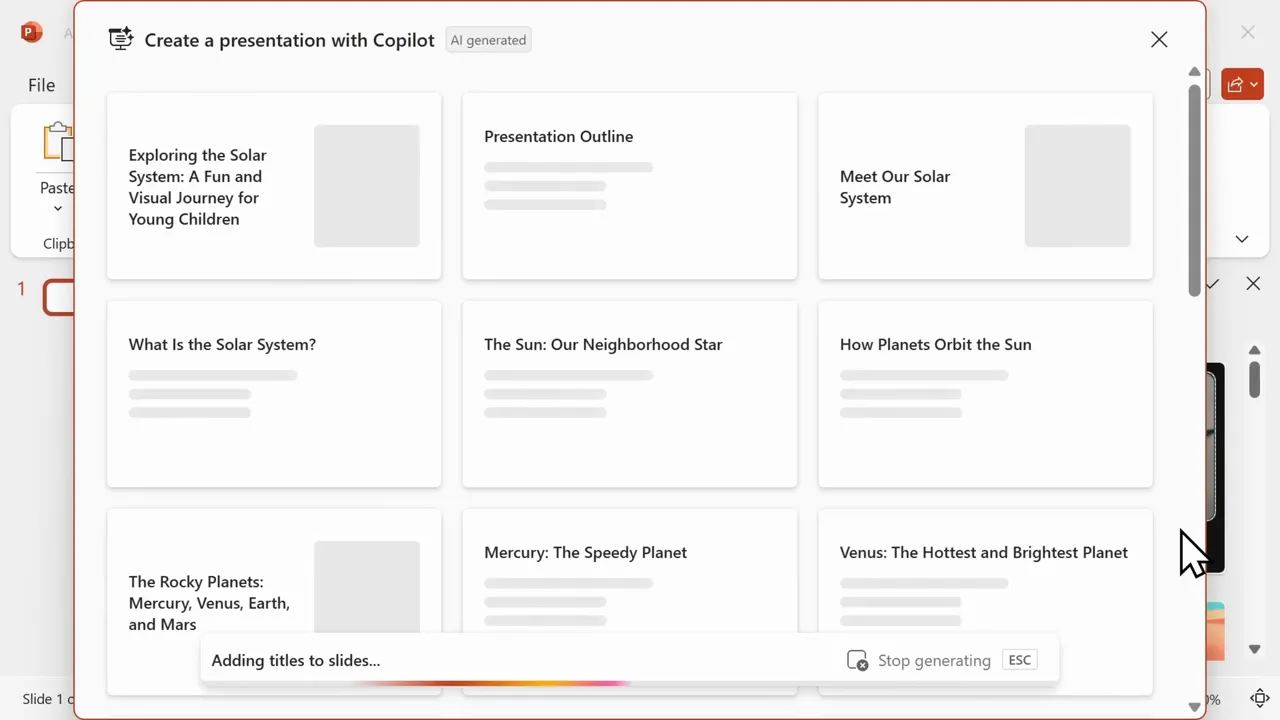
Pro Tip: Treat Copilot’s outline as the most important checkpoint. Fix weak section titles, missing steps, or poor slide order before generating the full deck. It is much faster to improve the outline first than to repair every slide later.
Write a better Copilot presentation prompt
The quality of your prompt has a major effect on the quality of your deck. A vague prompt may create a generic presentation, while a detailed prompt gives Copilot the context it needs to build useful slides.
A strong prompt should include the topic, audience, purpose, tone, slide count, format, and any key points you want covered. For example, instead of writing “Make a presentation about remote work,” you could write: “Create a 10-slide presentation for small business owners explaining how to manage remote teams. Use a practical tone, include common mistakes, provide action steps, and end with a checklist.”
Note: Copilot works better when you give clear boundaries. Mention what to include, what to avoid, and who the slides are for. This helps reduce generic content and improves the final structure.
Useful prompt formula
Use this simple structure when you want a more focused presentation:
- Topic: What the presentation is about.
- Audience: Who will watch or read it.
- Goal: What you want the audience to understand or do.
- Length: How many slides you want.
- Tone: Professional, friendly, persuasive, technical, simple, executive, or training-focused.
- Must-cover points: Any key sections, steps, examples, or data that must appear.
- Output style: Bullet-heavy, visual, speaker-friendly, workshop-style, or boardroom-ready.
Refine content using Copilot
After Copilot builds your deck, you might want to expand specific slides. Ask follow-up questions directly in the Copilot pane. If a slide lacks detail, ask the tool to add more information or explain a concept further.
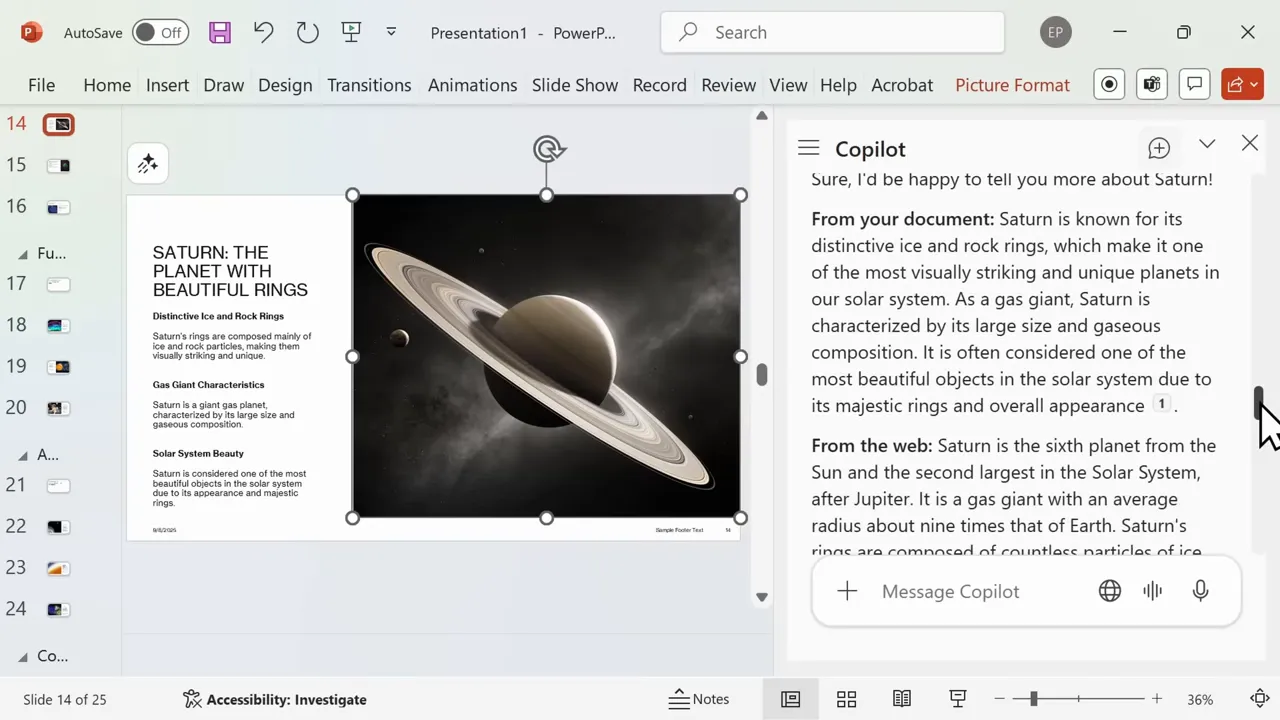
Copilot can retrieve data from the web and provide citations so you can verify the accuracy of the information. Use the auto-rewrite feature to change the tone or phrasing of any slide. You can choose to keep the new version, try again, or revert to the original text.
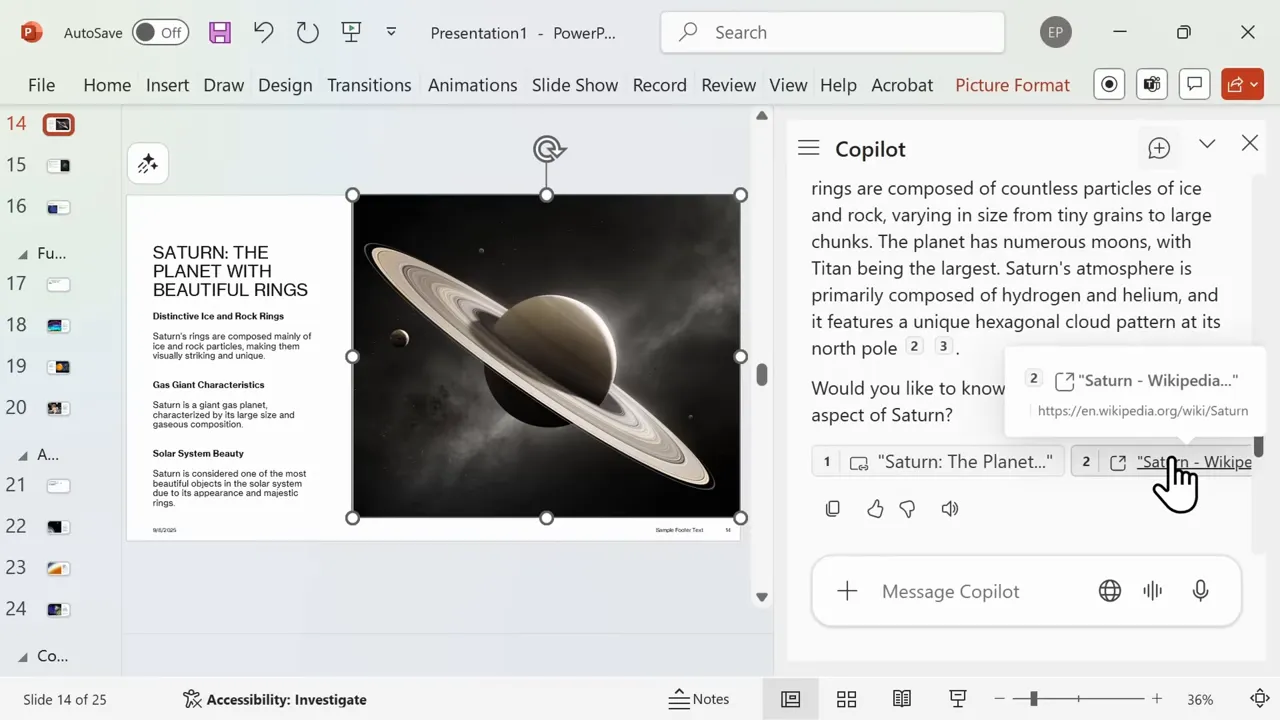
You can also ask Copilot to simplify a slide, make the wording more executive-friendly, turn long paragraphs into bullet points, or create a stronger closing message. This is especially helpful when the first draft is accurate but too wordy for a live presentation.
Helpful refinement prompts
- “Make this slide easier to understand for beginners.”
- “Rewrite this slide for a senior leadership audience.”
- “Turn this paragraph into three short bullet points.”
- “Add one practical example to this slide.”
- “Make the conclusion stronger and more action-focused.”
- “Suggest a better title for this slide.”
Adjust visuals and layout
Copilot excels at content, but visual design requires your oversight. Use PowerPoint Designer to browse alternative layouts for individual slides. Click any suggestion to apply it instantly.
Update your background with a solid color, gradient, or image to change the theme for the entire presentation. This quick step ensures that your automatically generated slides reflect your brand style.
Also check spacing, font sizes, chart labels, image placement, and slide balance. AI-generated slides can look polished at first glance but still contain crowded text, inconsistent alignment, or visuals that do not support the message.
Warning: Do not present a Copilot-generated deck without reviewing it slide by slide. Check every fact, chart, citation, image, and claim. AI can help draft the presentation, but you are responsible for the final accuracy and message.
Build presentations from documents
Upload a reference document, such as a PDF, to your linked cloud account. Ask Copilot to create a presentation based on that file. The tool extracts relevant points and builds a set of slides. It also writes speaker notes and links to source material from your document.


This workflow is useful for turning long reports, research notes, policy documents, training materials, or client briefs into a cleaner slide format. It can save time because Copilot starts with your existing source instead of inventing a structure from scratch.
Best documents to use with Copilot
- Clear reports with headings and sections.
- Meeting notes that already contain decisions or action items.
- Training documents with step-by-step instructions.
- Project briefs with goals, timelines, and deliverables.
- PDFs or Word documents stored in a supported Microsoft cloud location.
Before you ask Copilot to build slides from a document, clean up the source file. Remove outdated notes, duplicate sections, unclear comments, and irrelevant content. A cleaner source document usually leads to a cleaner deck.
Use organizational and Microsoft templates
Copilot can format your deck using your company’s branded templates if they are uploaded to your server. If you lack company-specific options, browse the library of Microsoft 365 templates instead. This ensures your presentation maintains a consistent, professional look.


Templates are especially useful for sales decks, board updates, internal training, investor reports, and client-facing presentations. They help keep fonts, colors, cover slides, dividers, and visual patterns consistent across the deck.
Pro Tip: If your organization has strict brand rules, start with the approved template first. Then use Copilot to fill the structure. This reduces the amount of manual redesign needed at the end.
Summarize slides and generate speaker notes
Use Copilot to condense long, wordy slides into concise bullet points. You can also ask the tool to summarize an existing deck you received from a colleague. This gives you a quick overview and pointers to where specific information resides in the file.


Generating speaker notes saves significant preparation time. Request notes for your slides, and Copilot will populate the area below each slide, allowing you to rehearse your delivery immediately.

Speaker notes are useful when you need to explain slides in more detail without filling the slide itself with too much text. After Copilot writes the notes, read them aloud and adjust the wording so it sounds natural in your own voice.
How to improve Copilot speaker notes
- Ask for shorter notes if they feel too scripted.
- Ask for more detail if a slide needs extra context.
- Add personal examples, case studies, or team-specific details.
- Remove anything that sounds robotic or too formal.
- Practice the timing so each slide supports your full presentation length.
Understand Copilot subscription limits
Each action in Copilot may use AI credits or depend on the type of Microsoft plan you have. Personal and family Microsoft 365 plans may include a monthly credit allowance, while Copilot Pro and business plans can offer different access levels and higher limits. Always consult official Microsoft documentation regarding current credit policies before starting large projects.

This matters because larger decks, repeated rewrites, and frequent content generation can use more requests than a simple one-time presentation. If you create presentations often, check your plan before relying on Copilot for a full workflow.
Troubleshooting common Copilot presentation issues
Copilot is helpful, but the first draft may not always match your expectations. Most problems can be improved by adjusting the prompt, refining the outline, or giving Copilot clearer source material.
If the deck is too generic
Add more context about the audience, purpose, industry, tone, and desired outcome. Include specific examples or sections that must appear in the slides.
If the slides are too text-heavy
Ask Copilot to shorten the content, convert paragraphs into bullets, or create a more visual version of the deck. Then use PowerPoint Designer to test cleaner layouts.
If the structure feels wrong
Go back to the outline stage when possible. Ask Copilot to reorder the sections, add missing steps, or rebuild the deck around a clearer beginning, middle, and ending.
If the information needs verification
Use the citations and source links where available. Check important claims against trusted sources before you present the deck to clients, executives, students, or public audiences.
If the design does not match your brand
Apply your organization’s approved PowerPoint template, update the theme, and manually adjust colors, fonts, and slide masters as needed.
Best practices for successful presentations
- Write detailed prompts that define your audience, tone, and desired length.
- Review the slide outline before you generate the full deck.
- Verify all web-sourced facts against original links before you present.
- Apply visual polish using Designer after Copilot builds the content.
- Use approved brand templates when you need professional consistency.
- Keep slide text short and move deeper explanations into speaker notes.
- Rehearse your speech using the generated speaker notes to improve your timing.
Copilot can create the first draft, but the best presentations still come from clear thinking, strong structure, accurate facts, and a presenter who knows the audience.
Frequently Asked Questions
How do I start a new Copilot-generated presentation?
Open PowerPoint and select Create with Copilot or click the Copilot icon in the ribbon. Input a prompt with your topic, audience, tone, and slide goals. Review the resulting outline, make changes if needed, and then generate the full deck.
Can Copilot use my existing documents to build slides?
Yes. Upload your PDF or document to your supported cloud account, then prompt Copilot to create a presentation from that file. It can extract key points, build slides, and help create speaker notes based on the source material.
Will Copilot cite sources when it pulls web information?
Copilot can provide citations for web content and may include clickable links so you can verify information directly. You should still check important facts yourself before presenting, especially for business, legal, financial, medical, technical, or academic topics.
What happens if Copilot’s visuals are not good enough?
Use PowerPoint Designer to test alternative layouts. You can also manually adjust themes, backgrounds, images, spacing, fonts, and slide order after the initial deck is generated.
How many Copilot requests can I make each month?
Request limits can vary by Microsoft plan, subscription type, and current credit policy. Check your Microsoft account or official plan details before using Copilot for large or frequent presentation projects.
Can Copilot make a finished presentation without editing?
Copilot can create a usable draft, but you should still edit it. Review the content, verify claims, improve the flow, adjust visuals, and make sure the tone fits your audience before presenting.
Next steps for your presentation
Copilot serves as a powerful accelerator for your presentation workflow. Whether you start from scratch or use your own documents, it cuts down the time spent on formatting and drafting. Start by creating a simple outline for your next project, then refine the visuals to match your personal style.
For the best result, begin with a clear prompt, review the outline carefully, and treat the generated slides as a first draft. Add your own examples, check every important fact, and rehearse with the speaker notes before you deliver the presentation.
Sources
- Microsoft Support: Copilot in PowerPoint — Supports the general Copilot workflow for creating, editing, and improving PowerPoint presentations.
- Microsoft Support: Create a new presentation with Copilot in PowerPoint — Supports the process of starting a presentation from a prompt.
- Microsoft Support: Create a presentation from a file with Copilot — Supports the document-based presentation workflow.
- Microsoft Support: PowerPoint Designer — Supports using Designer to improve slide layouts and visual presentation.
- Microsoft Support: Copilot Pro help and learning — Supports subscription-related guidance and checking current Copilot access details.
Bonus resources for presenters
If you present frequently, a compact smart display helps you reference notes, and quality smart speakers let you test audio in various rooms. Use a reliable portable jump starter for travel emergencies and monitor online sales for discounts on storage or chargers.
Last Updated on June 27, 2026 by Logan Carter

