


Nano Banana gives Gemini users a simple way to create, edit, and transform images without opening separate design software. You can start with a text prompt, upload your own photos, blend multiple references, refine small details, and even use finished images as a starting point for video creation inside Google’s AI tools.
Quick Answer
Nano Banana is a generative AI image tool inside Google Gemini that creates and edits images from text prompts or uploaded photos. You can use it to change styles, blend outfits, restore photos, remove objects, or turn yourself into a collectible figurine while keeping the subject visually consistent.
Key Takeaways
- Nano Banana works inside Gemini, so you only need a Google account and access to the Gemini web or mobile app.
- You can generate images from text, edit existing results, upload personal photos, and combine multiple reference images.
- The tool is useful for profile images, product mockups, outfit previews, social media visuals, and creative experiments.
- Clear prompts, high-quality reference images, and short iterative edits usually create better results.
- Veo 3 can animate still images, but video generation may require a paid plan.
At a Glance
| Time Required | 2 to 10 minutes for a basic image; longer for multi-step edits |
| Difficulty | Beginner-friendly |
| Tools Needed | Google account, Gemini access, optional reference photos |
| Cost | Basic image creation may be available free; advanced video features may require a paid Gemini plan |
What is Nano Banana?
Nano Banana acts as Google’s dedicated AI image tool built into the Gemini platform. It serves as an advanced image generator that does more than turn text into pixels. You can edit personal photos, blend diverse art styles, and create popular 3D figurine portraits while maintaining subject consistency across multiple iterations. You only need a photo, a text prompt, and a few moments to generate results.
The main advantage is its editing workflow. Many image generators create a new image each time, which can change the subject, style, or layout too much. Nano Banana is designed for step-by-step refinement. You can create a base image, ask for a small change, review the result, and continue editing until the image feels right.
Note: AI image results can vary from one prompt to the next. Treat the first result as a starting point, then refine lighting, pose, background, text, color, and composition with follow-up prompts.
How to get started with Nano Banana
Open Gemini on the web or launch the Google Gemini app on your iPhone or Android device. Sign in with your Google account. Locate the Tools menu on the main page and select Create Images, which features a small banana icon. This workspace lets you enter prompts, upload files, and refine your generated images.
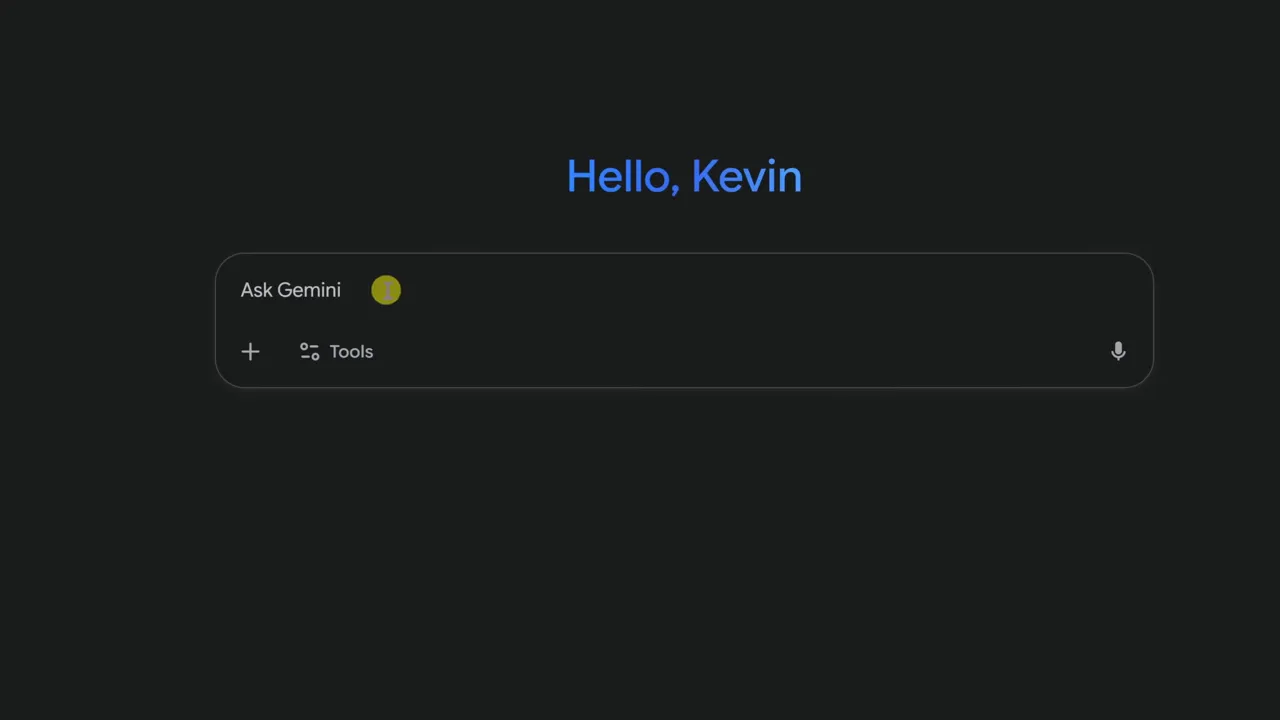
Once the image workspace opens, type your first instruction in plain language. You do not need a complex prompt to begin. Start with a simple request, check the result, then add details such as camera angle, lighting, mood, background, clothing, or color style.
Generate images from text
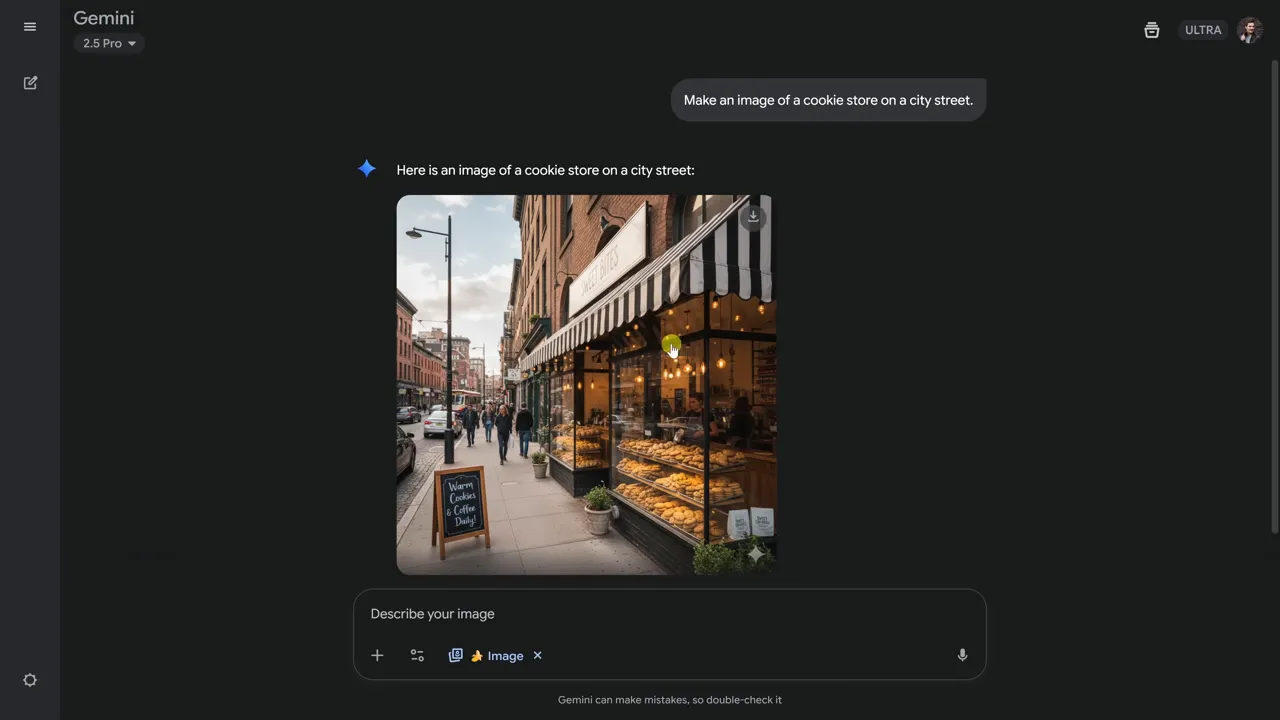
Start your project with a simple text description. For instance, type make an image of a cookie store on a city street and click the submit button. Nano Banana creates a full storefront from that brief text.
The tool excels at iterative workflows. You can refine your existing image rather than starting from scratch every time you want a small change.
Text prompt formula
A strong prompt usually includes the subject, setting, style, lighting, and purpose. You can use this simple structure:
- Subject: What should appear in the image?
- Setting: Where is the subject located?
- Style: Should it look realistic, cinematic, illustrated, retro, or product-focused?
- Lighting: Should it be bright, moody, sunny, soft, studio-lit, or dramatic?
- Use case: Is it for a profile image, website banner, product mockup, thumbnail, or social post?
For example, a stronger version of the cookie store prompt would be: Create a realistic storefront for a cozy cookie shop on a busy city street, warm afternoon lighting, clean signage, inviting window display, high-detail commercial photography style.
Edit and refine existing images
Do you need to change a sign or adjust the lighting? Provide another prompt and Nano Banana updates your current image. If you change a store name to Kevin Cookie Company, the model swaps the text while keeping the rest of the image intact.
Ask the tool to make a scene brighter or sunnier. It adds realistic shadows and light while preserving original details.

It is not just generating images. It is iterating on images.
This makes the tool useful for practical edits. You can test a logo on packaging, adjust a product background, clean up a profile photo, or create several versions of a visual without rebuilding the entire image from zero.
Pro Tip: Ask for one change at a time. A prompt like “make the sign larger” is easier for the model to follow than a long prompt that changes the sign, lighting, background, camera angle, and color palette all at once.
Upload and transform your own photos
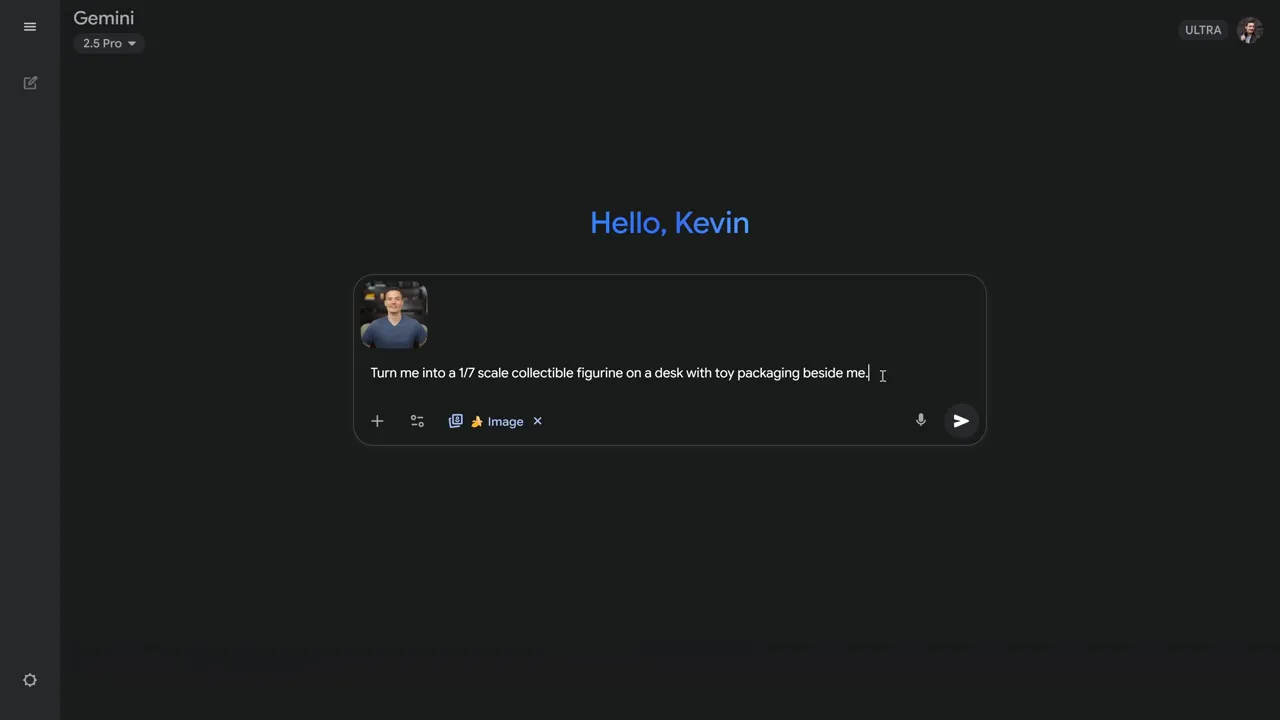
Skip the text-only approach by uploading your own image. Click the plus icon to choose your file, or drag and drop a photo into the window. A popular trend involves transforming your photo into a collectible figurine.
Try this prompt: turn me into a one seventh scale collectible figurine on a desk with toy packaging beside me. The system usually maintains a consistent likeness of your face.
Best photo types for better results
Use a clear image with good lighting, a visible face, and limited blur. A neutral expression works well when you want the tool to preserve your likeness. A busy background can still work, but a cleaner photo gives the model fewer distractions.
- Use a sharp portrait where the face is not covered by sunglasses, hair, or heavy shadows.
- Avoid low-resolution screenshots when you want realistic facial consistency.
- Upload clothing, product, or style references separately when you want the result to match them closely.
- Write what should stay the same, such as face shape, hairstyle, outfit color, or product logo.
Warning: Do not upload private, sensitive, or confidential images unless you are comfortable using them with an AI service. Always review platform terms before using AI-generated images for legal, medical, financial, political, or commercial decisions.
Blend multiple photos for new outfits or settings
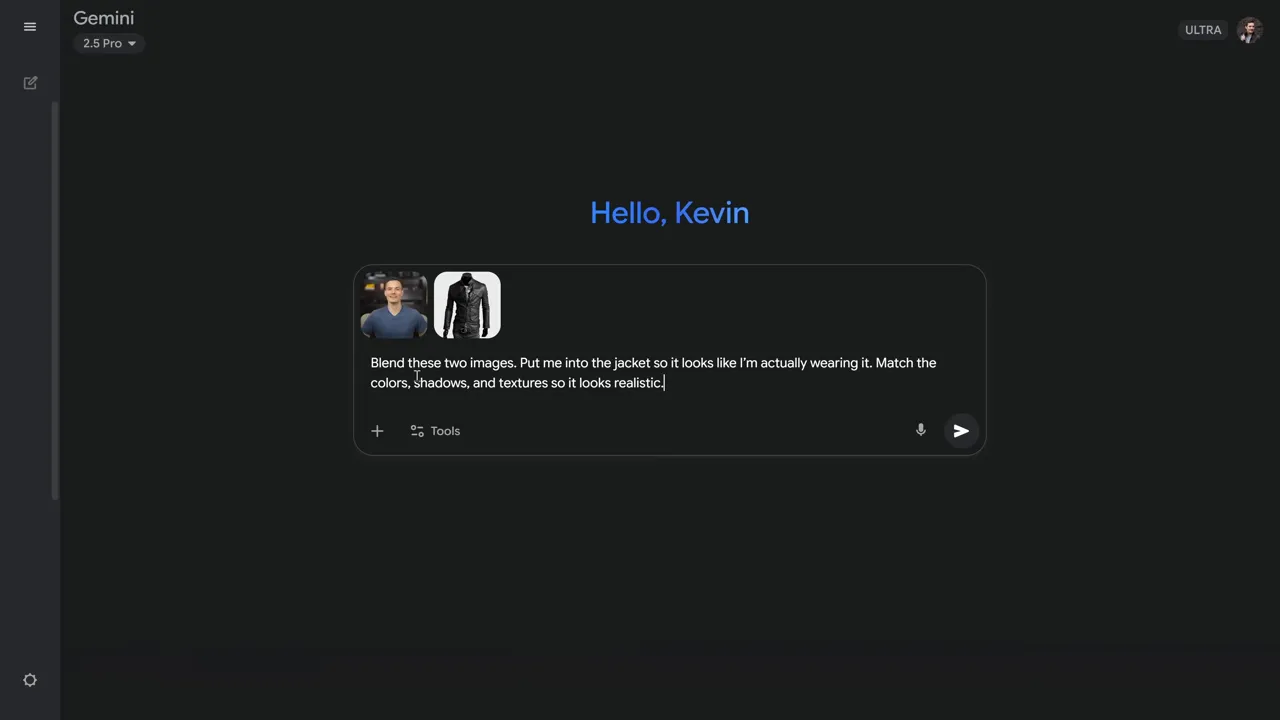
Combine several images to create unique results. Upload a portrait and a photo of clothing, then prompt the tool to blend them. Use a prompt like: blend these two images, put me into the jacket so it looks like I am wearing it. Match the colors, shadows, and textures for realism.
Take that blended result and place it in a new environment, such as make me sit in an executive office. The tool keeps your face and outfit consistent while changing the background and lighting.
Useful blending ideas
- Outfit preview: Place yourself in a jacket, dress, uniform, or branded shirt.
- Product mockup: Put a logo on a box, mug, poster, package, or storefront sign.
- Room staging: Add furniture, wall art, lighting, or decor to a room photo.
- Profile upgrade: Keep your face but change the background, lighting, pose, or clothing style.
- Creative style transfer: Recreate your image as a comic, retro portrait, cinematic scene, or toy figure.
Download and iterate on your work
If an image does not match your vision, simply redo the prompt to generate another variation. Once you feel satisfied with the result, hover over the image and click the download button in the top right corner. This saves a full size copy to your device.

Save your best versions as you work. AI editing can produce different results each time, so downloading strong variations prevents you from losing a version that already looks good. You can also re-upload a downloaded result and continue editing from that version.
Fun prompt ideas to try
- Reimagine myself into a 90s sitcom
- Turn me into an 80s profile photo
- Make my hair a bit longer, wavy, and bleached
- Edit the photo so I appear in the Wild West
- Reimagine me as a comic book character
- Create a photo realistic image of this logo on a box of cookies in a living room
- Remove all the people from this photo
- Make the photo brighter and the day sunnier
- Restore this old photo
More prompt ideas for creators and businesses
- Create a clean product photo of this item on a white studio background
- Place this logo on a modern storefront sign with realistic shadows
- Turn this sketch into a polished app icon with a soft gradient background
- Create a YouTube thumbnail background with bright lighting and empty space for text
- Make this room look warmer with natural light and modern furniture
- Turn this portrait into a professional LinkedIn-style headshot with a neutral office background
- Create a realistic packaging mockup for this cookie brand using the uploaded logo
Animate images using Veo 3
Turn your static images into video clips using Veo 3, Google’s video model. This feature requires a paid subscription. In Gemini, select Tools and then choose Create Videos with Veo 3.
Upload your Nano Banana image as the starting frame and provide an animation prompt like animate this photo into a realistic video. Veo 3 produces a short clip that brings your creation to life.

For better video results, describe motion clearly. Instead of saying make it move, try a more specific prompt such as slow camera push-in, soft blinking lights, subtle movement in the background, realistic handheld motion, cinematic lighting.
Prompt tips for better results
Use these simple strategies to improve your image generation:
- Be specific about style, lighting, and composition to get closer to your ideal result.
- Use short, iterative prompts to refine details rather than describing everything at once.
- Specify matching colors, shadows, and textures when blending images to increase realism.
- Upload a clear reference photo with a neutral expression for the best facial consistency.
- Export your Nano Banana outputs to Veo 3 to animate scenes for social media.
Common mistakes to avoid
- Using vague prompts: “Make this better” gives the model too much room to guess. Say exactly what should improve.
- Changing too much at once: Big edits can reduce consistency. Make one or two changes per prompt.
- Ignoring the background: If the background matters, describe it clearly.
- Forgetting text limits: AI image tools can still make errors with signs, labels, and small words. Check text closely before publishing.
- Using unclear reference images: Blurry or dark uploads make realistic edits harder.
Troubleshooting Nano Banana results
If the result looks wrong, you usually do not need to start over. Adjust the prompt and tell the tool exactly what missed the mark.
- The face changed too much: Re-upload a clearer reference photo and ask the tool to preserve facial features, hairstyle, and expression.
- The outfit looks unrealistic: Ask it to match fabric texture, sleeve length, shadows, and body position.
- The background feels fake: Add lighting direction, camera type, depth of field, and realistic shadow instructions.
- The image text is wrong: Ask for larger, simpler text, or use a separate design tool for final typography.
- The result ignores your prompt: Break the request into smaller edits and repeat only the most important instruction.
Pro Tip: When a result is close but not perfect, say what to keep and what to change. For example: “Keep the face, pose, and jacket exactly the same. Only change the background to a bright modern office.”
Frequently Asked Questions
Is Nano Banana free to use?
Yes. You can use Nano Banana for free within Google Gemini when the feature is available on your account. Advanced features, such as Veo 3 video generation, may require a paid subscription.
What do I need to run Nano Banana?
You need a Google account and access to Gemini on the web or the Gemini mobile app. No extra software installation is necessary.
How does the tool keep my face consistent?
Nano Banana uses your uploaded reference photo to identify visible facial features and apply edits around them. Clear, well-lit portraits usually help the tool preserve your likeness more accurately.
Can I combine multiple photos?
Yes. Upload multiple images and prompt the tool to blend them. You can change outfits, preview products, test backgrounds, and swap environments while maintaining subject consistency.
Can I animate my images?
Yes. Use the Veo 3 tool in Gemini to turn your Nano Banana image into a short video. Veo 3 may require a paid plan, and availability can vary by account or region.
What file types and sizes are supported?
Gemini accepts common image formats such as JPEG and PNG. For the best quality, upload clear, high-resolution photos. Always consult a qualified professional before making legal or commercial decisions based on AI content.
Who owns the images I create?
Review the Google Gemini terms regarding content ownership. You can generally download and use images for personal projects, but you should check platform guidelines and commercial restrictions before using AI content for business, advertising, or client work.
Can Nano Banana remove objects or people from a photo?
Yes. You can ask it to remove people, objects, clutter, or background distractions from a photo. Review the final image carefully because object removal can sometimes leave artifacts or change nearby details.
Is Nano Banana good for business images?
It can help with mockups, social images, concept visuals, product backgrounds, and creative drafts. For final commercial use, check image accuracy, brand rules, licensing terms, and any platform policies that apply to your project.
Final thoughts
Nano Banana simplifies high-quality image generation and allows for fast, iterative editing. Whether you need a storefront mockup or a stylized profile image, this tool handles the task with ease. Combine it with Veo 3 to animate your results and give your social media feed a fresh look.
Start with specific prompts and keep your reference photos clear to see the best results. Take time to experiment with the different blending features to master your output.
The best workflow is simple: create a base image, make one clear edit, save strong versions, and keep refining. With a good prompt and a clean reference photo, Nano Banana can help you turn rough ideas into polished visuals much faster.
Sources
- Google Gemini — Gemini web access and image creation workspace
- Google Account — account sign-in requirement for Google services
- Google Cloud: Veo 3, Imagen 4, and Lyria 2 announcement — video model reference and AI media context
- Google Cloud Terms — terms reference for reviewing content ownership and commercial-use considerations
Last Updated on June 27, 2026 by Logan Carter

