


Do you often feel buried under meeting notes, reports, screenshots, and shared files in OneDrive? Copilot in OneDrive can help you review that content faster by summarizing documents, comparing versions, answering file-specific questions, and creating audio overviews. Instead of opening every file one by one, you can use Copilot to pull out the main points and decide what needs your attention first.
Quick Answer
Copilot in OneDrive is an AI-powered file assistant for eligible Microsoft 365 users. It can summarize files, compare documents, answer questions about selected content, create FAQs, analyze supported images or recordings, and generate audio overviews from OneDrive files.
Key Takeaways
- Instant Summaries: Generate concise summaries for up to five files at once.
- Document Comparison: Review differences between two selected files without checking each line manually.
- Desktop Access: Use Copilot options from the OneDrive web interface or Windows File Explorer when available.
- Audio Overviews: Turn supported documents into audio summaries for hands-free review.
- Better File Decisions: Use Copilot to identify key points, action items, and next steps before opening every file.

At a Glance
| Best For | Microsoft 365 users who manage documents, reports, meeting files, and shared OneDrive content |
| Main Features | File summaries, document comparison, file Q&A, FAQ generation, image or recording insights, and audio overviews |
| Access Points | OneDrive web, OneDrive mobile app, Windows File Explorer, and OneDrive taskbar options when supported |
| Requirement | A Microsoft 365 account with Copilot access enabled |
Using the floating Copilot button
Locate the floating Copilot button in the lower-right corner of the OneDrive web interface. Click this icon to open preset prompts for summarizing files, creating FAQs, or asking direct questions about selected content.
You can also type your own prompt when the preset options do not match your task. This helps when you need a custom answer, such as “What decisions were made in this report?” or “List the risks mentioned in this document.”

Summarize multiple files at once
Select up to five files, click the Copilot icon, and request a summary. Copilot generates a clear rundown of the selected content, which helps you understand the main points without opening each file separately.
This feature is useful when you have meeting notes, project documents, drafts, or reports that cover the same topic. It can help you spot repeated themes, key decisions, and important next steps faster.
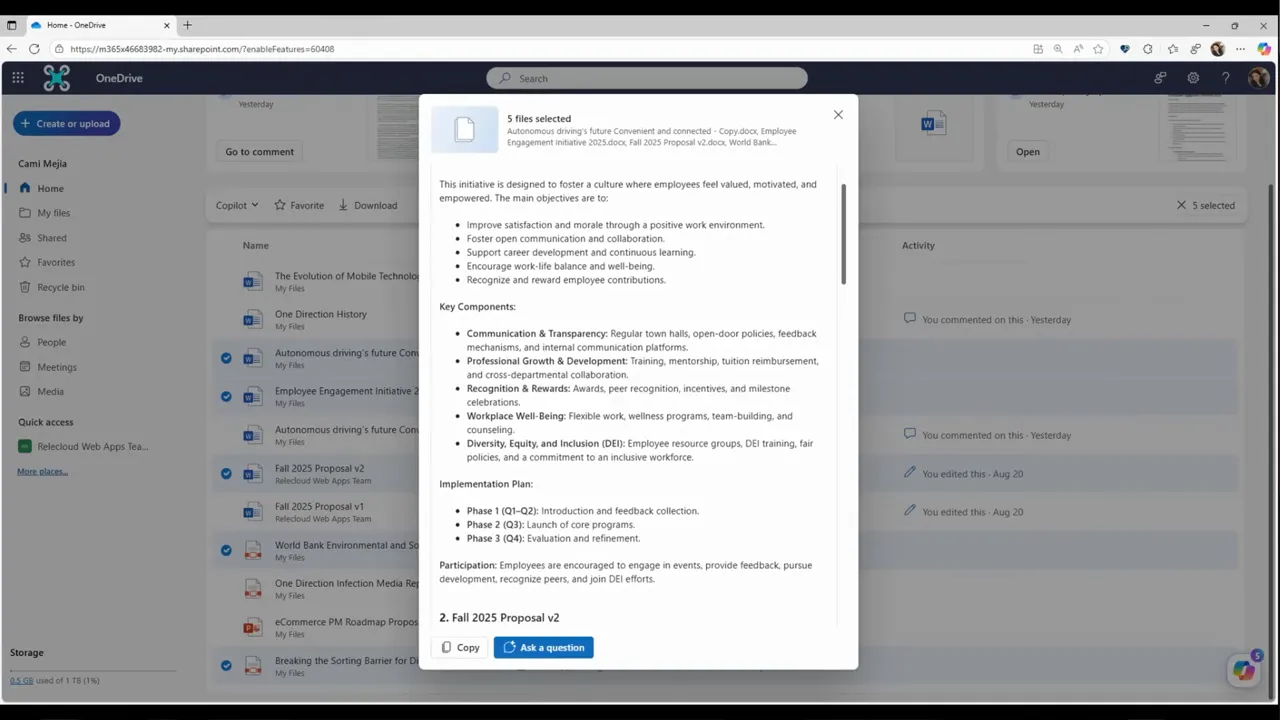
Use simple prompts such as:
- Summarize these files.
- What are the primary takeaways from this selection?
- List the action items mentioned across these files.
- Show the main differences between these documents.
Pro Tip: Select related files together. Copilot works best when the documents share a clear topic, project, meeting, or workflow.
Request file analysis
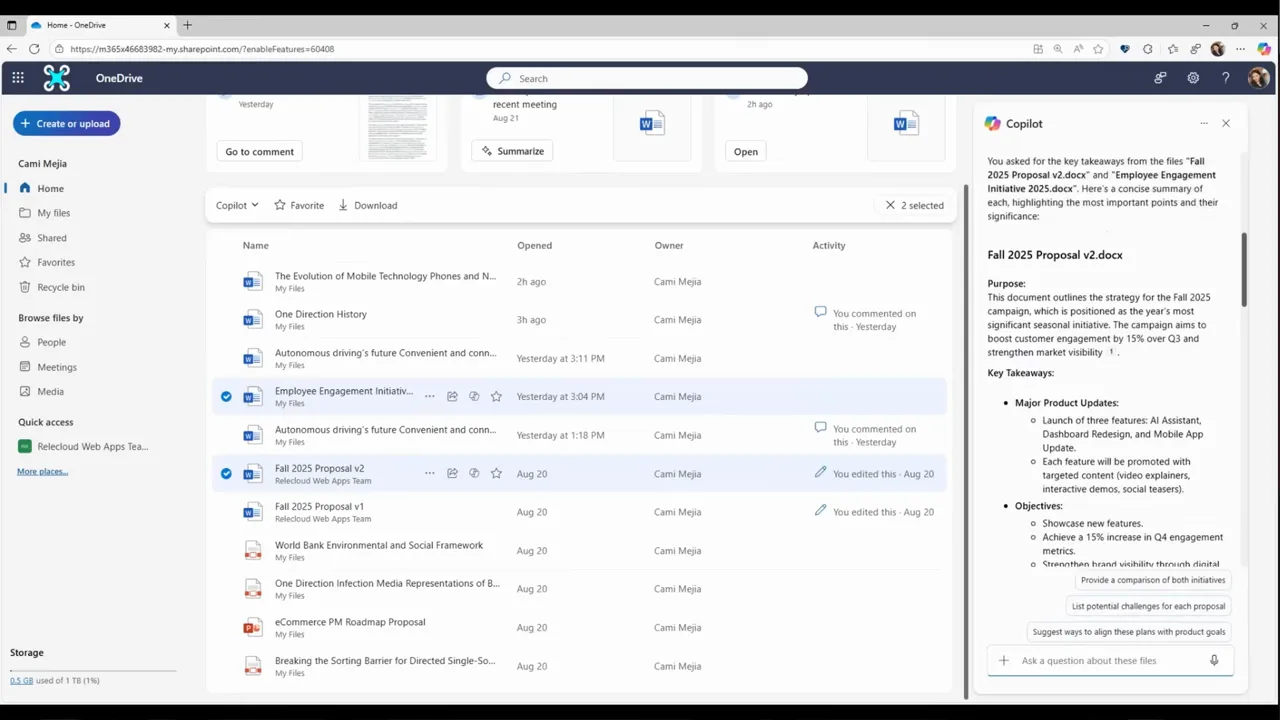
After you select files, ask Copilot to perform a deeper analysis. It can identify recurring themes, extract key data, or synthesize insights across multiple documents.
For example, you can ask Copilot to pull out risks from a project plan, compare customer feedback themes, or find the most important numbers inside a report. Copilot then presents the findings in an organized format for quick review.
Note: Always review Copilot’s response before using it in a final document, report, or business decision. AI summaries can save time, but you should still confirm important details in the source file.
Compare documents side by side
If you struggle to track changes between file versions, select both documents and ask Copilot to compare them. It can create a table that highlights important additions, deletions, or edits.
This feature is helpful for draft reviews, team edits, policy updates, proposal changes, and version checks. Instead of switching between two files manually, you can start with Copilot’s comparison and then inspect the exact sections that matter most.

Access Copilot from Windows File Explorer
Copilot features integrate directly into Windows File Explorer through recent updates. Right-click a supported OneDrive file and select the OneDrive menu to run tasks such as document summarization.
You may also click the OneDrive icon in your taskbar, select “More Options” next to a file, and choose the Copilot command. This desktop access can save time when you are already working from your PC folders instead of the OneDrive web interface.
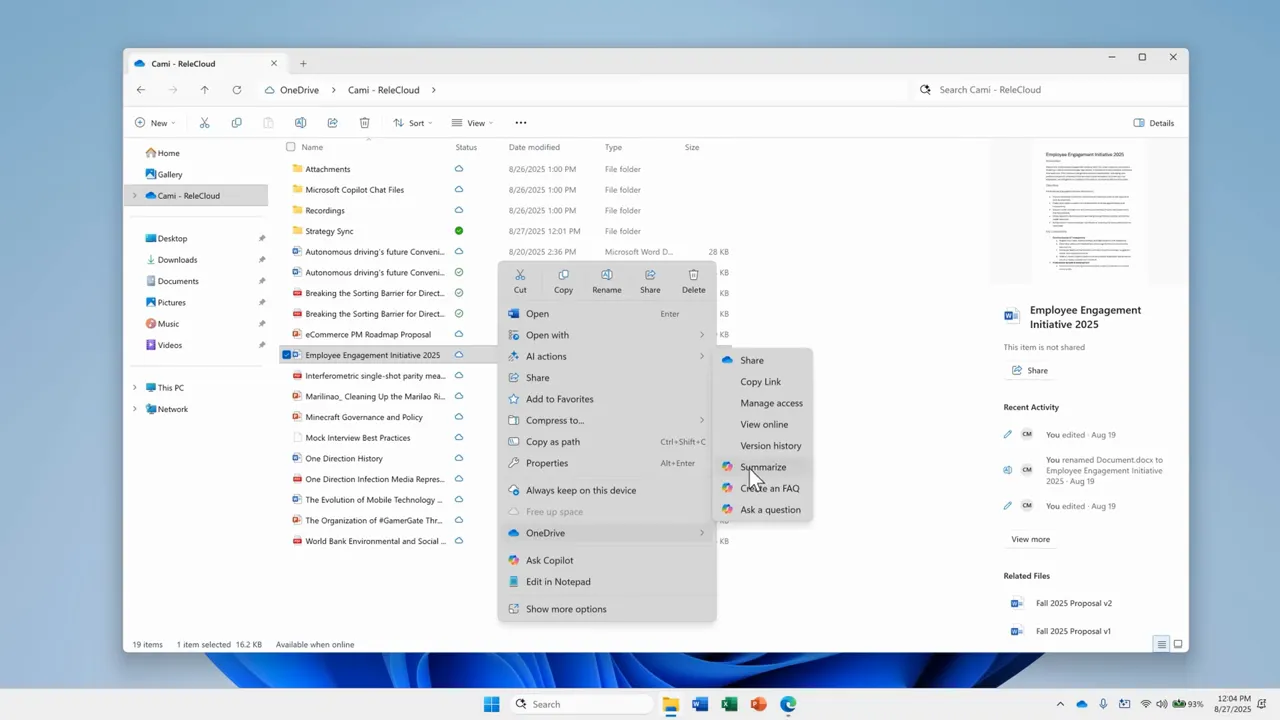
For example, ask Copilot to create an FAQ from a long report. The AI returns a concise list of insights that you can copy into your notes or share with teammates.

Extract insights from images and recordings
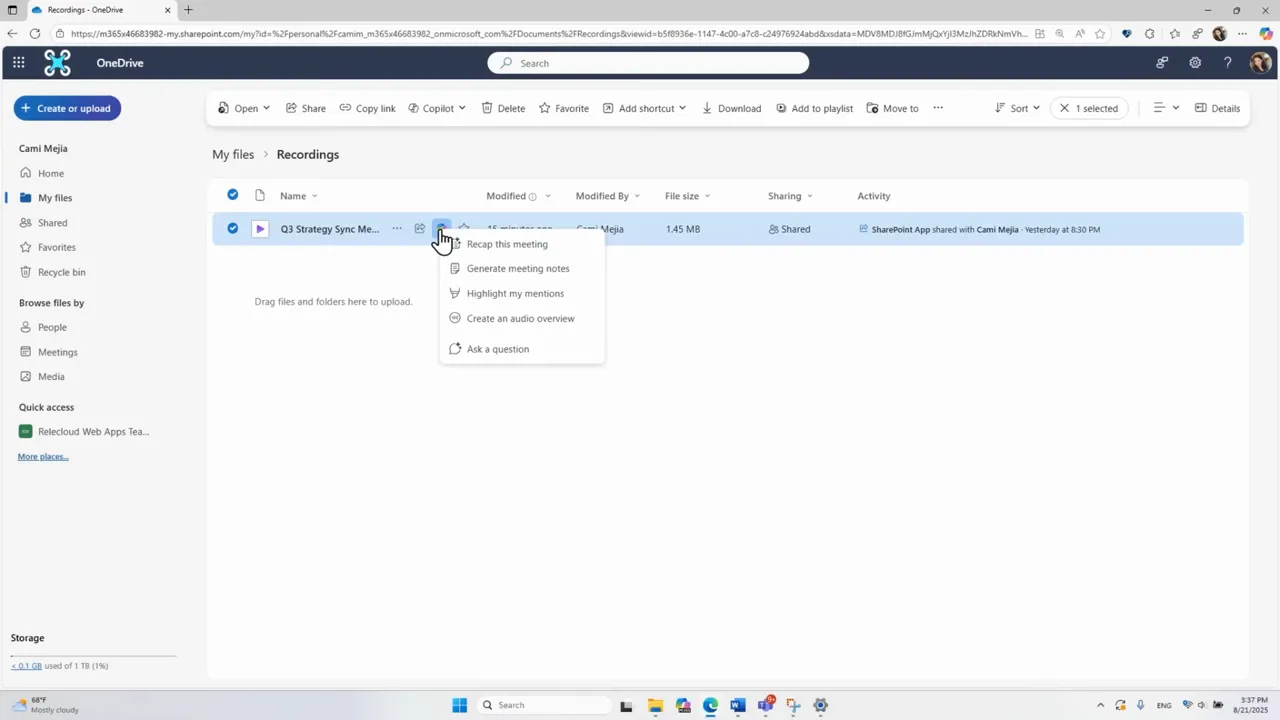
Copilot handles more than standard text files. It can work with supported meeting recordings and photos to pull out useful details, depending on your account, file type, and available Copilot features.
- Meeting recordings: Select a recording to get a recap, action items, and specific answers about whether you were mentioned.
- Whiteboard photos: Copilot can analyze an image, extract visible text or diagrams, and suggest possible next steps based on the visual information.
This is especially helpful after workshops, planning sessions, client calls, or brainstorming meetings where information lives in different formats.
Listen to documents with Audio Overviews
When you need to review materials on the move, use the Audio Overview feature. Access this in the OneDrive mobile app by tapping the three-dot menu next to a supported file.
Copilot can create an executive-summary style audio track with playback controls and transcript access. This gives you another way to review files when reading on a screen is inconvenient.

You can also trigger this from the web interface using the Copilot button. Choose between a short summary or a longer, podcast-style audio file featuring two virtual hosts who discuss the document.
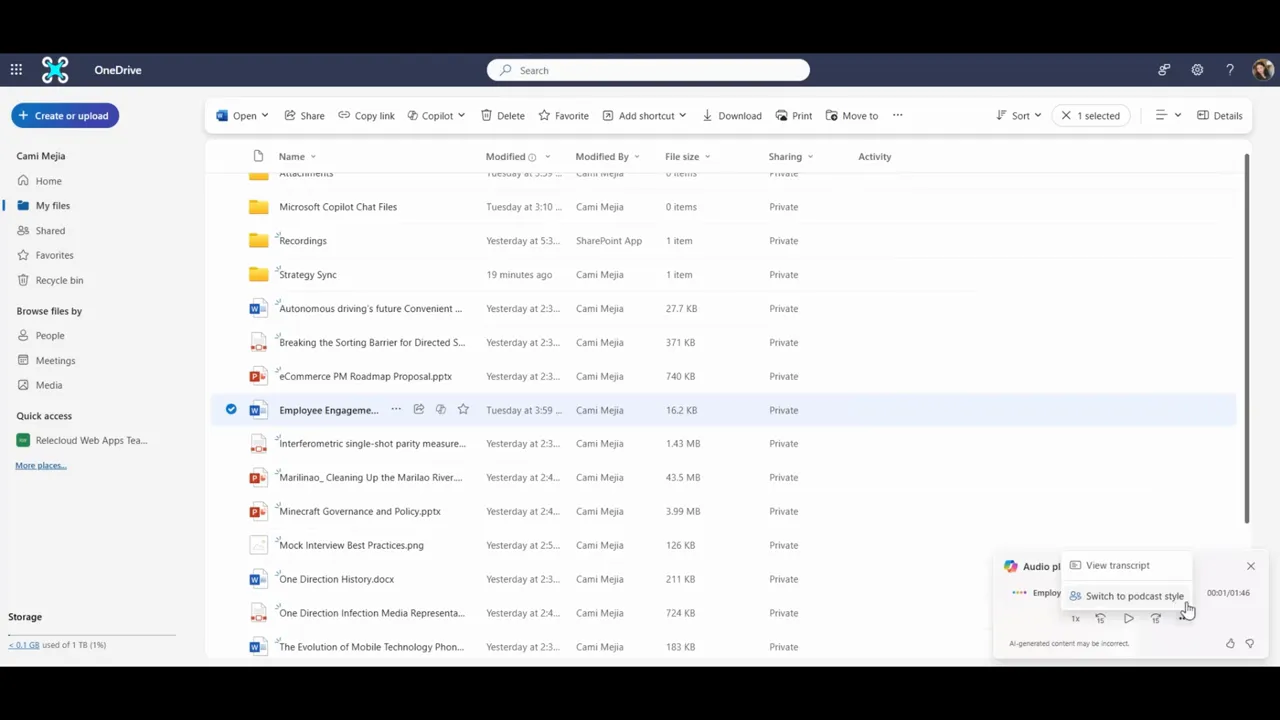
Warning: Do not rely on an audio overview as the only source for legal, financial, medical, security, or compliance-sensitive information. Open the original file and verify the exact wording before acting.
Check privacy and file access before using Copilot
Copilot responses depend on your Microsoft 365 permissions and the files you can access. Before using it with sensitive documents, check your organization’s policies for confidential data, client files, employee records, and regulated information.
If you work in a business or school environment, your administrator may control which Copilot features appear in OneDrive. Some options may also vary by account type, region, app version, and rollout status.
Note: If a Copilot option does not appear, confirm that your Microsoft 365 plan includes Copilot, your account has access enabled, and your OneDrive app is updated.
Practical tips for better results
- Use the floating button for routine tasks like summarizing, comparing, or asking questions about files.
- Select multiple related documents to generate cross-document insights.
- Right-click within File Explorer to save time when working on your PC.
- Listen to audio overviews during commutes or breaks when you want to review content without screen time.
- Let Copilot handle image and recording analysis when you want a starting point before manual review.
- Ask direct questions instead of vague ones. For example, use “List the action items from this file” instead of “Tell me about this.”
- Use follow-up prompts when the first answer is too broad, too short, or missing the detail you need.
What to do if Copilot does not appear in OneDrive
If you cannot find Copilot in OneDrive, start with the basics. Make sure you are signed in to the correct Microsoft 365 account and that Copilot access is enabled for that account.
- Check your plan: Copilot features require eligible Microsoft 365 access with Copilot enabled.
- Update your apps: Install the latest OneDrive and Windows updates if you want File Explorer integration.
- Try the web version: If the desktop option is missing, open OneDrive in a browser and look for the Copilot button there.
- Check file support: Some features may not work with every file type, file size, or storage location.
- Ask your admin: In work or school accounts, administrators may disable or limit Copilot features.
Summary
Copilot in OneDrive helps you process files quickly. By using features like multi-document summaries, document comparison, file analysis, and audio overviews, you can find the information you need with less manual work.
These tools turn OneDrive from a storage folder into a more active workspace. Start with a simple summary prompt, review the answer carefully, and then use follow-up questions to dig deeper into the files that matter most.
Frequently Asked Questions
Do I need a Microsoft 365 subscription to use Copilot in OneDrive?
Yes. These features require a Microsoft 365 account with Copilot access enabled. Availability can vary by plan, account type, organization settings, and rollout status.
What is the file limit for summarization?
You can select up to five files at once for summarization in the OneDrive web interface.
Can Copilot process non-text files?
Yes, Copilot can summarize or answer questions about supported meeting recordings and photos, such as whiteboard images. Exact results depend on file type, quality, permissions, and feature availability.
Where do I access Copilot on my PC?
You can use the floating Copilot button in OneDrive on the web. When available, you can also right-click a supported OneDrive file in Windows File Explorer and choose Copilot options from the OneDrive menu.
Can I listen to documents instead of reading them?
Yes. Use the “Generate an Audio Overview” feature in the OneDrive mobile app or web interface to hear a summary or podcast-style discussion of a supported file.
Why is Copilot not showing in my OneDrive?
Copilot may be missing if your account does not include Copilot access, your organization has disabled it, the feature has not rolled out to your account, or your app needs an update. Try OneDrive on the web and confirm your Microsoft 365 plan and account settings.
Sources
- Microsoft Support: Summarize your files with Copilot — supports OneDrive file summarization details.
- Microsoft Support: Ask questions about your files with Copilot in OneDrive — supports file Q&A use cases.
- Microsoft Support: Compare files with Copilot in OneDrive — supports document comparison guidance.
- Microsoft Support: Copilot in OneDrive help and learning — supports general Copilot in OneDrive availability and feature guidance.
Copilot turns OneDrive into more than just a storage folder. Use these tools to reduce repetitive work, uncover key insights faster, and decide which files deserve deeper attention. Start by clicking the Copilot button and asking your first question about your files.
Last Updated on June 28, 2026 by Logan Carter

